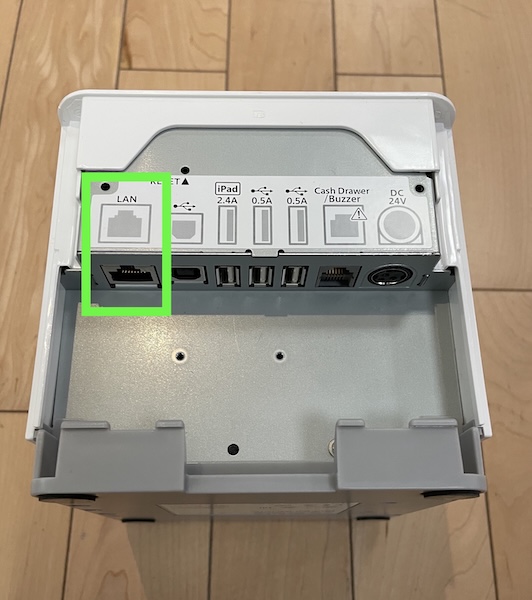
The Point of Sale platform supports fully wired LAN—ethernet-connected networking setups for the Modern Point of Sale system.
How It Works
In a traditional configuration, the card reader and the printer communicate directly with the
iOS device. When setup to communicate over LAN, the devices communicate through the router. The
router is the intermediary between the printer and card reader when they communicate with the
iOS device.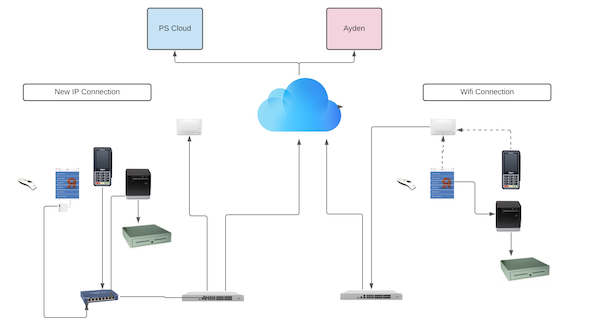
Hardware
There's additional hardware required to complete the setup beyond the card reader and printer. Get a connector device to connect the iPad to the network through ethernet. You also require three ethernet cables to connect the printer, the card reader, and the iPad. Finally, you need a router that can accommodate all these incoming connections.
Connector
For the connector, buy a device that plugs into the iOS device through the Lightning or USB-C
connector that has a connector port for an ethernet cable.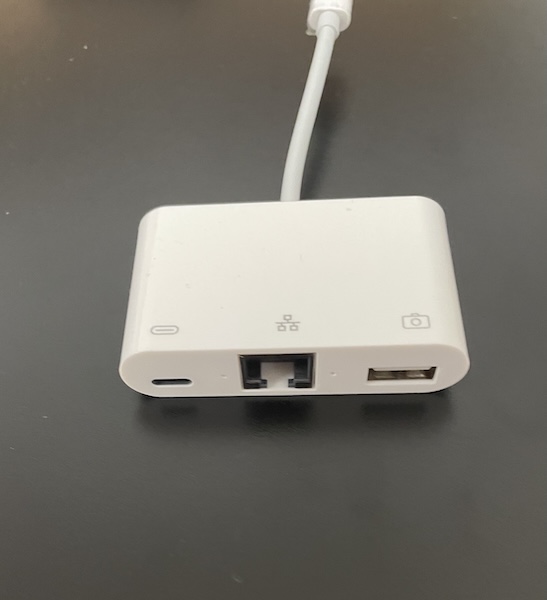
Adyen
- On the Adyen device, remove the back panel.
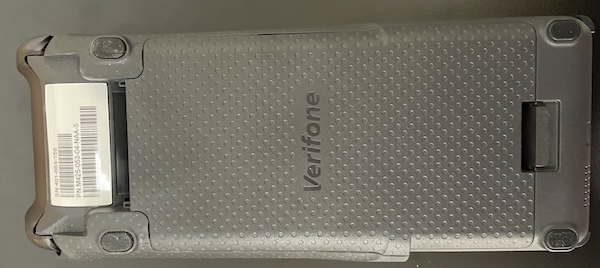
- After the back panel is removed, find the port which you can plug the device into. This is
located next to the USB slot.
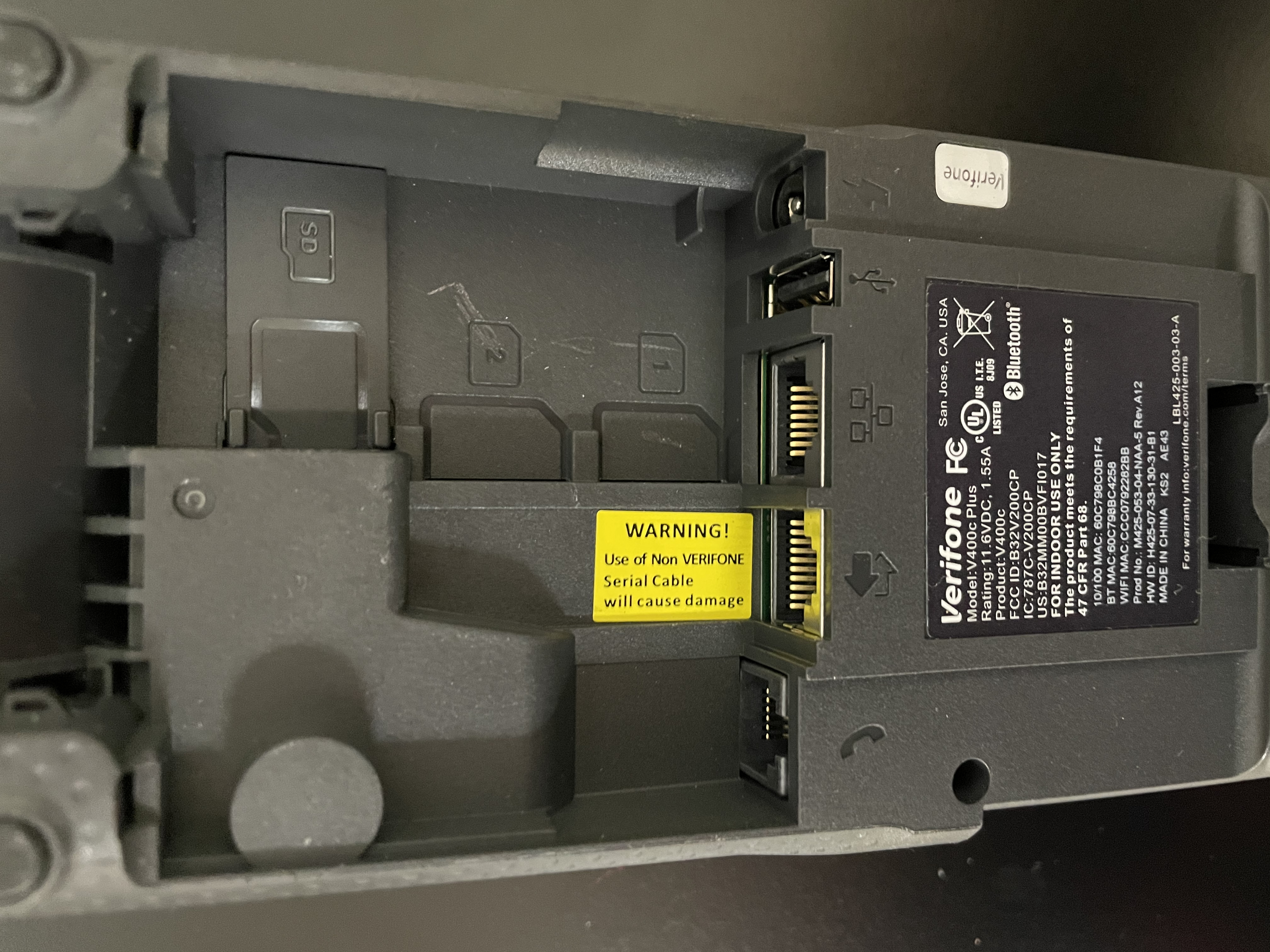
- Plug the cable in:
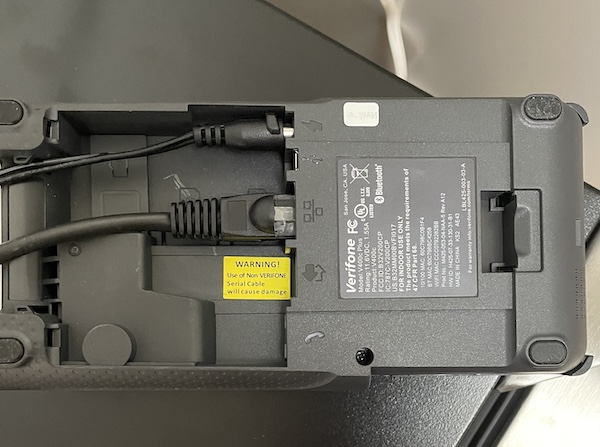
- Put the cover back on the device to prevent any removal of the physical cables.
Star Printer
The iOS device must also be plugged into the router with the Ethernet cable using the
connector device that plugs into the Lightning port / USB-C port at the bottom of the device.
After it is plugged in, the cable can light up to indicate an active connection. Make sure that
the iOS device is communicating through the LAN cable. Go to your device's settings and make
sure the Ethernet setting is toggled on. You may also want to turn off Wi-Fi.