Use the Point of Sale (POS) app to make payments with Ingenico Link 2500 terminals over Bluetooth.
POS Build, Platform Support & Technical Prerequisites
- Modern POS App build: 7.10.5 or later
- Platform Support: iPhone & iPad
- Offline Support: no
- This Link 2500 is only supported over Bluetooth
Mobile Configuration Settings
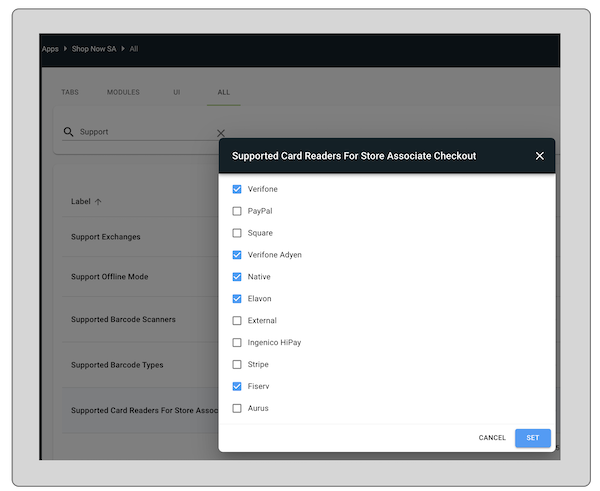
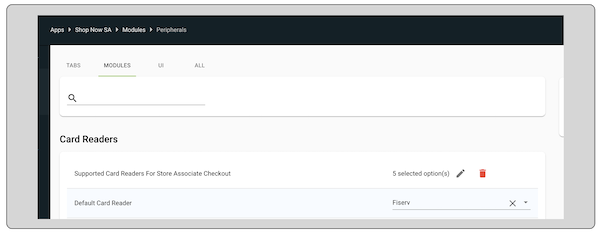
In , set Fiserv for these flags in the section
Payment Gateway Settings
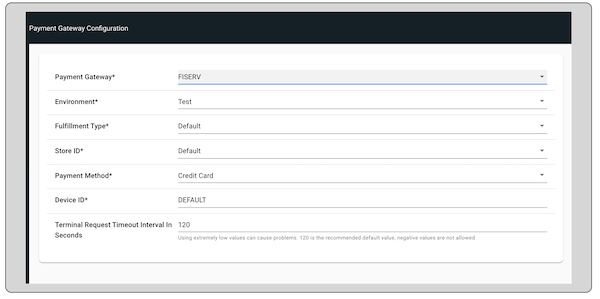
In , create a Payment Gateway configuration for Fiserv by setting the value, which can be or specific store ID.
Keep the default values for all other properties and save it.
Register Settings
- In , select the register ID which needs to be setup.
- Move to the card reader section.
- Select the model as “” and connection type as “”.
- Save the register settings.
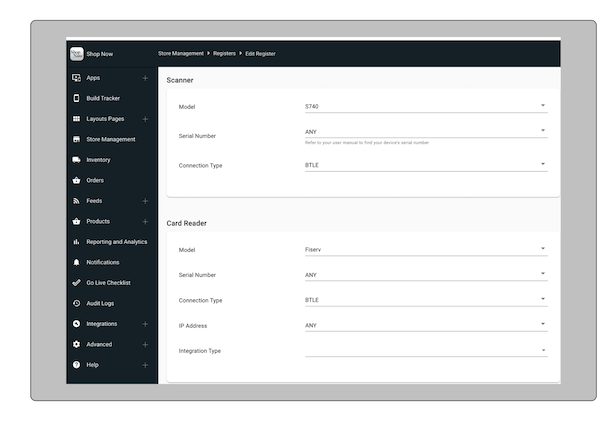
Return Policy Configuration
All the returns done by Fiserv payment provider are unreferenced returns, so the CMS configuration needs to be enabled to handle the unreferenced refund flow.
- In , select the Online policy.
- Scroll to the Unreferenced Refunds section and turn on the Allow Unreferenced refunds switch.
- Select the payment method “”.
- Save the settings.
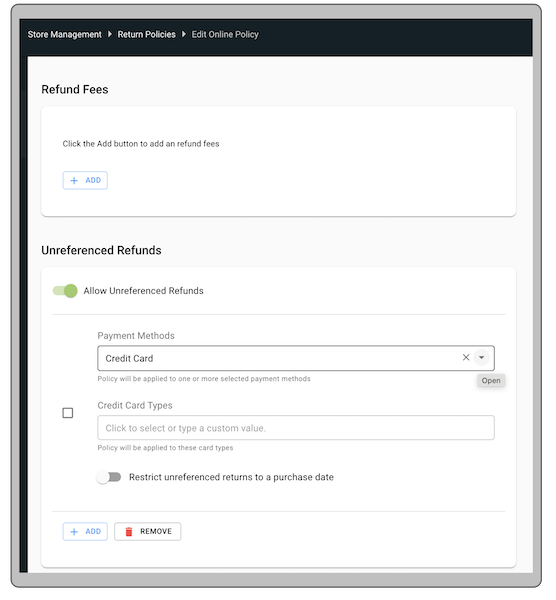
Software Update Deeplink
Software updates on terminals can be triggered using on CMS. Deeplink can be added either in Hamburger menu or any layout on the POS
app.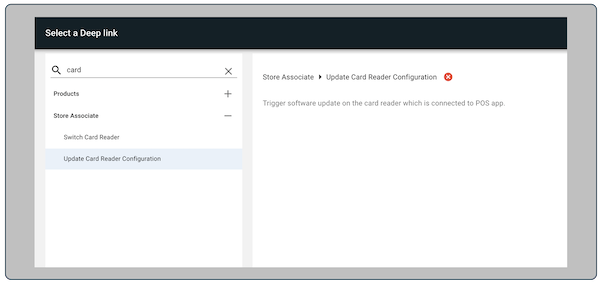
Pair the Fiserv Terminal to iPad
To make the device discoverable, press “” key and type the “” code on the terminal. A new menu shows.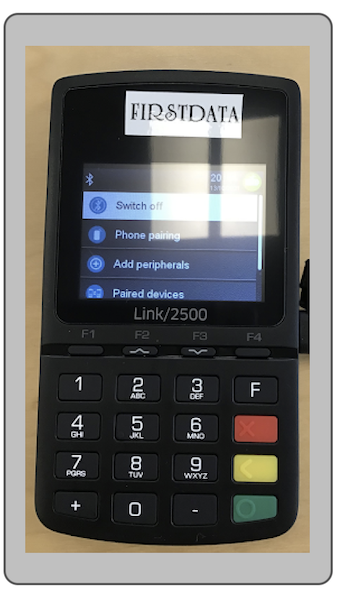
Press and move on to “”. Press the green button to select it. This makes the device discoverable and you
can pair it with the iPad.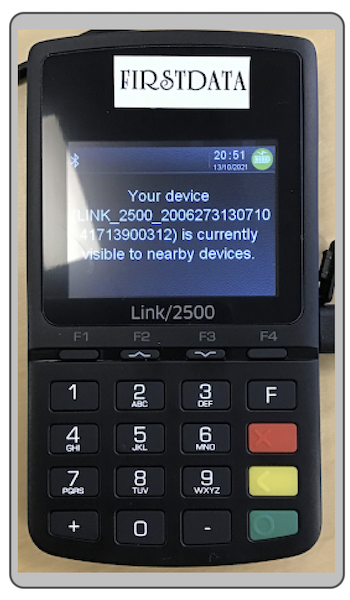
Go to iPad Bluetooth settings and look for the Link2500 devices. Select the one you want to pair it with.
After the device is selected, the terminal shows a confirmation message.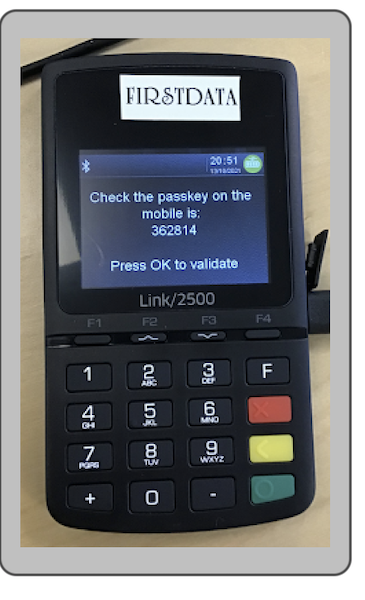
After the pairing is done successfully, go to the “” and you’ll see the paired iPad in the list. Also, the bluetooth icon on the top
left of the screen turns green.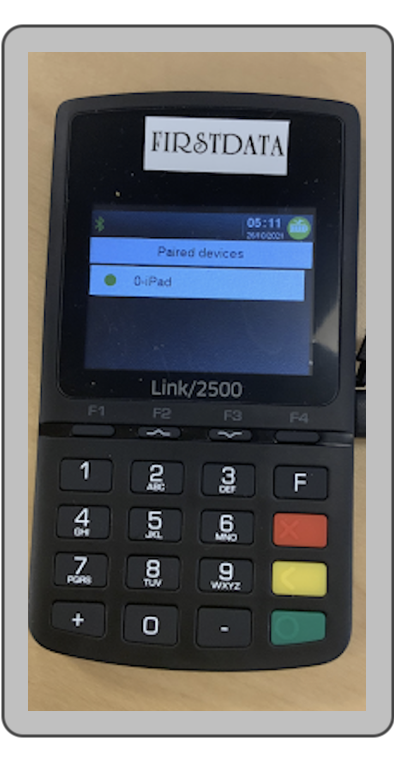
Now the device is discoverable in the POS Device Manager
Connect to Terminal in POS Device Manager Screen
After the terminal is connected, it'll be seen and can be connected on the device manager screen of the POS app.
If the terminal isn't visible, select the refresh icon on the top right of the screen.
Select “” to connect to the terminal.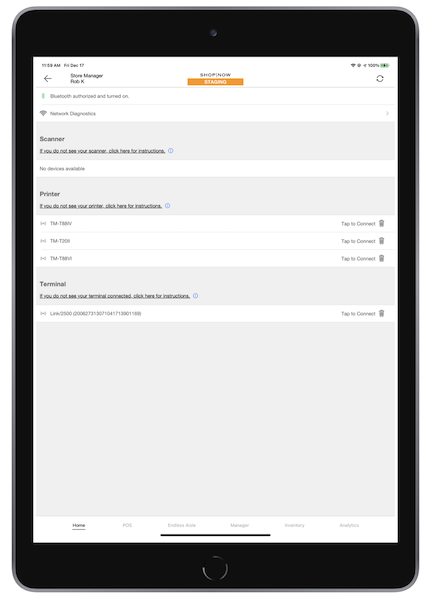
Software update on Terminals
Associates can select the configuration deep link in the POS app to trigger a software update. If terminal isn't connected, then app shows an error message to connect to a terminal first.
After the terminal is connected, updates begin to download and the terminal reboots after the updates finish. After the reboot is done and the terminal is ready, the associate connects to the terminal again and starts the payment transactions.
To avoid any problems during any payment transaction, it is suggested that associates update the software on terminals at the start of the day.
Terminal disconnection
The POS app disconnects from the terminal if the Bluetooth connection drops, which can happen for multiple reasons.
Reconnect to terminal upon payment
If for some reason, Bluetooth connection gets dropped (terminal rebooted, iPad, or terminal's BLE was switched off), the app disconnects from the terminal and shows the option to connect to it again on the screen. If the associate starts the transaction without connecting to the terminal, the app tries to connect to the device first and then starts the payment flow.
Auto connection during the payment flow only happens if associated connected with the same device previously and connection was dropped.
Payment using Card option in Cart Screen
The option in the screen allows you to initiate a payment for the order using the connected Fiserv terminal. If there's no Fiserv terminal to use for payment, the POS app takes you to the device manager screen to connect to a new terminal.
The terminal asks you to put in or swipe the payment card. It processes the payment and gives you a message if the transaction is successful. If a payment is approved in Fiserv, the PS POS App shows a thank-you screen. If a payment is declined, the app shows the problem details in a popup.
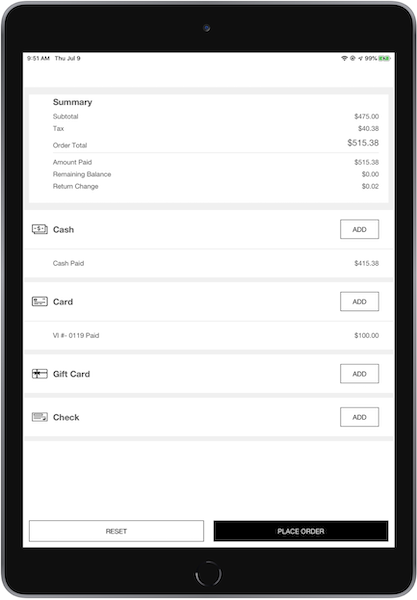
Card Payment in Multitender screen
Card is one of the tender options in the multitender screen, and you can combine card payments
with other tender options.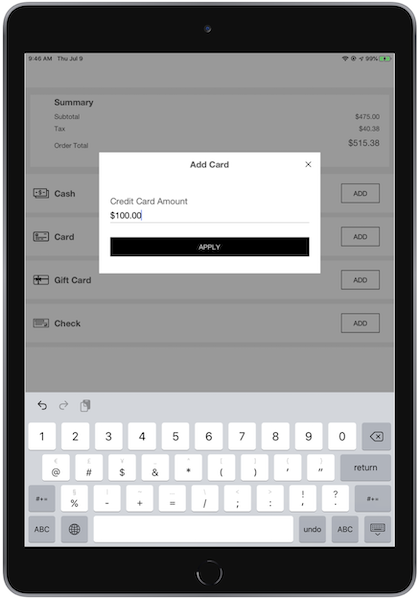
Payment failure handling
After processing the payment on the terminal,
if the order submission fails, the POS app asks to start the refund flow. This confirms that the
amount taken is returned to the user because the order wasn't placed successfully. This flow is
applicable for unified card screen and multitender screen both.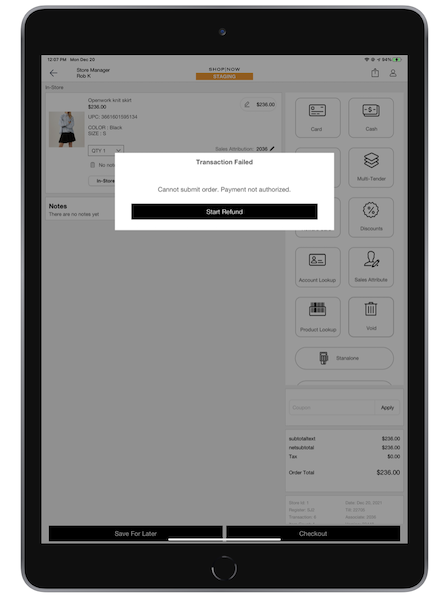
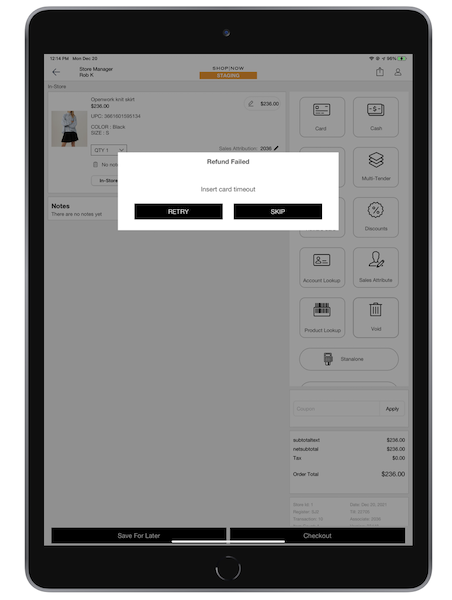
After the refund is done successfully, the app refreshes the cart so the associate can start the transaction again. In case of refund failure, the app shows the option to "" the refund or "" it. Retry starts the refund flow again and refreshes the cart.
Troubleshooting
The sections below explain some common errors and how to solve them.
Terminal beeps and show the “ESPERE POR FAVOR” message on the screen.
“” isn't an error. The terminal is trying to sync some data and waiting for connection to be made.This is a process that happens automatically and it won’t represent any transactional blocker or stopper for processing further transactions.
Test Terminal is showing the message “SIN CONFIGURACION” on screen.
It means that the terminal doesn’t have any configuration downloaded to accept any transaction. Contact the Fiserv team for steps to download configuration.
How to restart/reboot the terminal?
To reboot the terminal, press the "" and the yellow "" key together and it reboots.
App is showing "Refund failed for <order id>" error while doing a refund transaction.
This happens if the unreferenced refund policies aren't configured in Point of Sale CMS. Go through the Return Policy Configuration to make sure return policies are configured.
App is showing error "Can not save order. Payment not authorized" while placing an order.
This happens if the payment gateway settings aren't configured in Point of Sale CMS.
App isn't showing the list of terminals on device manager screen.
- Make sure iPad and terminal are bluetooth paired and connected.
- Close and relaunch the app.
- Go to and select "" on the top right of the screen to get a list of terminals.
- In case this issue persists, try rebooting the terminal and connecting to the iPad again.
Limitations
- More than one credit card payment on the multi tender screen is not supported using Fiserv terminals.
- All the refunds are unreferenced refunds.
- Order History search via credit card is not supported using Fiserv terminals.
- Associates trigger the software update on terminals before store opening to avoid any update or reboot during the payment transactions.
Receipt Elements
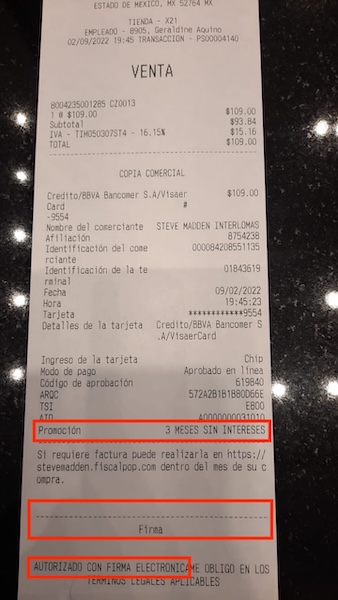
Mexico CC payments have additional attributes to be shown based on the transaction.
- —The receipt will have a signature section if the pinpad requires a customer signature for the CC transaction
- - If the pinpad requires a pin entry, receipt includes the message "AUTHORIZED WITH ELECTRONIC SIGNATURE".
- - If the CC transaction is for installments, the receipt will show the
installments information as well in the receipt lines. For this to work, make sure "" key is added to the list of in .