Use an external credit card reader that isn’t connected to the Point of Sale app to process sales and refunds.
This article outlines the setup and usage of the POS with an external credit card reader that is not meant to be connected to the POS. Such a credit card reader requires the manual input of certain values while processing both sales and refunds.
Prerequisites
- Modern POS App build: 5.12.3 and later
- Platform Support: iPad only
- Offline Support: yes
CMS Setup
To use an external credit card reader in an app, select External from the list of Card Readers
For Store Associate Checkout for that app.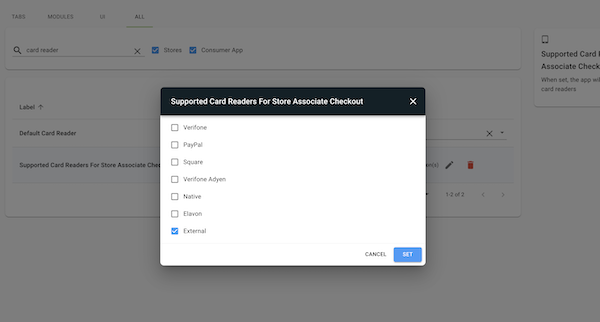

To add credit card types, go to in the CMS. Type in a list of card type names for the value of.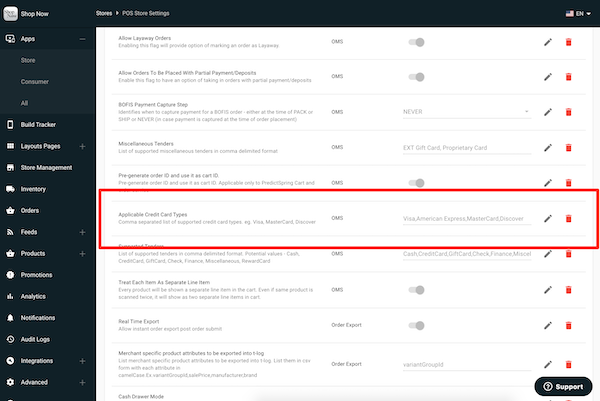
POS App Setup
To set the card reader to External from within the app, select Choose Reader from the sidebar
menu. Then, make sure External is selected in the list in the middle of the screen, as
shown.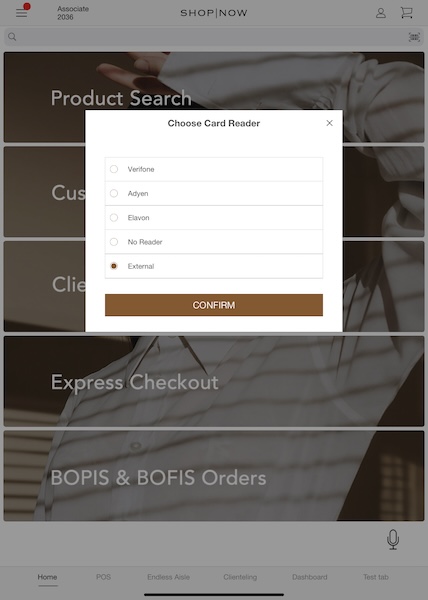
POS App Sale Flow
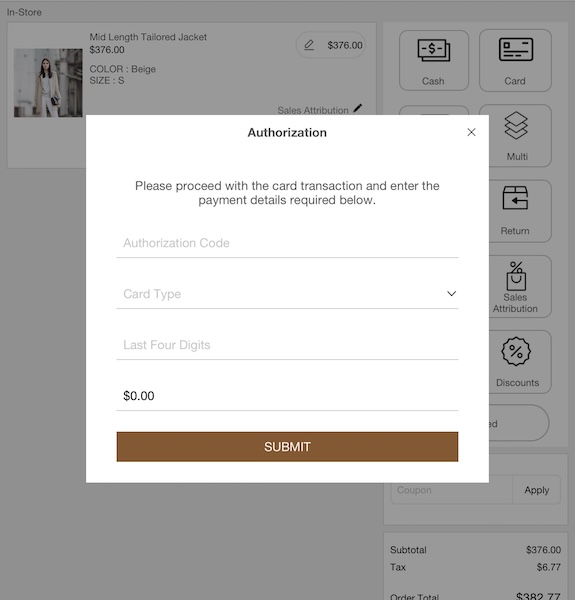
If making a sale that'll be paid for with a credit card, you'll be presented with a form requiring these pieces of information:
- Amount
- Card Type
- Last Four Digits of Card
- Authorization Code
While this form is presented, carry out the transaction on the external card reader. After the
transaction is complete, the card reader provides the authorization code. As shown, this form
will be presented both in multitender mode and only if a single credit card is used to pay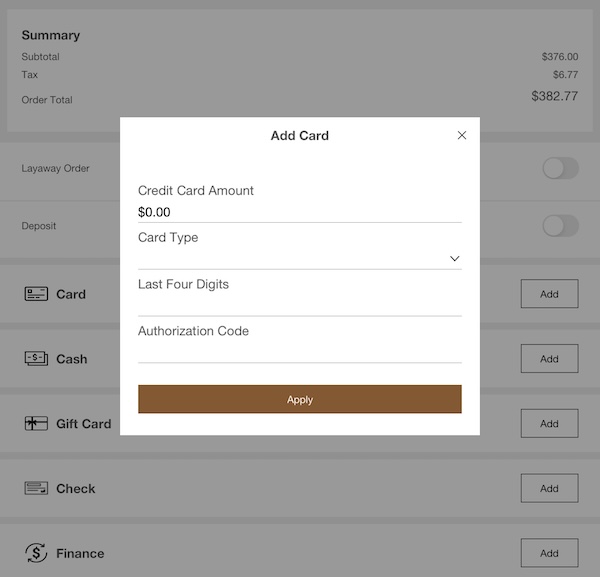 .
.
POS App Refund Flow
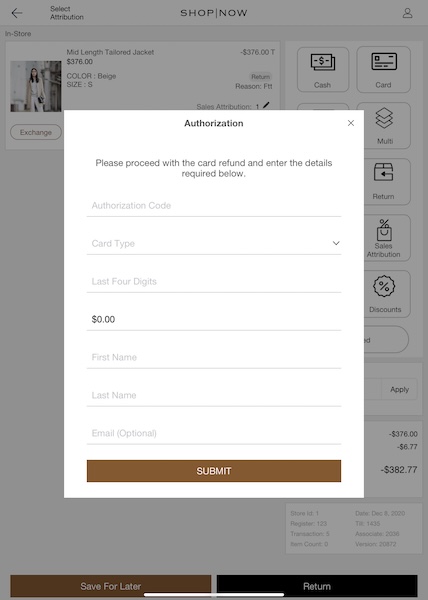
If processing a refund with an external card, a similar form with this information shows:
- Amount
- Card Type
- Last Four Digits of Card
- Authorization Code
- First Name
- Last Name
- Email (optional)