
Show Point of Sale customers their cart summary on the Elavon payment terminal during checkout. By configuring an Elavon Payment Gateway, the terminal displays line item details, discounts, and taxes.
This functionality is available for these terminal models:
- Link 2,500
- Lane 5,000
- Lane 7,000
- Move 5,000
POS Build, Platform Support & Technical Prerequisites
- Modern POS App build: TBD
- Platform Support: iPhone & iPad
- Integration Prerequisites: Connect Elavon terminal via the Device Manager screen in POS with 1:1 topology while online

Configure Point of Sale CMS for Elavon Virtual Receipts
Integrate Elavon payment processing with your registers. Configure an existing Elavon Payment Gateway, and turn on or turn off the cart summary on the payment terminal.
View Elavon Virtual Receipts in POS App
View a cart summary on the payment terminal after you link the terminal via the Device Manager screen in the Point of Sale (POS) app.
POS App Flow
After the previous setting is turned on and the payment terminal is linked via Device Manager screen, the terminal is ready to show the cart summary.
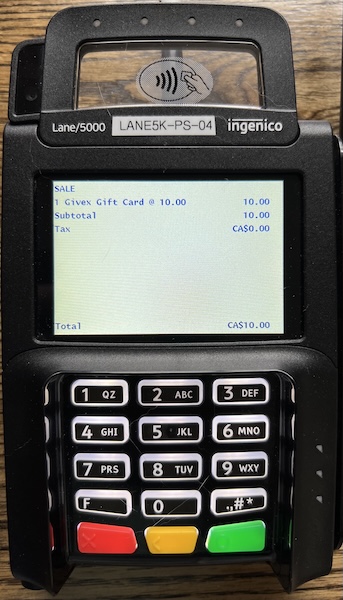
The cart summary will start appearing on the terminal as you populate the cart. The summary will reflect the exact state of the current cart, including line item quantity updates, discounts, taxes, and so on The terminal refreshes to show the empty screen after the cart is voided or the transaction is complete.
Next is an example screenshot on a Link
2,500 terminal.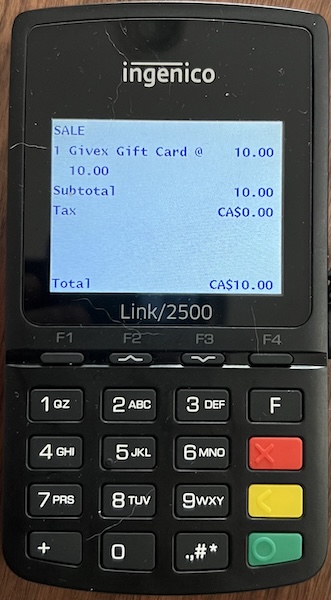
Next is an example screenshot on a Lane 5000 terminal.
Limitations
The display refresh on the terminal isn't always as fast as the modern POS display. There will be a few-second lag depending on the network connectivity and stability between the terminal and the POS.
The terminal retains order details if Modern POS is terminated before an order has been completed.
Any updates to the terminal display require active communication with the Modern POS. If either Modern POS or the terminal has lost Wi-Fi connectivity, there won’t be updates to the terminal display.
App restart automatically pairs with the previously connected terminal, and the connection pairs automatically. The POS then requests to reset the terminal screen.
If automatic reconnection doesn't happen, fall back by resetting the terminal by removing the battery or plugging in.
Partial payments won't be reflected on the terminal display.