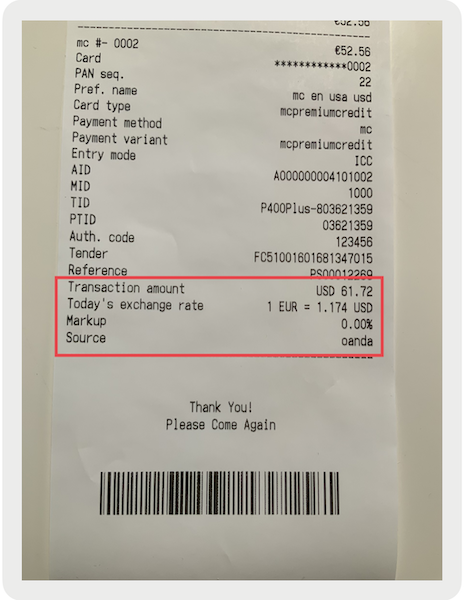
Select the currency to use for completing credit card transactions, either the local currency or the card’s billing currency. Configure Dynamic Currency Conversion (DCC) keys in Point of Sale CMS to print on physical receipts.
DCC is only available to the customer if the transaction isn't in the same currency as the credit card’s billing currency. If a customer chooses to pay in their billing currency, their account is charged at the Exchange rate offered by the merchant's bank.
Prerequisites
Modern POS App Build:
- Adyen: 5.10.3 or greater*
- Elavon: 5.12.2 or greater
- Verifone: 9.9.1 or greater (only supported by the payment processor Fiserv, which is currently not supported by Chase PaymentTech)
Platform Support: iPad only
Offline Support: no
Technical Prerequisites:
- This feature requires a 3rd party integration.
- This feature requires a new build.
- This feature doesn't require a change in the CMS.
- This feature doesn't require a change in the backend.
* Adyen SF01 terminals are supported for app builds 11.6.1 or greater. AMS1 and M450 terminals are supported for app builds 10.5.1 or greater.
DCC Field Support
| Amount in Selected Currency | Exchange Rate Used | Markup | Source of Exchange Rate | |
|---|---|---|---|---|
| Adyen | Yes | Yes | Yes | Yes |
| Elavon | Yes | Yes | Yes | Yes |
| Verifone | Yes | Yes | Yes* | No |
* Will only be printed if the markup is nonzero
DCC Field to Receipt Line Keys Mapping in Point of Sale CMS
Configure DCC keys to be printed on a physical receipt.
- In CMS, go to .
- Edit a layout. If none exists, create a layout.
- Select the payment tender cell in the layout.
- On the right toolbar, select .
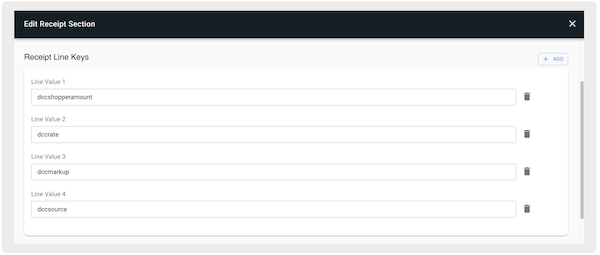
- Under , select to enter DCC keys. Refer to the table and corresponding screenshot for an example.
| Amount in Selected Currency | Receipt Line Key |
|---|---|
| Amount in Selected Currency | dccshopperamount |
| Exchange Rate Used | dccrate |
| Markup | dccmarkup |
| Source of Exchange Rate | dccsource |
Terminal - Configuration & Setup
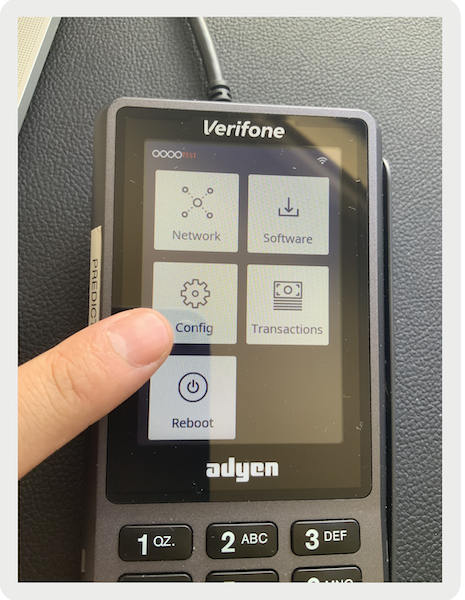
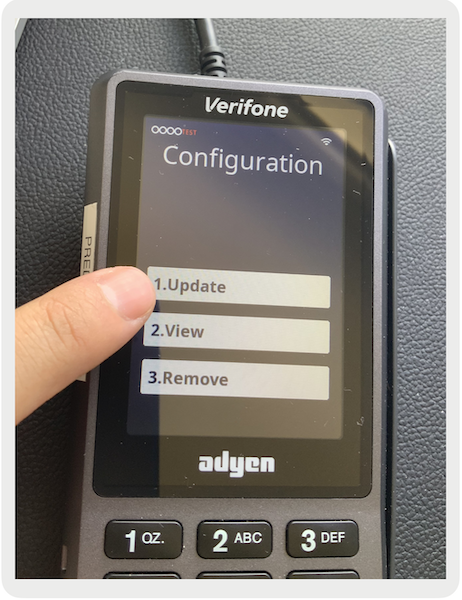
To access DCC on your Adyen terminal, you'll need to verify the terminal's configuration is up-to-date. To download the latest configuration, tap 9 and then O on the keypad. After entering your pin, tap the Configuration button on the main menu and then select Update as shown.
Terminal Flow
Adyen
After a customer uses a card to pay for a transaction that is in a different currency than the
card's billing currency, they'll see a menu on the terminal to select the currency to be used in
processing the transaction. This is an example of what this menu looks like for a card with a
USD billing currency that is used for a transaction in Euros.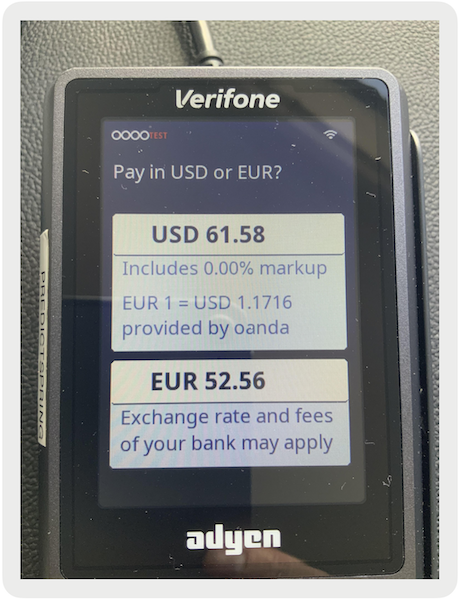
Elavon Example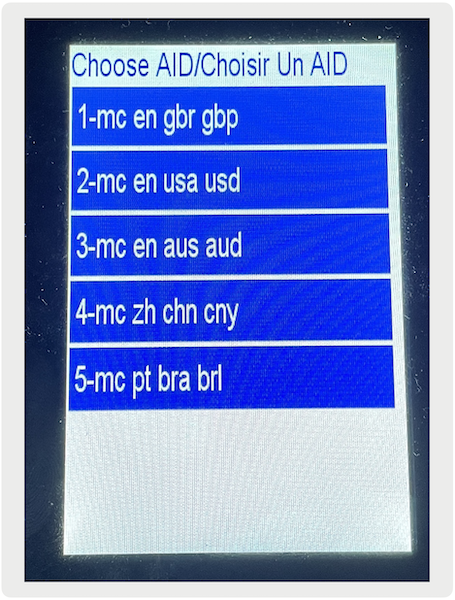
Verifone Example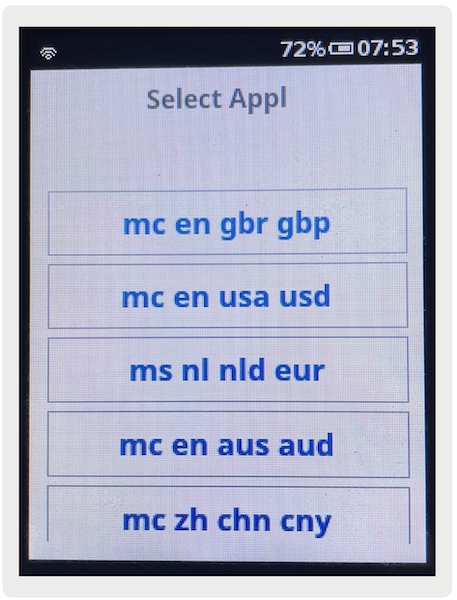
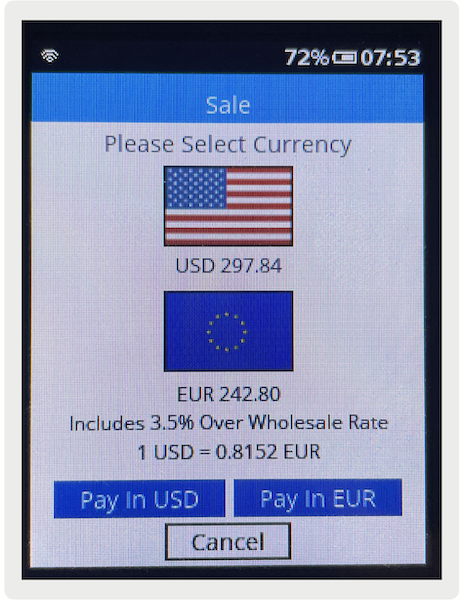
Receipt Examples With DCC
If you select a currency that is not the local currency, the information appears on all receipts (both email and paper) as shown.
- Exchange rate used
- Source of the Exchange rate
- Markup
- Amount in the selected currency