Distribute the Point of Sale (POS) app to testers or the store through production custom apps, UAT via TestFlight, or production enterprise IPA.
The recommended method of distribution is the “custom app” using the Apple Business Manager.
The main reasons for recommending the custom app route are:
- Apple has limited the new enterprise developer accounts being provided to enterprises.
- Apple also made it much easier to obtain Apple Business Manager accounts for enterprises.
- A new enterprise developer account requires a minimum of 100 employees and can take anywhere from a few weeks to months.
User Acceptance Testing for POS App
Distribute the Point of Sale (POS) app in stores or corporate offices via User Assitance Testing (UAT) and Early UAT builds. UAT.
UAT via TestFlight
The engineering team manages TestFlight invitations. Customer Success team is required to:
- Gather emails from the Merchant
- Create a Jira to add the email IDs to the UAT distribution
Engineering maintains a single distribution list and all the UAT ready builds are shared with this distribution group. This means if a merchant doesn't want to do UAT, they will ignore the notification from TestFlight.

Early UAT Release
In some cases there's a need to share the build before the QA signs off on the release. This should be a rare occurrence.
Engineering releases build monthly. Engineering's recommendation for early release is to be a few days before the final UAT date (This is usually around the 20th of each month).
Both Early UAT and UAT builds go through the same TestFlight sharing.
It's important that Early UAT and UAT TestFlight builds are never used in stores for production use. This can cause money loss because of bugs that haven't been tested.
UAT IPA (For Penentration Testing)
For merchants who want to sign the IPAs with their own information before giving them to their security teams for testing, see this article.
Distribute POS App in Production Environment
Build the POS app, archive it to TestFlight, and share it with customer testers. After customer approval, submit the app to Apple for distribution.
Prerequisites
Merchant's Apple Business Manager ID and the registered corporation name.
Obtain ID and Name from Merchant's Apple Business Manager Account
The screenshot shows the business ID and name.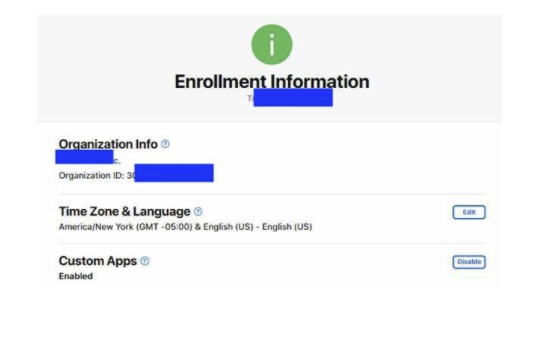
Configure ID and Name in Point of Sale's Apple Developer Portal
The screen shows the configuration done in the Apple developer portal.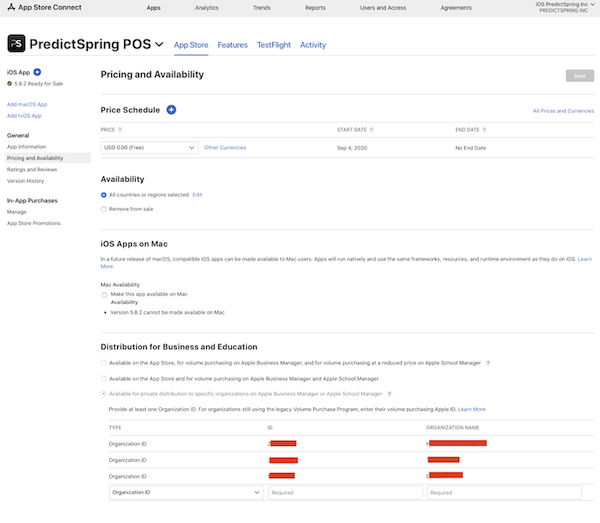
After the app is approved by Apple for distribution. The merchant will be able to see the app on their Business Manager screen.
See the App in Apple's Business Manager
After the organization ID and organization name are configured for the Apple-approved
application, the IT administrator will see the IPA on their Apple Business Manager screen.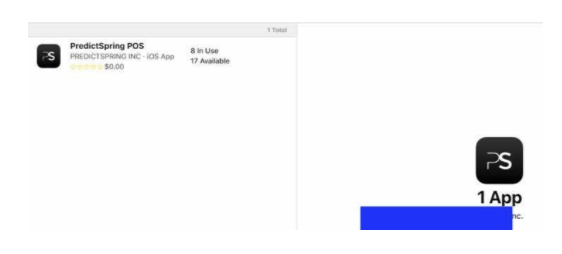
The app can then be distributed via a choice of Mobile Device Management (MDM) systems to store on POS supported device.
Troubleshooting Apple Business Manager
- PS POS app isn't visible in Apple Business Manager.
- Resolution: Custom Apps is not enabled in the enrollment information screen.
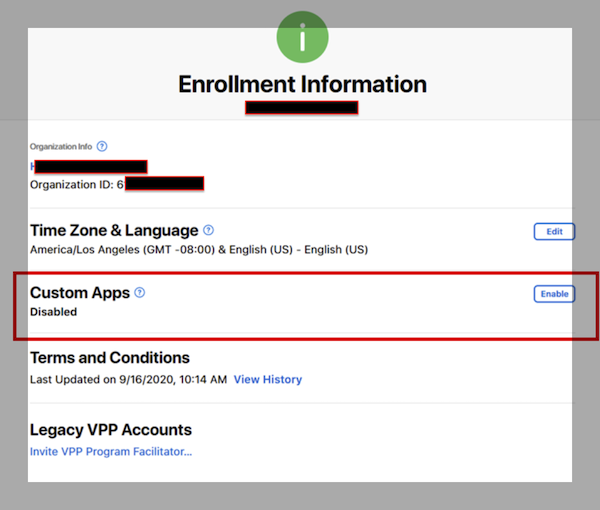
- Resolution: Custom Apps is not enabled in the enrollment information screen.
- Meraki MDM fails to distribute the PS POS to iPads. In this scenario, Admin one bought 200
volume licenses. If Admin two logged in and configured the tags to distribute the app, the iPad
can’t install the app.
- It turns out the 200 licenses bought by Admin one aren’t redeemable by Admin two. Admin two bought 200 more and was able to deploy the app.
Production Enterprise IPA
An enterprise IPA is built if the customer provides:
- Access to the enterprise developer account to download the profile and the signing certificate.
- Provides “admin” level access so we can generate the profile and signing certificate.
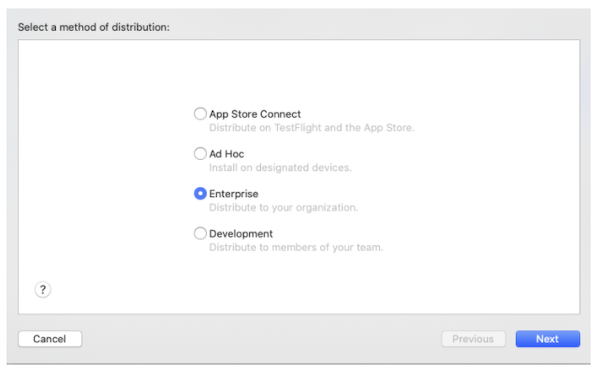
After selecting this method, the archive utility allows the selection of the credentials as
shown: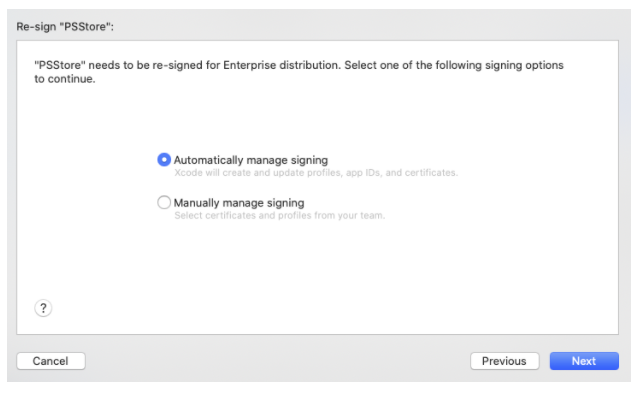
After the signing details are chosen, the archive tool creates a file for business distribution. This file can be shared directly through the customer's MDM provider.
Activate Modern POS App
Get the POS app to get bootstrapped with merchant credentials.
| Installation Type | Activation Type |
|---|---|
| TestFlight Invite | QR Code |
| PS POS Custom App | QR Code |
| PS POS Custom App re-signed with merchant bundle Identifier | Automatic |
| Enterprise IPA | Automatic |
Automatic Activation
In this mode, the app upon launch automatically configures the merchant ID and other credentials required to connect to the PS Cloud systems. There's no extra step required in this mode.
Activation via QR Code
This method requires the store associate or the tester of the Modern POS app to obtain a QR code from their help desk.
These steps will assist the CMS user to obtain the Activation QR Code:
- Log in to Point of Sale CMS.
- Select .
-
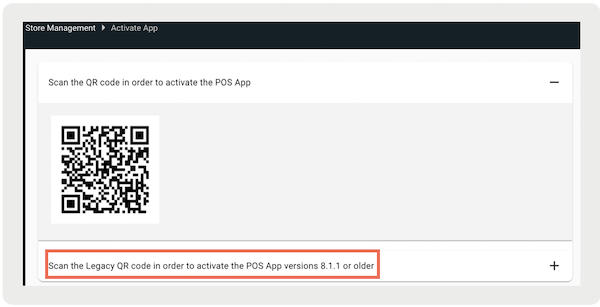
For Staging and Dev, you'll notice that there are two QR Codes (for Prod, there's only one
regardless of app version). If your app version is older (8.1.1 or older) you'll need to scan
a different QR Code than if your app version is greater than 8.1.1 (for example 8.4.1).
Carefully read the labels before scanning.
To activate the Modern POS app, install the app on your iPhone or iPad. After it’s installed,
open the application. If the application isn't automatically activated, you see this screen
upon launch: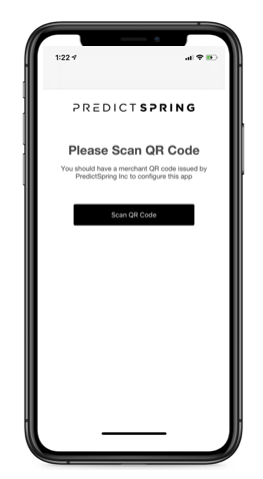
After launching the app, touch the scan QR Code CTA. 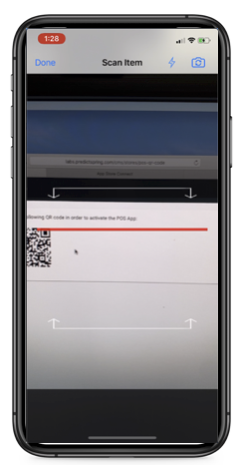
After the Modern POS is activated, the login screen is shown:
Live Deployment
After the app version is distributed and activated, we recommend that the store performs these steps:
- Install the released build on one of the iPads in the store.
- Run a full set of use cases and make sure the results are matching the expectations.
- Complete the POS live testing for 1–7 days.
- On the seventh day, roll out the new version to all the POS iPads.