
Configure Adyen terminals to accept payments via Point of Sale without a store associate Point of Sale (POS) app connection during an outage.
Prerequisites:
- Modern POS App Build: 5.8.2 or later
- Platform Support: iPhone & iPad
- Other: Standalone Adyen terminal
Adyen SF01 terminals are supported for builds 11.6.1 or greater. AMS1 and M450 terminals are supported for app builds 10.5.1 or greater.
Setup Standalone Mode in the Terminal
-
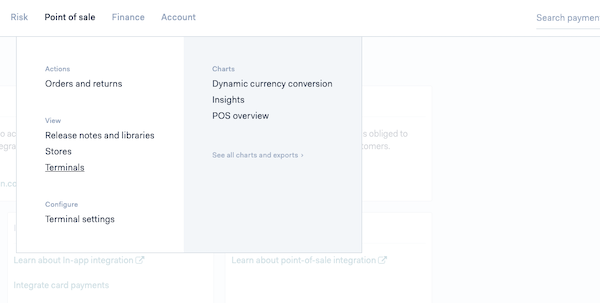
Go to Terminals in the portal by going to .
-
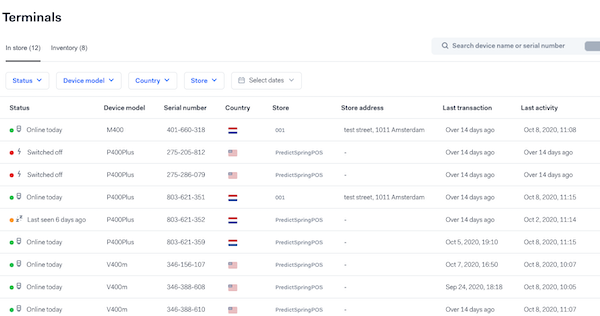
Select a terminal from the list that you want to assign as Standalone.
-
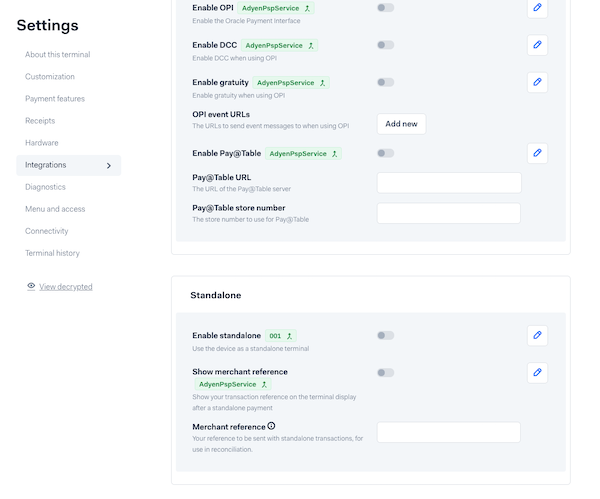
Select and make these modifications in the section:
- : yes
- : Yes (this only applies to Adyen terminal firmware < 1.90)
- : Used for reconciling orders that were taken in standalone
- : yes
-
: Enter a string that you want to associate with standalone transactions made
on this particular terminal (for example "STANDALONE-${serialnumber}"). You can select the
information icon beside Merchant's reference to get more specialized tags for constructing
this string.
- Save the configuration. Save only appears if you make any changes.
-
Sync the Adyen terminal with the changes made in the portal using these steps:
- Enter the admin menu by selecting and (green O button) in the terminal with the admin password
- Select .
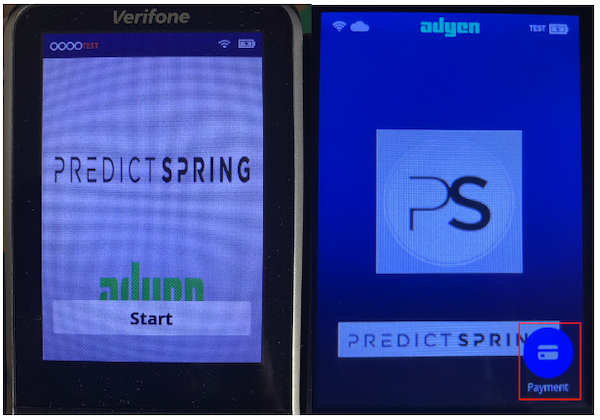
- The terminal boots up and now shows or Payment Icon (Terminal firmware >= 1.90) on the terminal. If you don't see either of these buttons, see the Alternate Flow section.
-
-
The associate will be directed through a series of steps to:
- Enter the amount
- Take payment with a card
- Signature verification (if applicable)
- Receipt print (if terminal model supports it)
- The transactions are synced to the Adyen console with the reference number chosen previously.
-
For Offline standalone mode, set these limits:
- (the max amount you can take via contactless/chip insert)
- (the max amount you can take via card swipe)
Setup Standalone Mode in Point of Sale CMS
If the app configuration has a custom Cart Options Layout, add a cell for Standalone
Transaction in that layout and set the deep link to 'Start Standalone Transaction'. This can be
done by going to .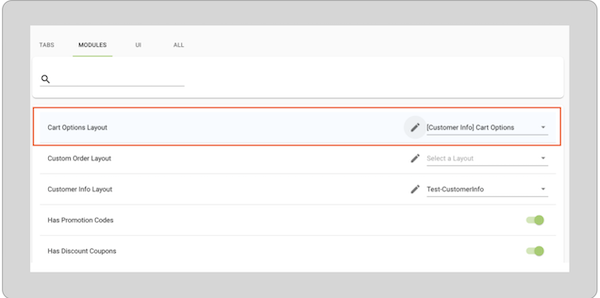
If the app configuration doesn't have a custom Layout, then go to and turn on the flag to get the option on the cart screen.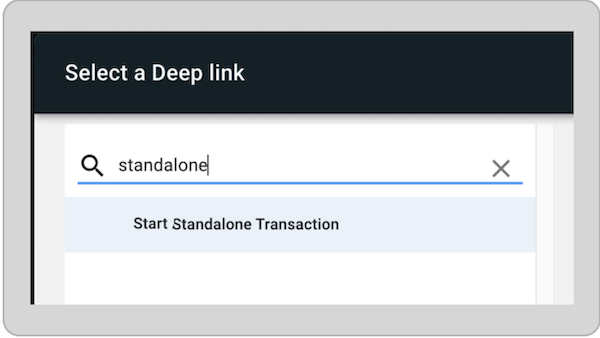
POS App Flow
Select the “” option on the screen. The POS app shows instructions for the Standalone terminal.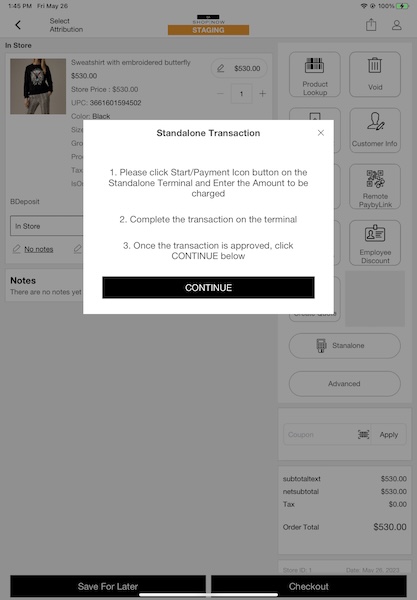
You'll be shown instructions to begin the transaction on the standalone terminal. If you don't see either the or icons, see the Alternate Flow section.
- Select or the icon on the standalone terminal.
- Enter the amount to be charged manually
- Take payment with card
- Signature verification (if applicable)
- Approved
- Terminal goes back to the home screen with the or icon.
After the payment is taken on the Adyen terminal, select on the POS app. Enter the terminal and transaction details.
Enter the
terminal ID (you can scan the QR Code on the terminal by selecting and then O). Enter the tender reference number by using the instructions on the
POS app. Select on the POS app to place the order.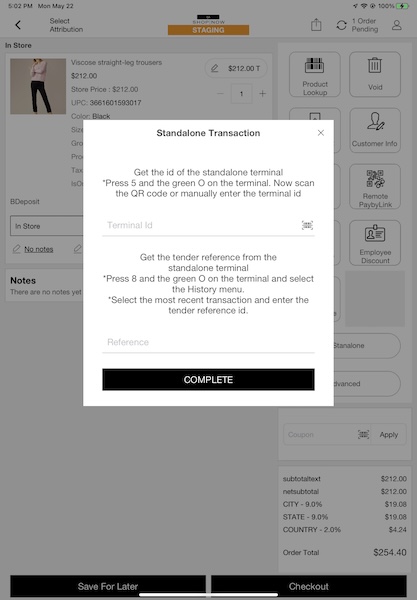
Alternate Flow
If the Start or Payment icon isn't enabled or not appearing, there are workarounds to initiate a standalone payment on the terminal.
-
Select and on the terminal to open the transactions menu.
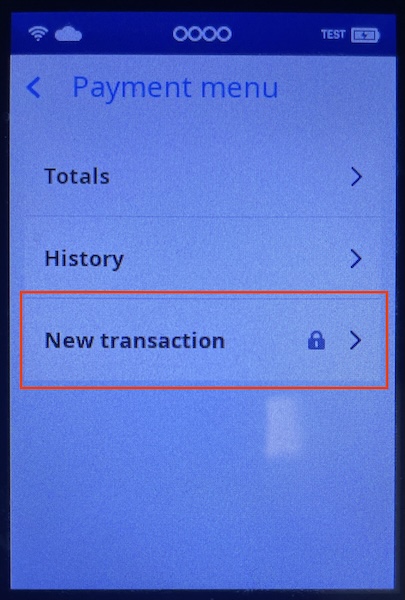
-
Select in the menu and enter the transaction code for your terminal.
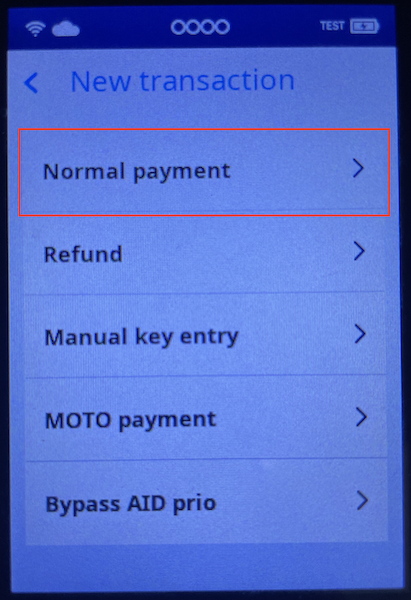
- Select and it opens the same standalone payment flow as the or icons.
After the payment is taken on the Adyen terminal, select on the POS app. Enter the terminal and transaction details.
Enter the terminal ID (you can scan the QR Code on the terminal by selecting and then O). Enter the tender reference number by using the instructions on the POS app. Select on the POS app to place the order
Known Issues and Restrictions
- Each store has one or more Adyen terminals that are preconfigured to work in standalone mode. Configuring a terminal to work standalone requires a network, so verify this is ready to go if the network is available.
- Admin Menu Pin for Standalone Terminal. The associates shall enter the reference ID of the standalone transaction, which requires them to go into