
Check the current register hardware configuration in the Point of Sale (POS) app. View the current configuration for each device connected to the register, device details, and the configuration source.
Prerequisites
Modern POS App build: 8.4.1
Platform Support: iPhone & iPad
Offline Support: yes
Hardware Configuration Deep Link
The Hardware Configuration screen can be triggered using deep link on the CMS. A deep link can be added either in the Hamburger menu
or any layout on the POS app.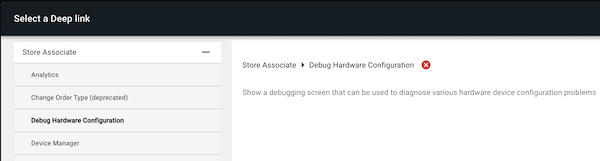
Printer Configuration
Mobile Config: Go to
| Configuration | Notes |
|---|---|
| Peripherals -> Printers -> Max Print Attempts | Maximum number of attempts POS will make to print the receipt. This will occur if the POS can’t connect to the printer or can’t send receipt data to the printer. |
End-User Documentation
To see the register hardware configuration screen, open the hamburger menu and select the
option "Hardware Configuration".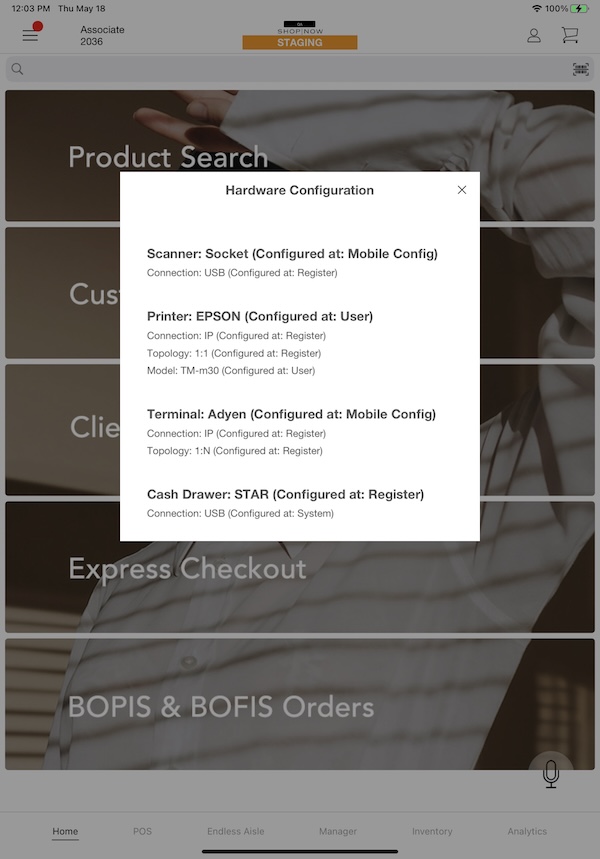
The hardware configuration screen has one section for each peripheral that can be connected to the register. There's the legend "Configured at:" attached to each of the peripherals details. Let’s pause for a moment to define which are the different values that can be presented here and what they mean.
Configuration Level
By design, the POS is fully configurable, allowing users to configure each peripheral's connection to the register via a CMS. During this process, various levels of settings can be applied to the devices:
| Configuration Level | Description |
|---|---|
| Merchant | The device is configured directly at the store level. |
| Register | The device is configured at the register level, inside the store. |
| Mobile Config | The device is configured in the mobile configuration. |
| User | The user decides inside the app and changes the configuration manually (using the device manager, for instance). |
| System | The configuration is set by the POS system itself. These are all the cases if the configuration needs to be decided based on device specifics (because of SDKs and or device software/hardware capabilities/restrictions/specifications). |
These levels of configuration can be set for the different settings of each peripheral, being the ones currently included on the system: the device's model or type, the device's connection type, and the device connection topology.
Hardware Configuration Screen Layout
The hardware configuration screen has four parts. Each part is for the different parts of the register (Scanner, Printer, Terminal, and Cash Drawer). Each section is composed of four or five lines:
| Line # | Information | Description |
|---|---|---|
| 1 | Device type | Describing the default device model configured, and the source of its configuration. |
| 2 | Connected device | Device currently connected to the register. The information displayed consists of the device model, and (if applicable) serial number. |
| 3 | Connection type* | Describing the peripheral connection type (IP, Bluetooth, USB) and its source of configuration. |
| 4 | Topology | Describing the topology configured for the peripheral and the source of its configuration. This value isn't presented on Scanner and Cash Drawer because the topology is considered 1:1 by default. |
| 5 | Model | Describes the configured device model. Printers only. POS >= 9.0.1 |
