
Allow customers to directly enter information, such as email addresses, on Adyen and Verifone terminals, streamlining data collection. Reduce the need for store associates to verbally collect information. Configure custom layouts in Point of Sale CMS and designate text input or checkbox fields for terminal input to tailor the data collection process.
- Modern POS App Build: 8.5.1; 9.5.1 for Verifone
- Platform Support: iPhone, iPad
- Offline Support: yes
- Supported Devices: All Adyen terminals* and Verifone PSDK (for best results, the larger M400 is recommended)
* Adyen AMS1 terminals are supported for app builds 10.5.1 or greater.
Terminal Input Layout
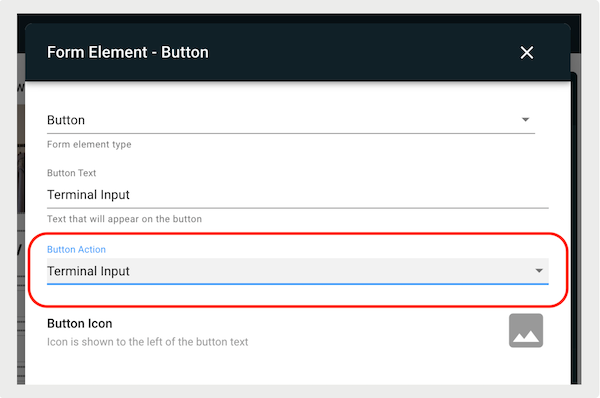
To initiate input on the terminal for a layout form, store associates can tap any button whose Button Action is set to "". The terminal cycles through all the designated fields and collect the appropriate data for each one. Point of Sale provides an out-of-the-box layout featuring this button, or for more customization, users can create a custom layout with additional configuration.
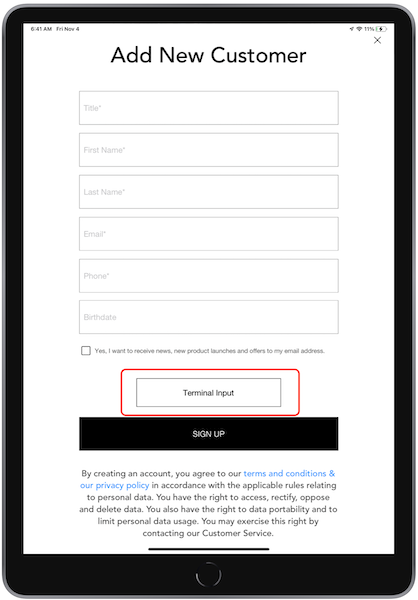
To use the preconfigured layout, go to and select .
To create a custom layoout:
- Go to .
- Add or select into a cell.
- On the right toolbar menu, go to .
- Under , select .
- As shown below, this button action type can be selected from the dropdown for any button element while editing any layout in the CMS.
- Fill in the rest of the fields and configure the rest of the custom layout.
-
Save the changes.
Layout Form Fields
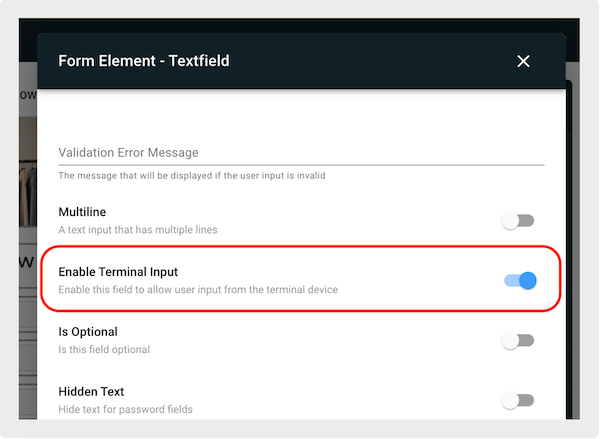
To select which form fields show on the terminal, turn on the Enable Terminal Input
switch while editing the form elements in a layout on the CMS. This is shown next. Any form
element of type "" or "" has this option.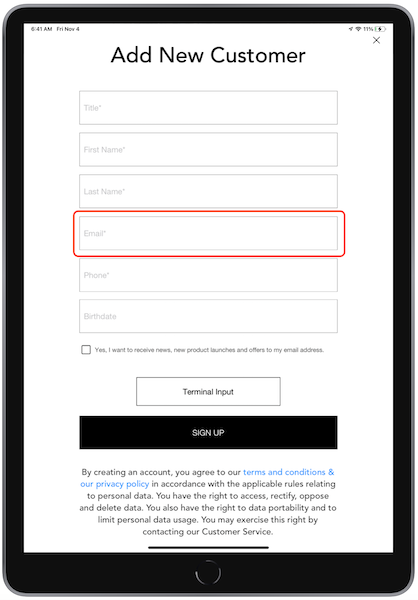
To turn on terminal input:
- On your layout, select a field. The screen appears.
- Under , select the type of field.
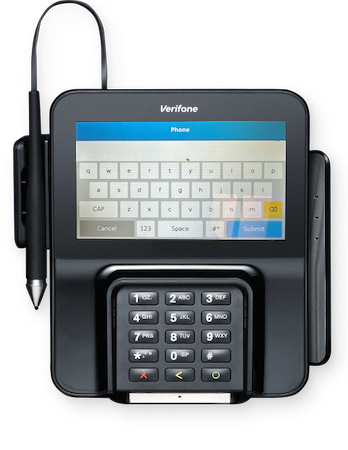
- Under , select the type of input for the field. For example, Input type of "" displays a phone number capture screen. All other input types show a simple text field with a keyboard.
-
Turn on .
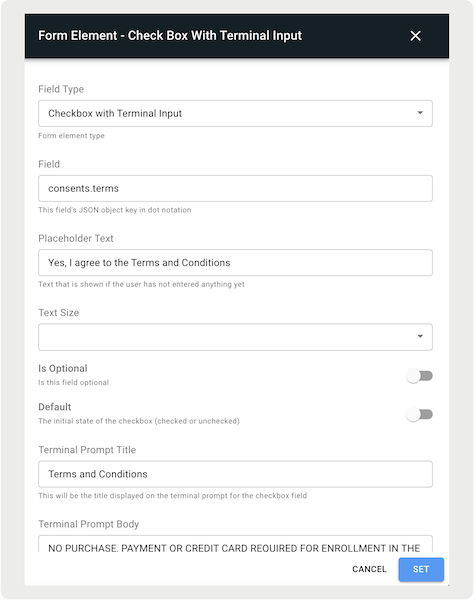
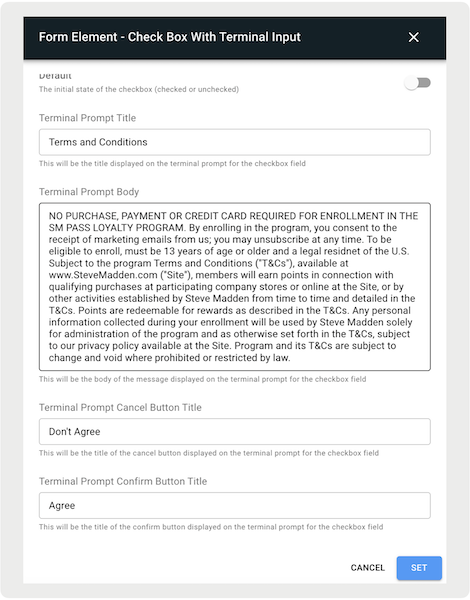
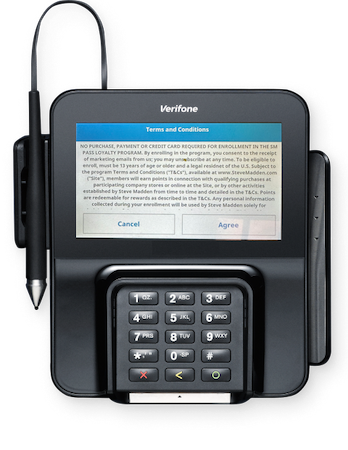
To set up legal agreements on the terminal (that is, Terms & Conditions), make sure that aside from toggling the option, you also select "" as the designated Field Type.
If selected, this form element has the additional four fields:
- Terminal Prompt Title
- Terminal Prompt Body
- Terminal Prompt Cancel Button Title
- Terminal Prompt Confirm Button Title

These values are used to show a confirmation screen on the terminal. At a minimum, provide either a Title or Body, otherwise, the confirmation screen won’t show. If no value is provided for the "" Button Title, the default string "" is used. Likewise, if no value is provided for the "" Button Title, the default string "" is used.

View Customer Information From Payment Terminal in the POS App
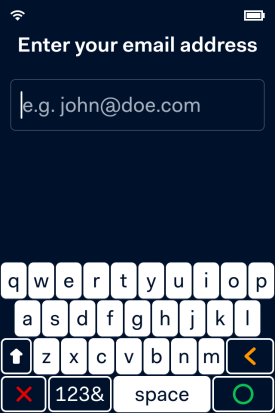
Permit customers to quickly populate Point of Sale (POS) form fields by initiating terminal input. The terminal collects data from text inputs and checkboxes with terminal input enabled. As customers complete each field on the terminal, the associated POS field is automatically populated. Customers can also cancel the entire input sequence if needed.
Initiating Terminal Input
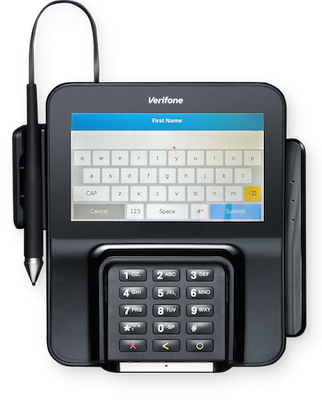
If a Terminal Input button is tapped on a given form, the terminal first cycles through all the Text Inputs that have toggled on and collects the appropriate data for each one. Then the terminal will cycle through all the Checkboxes with Terminal Input that have turned on.
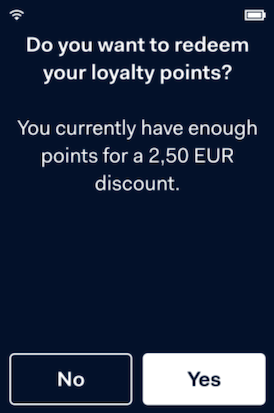
Adyen Terminal
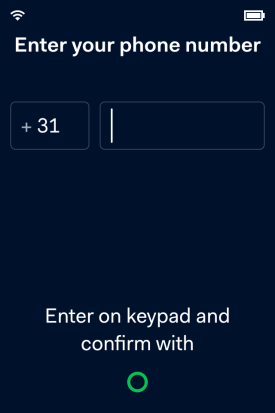
Verifone M400 Terminal
Cancelling Terminal Input
By tapping the "X" button on the terminal, the customer can cancel the entire sequence of input collection for all fields.
Capturing Customer Information Known Issues
Be aware that input types other than "Text Input" and "Checkbox with Terminal Input" aren't supported for capturing customer information. If the Point of Sale (POS) device navigates away from the input screen, the terminal continues to cycle through the fields. Also note that calls to the terminal overrides the current screen, and the "Checkbox with Terminal Input" can't be longer than nine characters if using Verifone Terminals.
Adyen Terminals
The information in the proceeding sections describes known issues and restrictions for Ayden terminals.
Input Types
Other input types aside from "Text Input" and "Checkbox with Terminal Input" (for example dropdowns, checkboxes, and so on) won't be supported with this feature.
POS Navigation
If the POS device navigates away from the screen with inputs that are currently being shown on the terminal, the terminal will continue to cycle through the fields for that form, but there's no corresponding action on the POS given that the associate is no longer on the appropriate screen. The customer can exit this flow on the terminal at any time by tapping the X.
Overriding Calls to Terminal
If any calls are made to the terminal while a customer is entering their information for a given field (for example if the associate initiates payment collection while the user is entering their email), the most recent call made overrides the current screen, and the customer sees the appropriate screen for the new call (for example the email screen is replaced by the payment collection screen).
1:N Topology
It isn't recommended to use this feature from a register whose card reader topology is set to 1:N. If this is true and the POS is only connected to a single reader, the inputs show on that reader. If there's more than one reader connected, there's currently no way to manage which reader the inputs appear on.
Verifone Terminals
The information in the proceeding sections describes known issues with Verifone terminals.
Input Buttons
The input type "Checkbox with Terminal Input" can't be longer than nine characters.