
Scan barcodes quickly and efficiently with POS. By default, the POS application uses Apple's built-in tools.
If you want to scan a barcode, you'll see a screen that shows you where the bar code needs to be to be recognized. By default, the area of focus is centered on the screen.
For
the fastest experience, place the bar code as close to the center of the red line as
possible. Without any configuration, the POS application will use built-in tools provided by
Apple to facilitate barcode scanning. 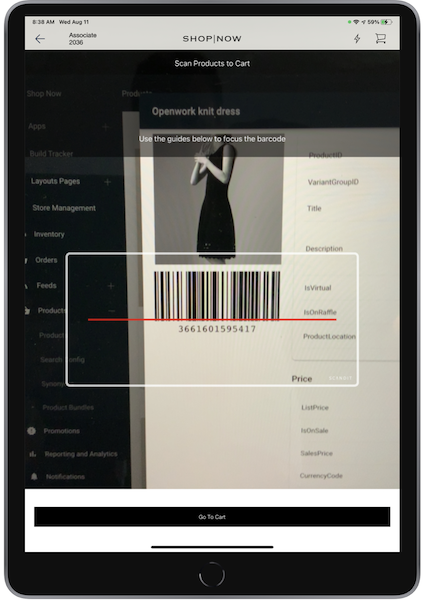
Scandit Integration
Version 7.8.5 and later
If the time to recognize a barcode with the built-in barcode scanning tool isn't meeting your expectations, you have the option to leverage Scandit. Scandit provides improved performance for all your scanning requirements. The scannable area is larger and scanning recognition will be faster. For more information, see Barcode Scanning.
To configure, obtain a license from Scandit and add it to the CMS by going to . Scandit will automatically be enabled for barcode scanning.

EPC Scanning
To turn on EPC scanning:
- In CMS, go to .
- Create or edit an existing store.
- Under , select if the app will allow GTIN, EPC scanning, or both.
- Go to your .
- Turn on to be on.
- Go to .
- Under , add a value. For more information, refer to .
- Turn on .
- Save your changes.
What does the system know about EPC-to GTIN mapping?
Depending on your merchant's system, the associate can scan the EPC and this looks up the GTIN. Then it'll add the item to the cart or shows an interstitial to add the item to the cart. An error will be shown if the same EPC is scanned multiple times as only a single EPC exists for each item in the sale.
Is there any mandatory information needed in the product feed for enabling EPC?
We aren't taking in any data at the product level for EPC. The data is captured at the time of sale and added to the product line item.
How does EPC get managed for returns—In Store and BORIS?
Currently, this is a gap as for serial number returns, so scan the serial number to make sure of a match. For EPC, logic was added to search the EPC in the sale to find the particular item to mark to return.
EPC Code Filtering
Version 7.10.5 and later
EPC codes can be filtered out for unwanted characters if scanning. This can be configured in the CMS:
- Go to .
- Look for the setting .
-
Type a regex expression of the allowed characters.

After an EPC code is scanned, any character that doesn't match the epcRegex will be removed from what is scanned. This will prevent issues if importing and exporting orders. Any nonASCII characters will be removed automatically from the app.