
Integrate Adyen payment resources with Point of Sale CMS to process point-of-sale transactions. Use either Adyen SDK or Terminal API configurations for terminals.
The Adyen SDK is used for legacy terminals like e315. All the new terminals that aren't connected via the iPad Lightning port use the terminal API.

As of 2022, Adyen doesn’t support the e315 device.
Prerequisites
- If you've yet to set up an Adyen and Point of Sale account, make sure your StoreIDs are the same for both accounts.
- If your Point of Sale account is live but you haven’t set up Adyen, make sure your Adyen StoreID is the same as your Point of Sale's StoreID.
- If your Adyen account is live but you haven’t set up Point of Sale, make sure your Retail Cloud StoreID is the same as Adyen's StoreID.
- To test contactless payments, use a card version of 2.4 or newer.
Merchant Accoount Architecture
Adyen has three levels of accounts:
- A single company account on the Adyen platform. This represents your core business entity and is where invoices for terminal orders are sent.
- One or more merchant accounts under your company account. You receive settlements and reports at the merchant account level. You can also group together merchant accounts into account groups.
- One or more stores under each merchant account. These represent your physical store locations and are used to process point-of-sale transactions. Each Adyen terminal is associated with a store.
Although payments are processed through terminals and stores, your transactions are settled at the merchant account level.
Configuring Registers with Adyen Terminal API
Go to the Register of Interest and scroll down to the section.
Set Integration Type to or for using the Native iOS SDK.
Register Configured to Use SDK
To configure a register to use Adyen
SDK, select under the Integration Type. 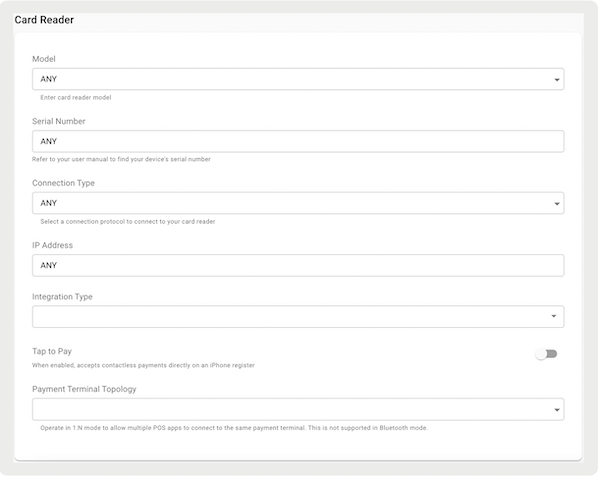
Register configured to Use Terminal API
To configure a register to use Terminal API, select under the Integration Type.
Ayden Payment Resources - End-User Documentation
Store managers can configure their Adyen terminals in use the Terminal API, allowing devices to work together with Point of Sale CMS and the Point of Sale (POS) app.
Configure Terminal Device to Use Terminal API
- Press and then on the Adyen Terminal to go to the admin menu.
- Enter the admin password. To find the admin password from the Adyen portal:
- Select in the Admin menu to sync the terminal device with all the changes made in the Adyen console.
- After the update finishes, the terminal is ready to make transactions using Terminal API. The terminal will have a cloud icon on the top to confirm switching to Terminal API.
Turn On Terminal API in the POS App

Salesforce Customer Support can configure these settings.
This step requires CMS access to turn on and assign values to the flags that control the use of Terminal API in the POS app.
- Go to in CMS and turn on the flag.
- Configure Payment Gateway with the right values by following this article.
- Relaunch the POS app to get the updated CMS settings reflected in the app.
Switching Adyen Terminal From Terminal API to Use iOS SDK
Salesforce Customer Support can configure these settings.
- Disable in POS App. Adyen Terminal API has to be enabled in the CMS for the merchant to assign these values.
- Turn off the flag.
- Relaunch the POS app to get the updated CMS settings reflected in the app.
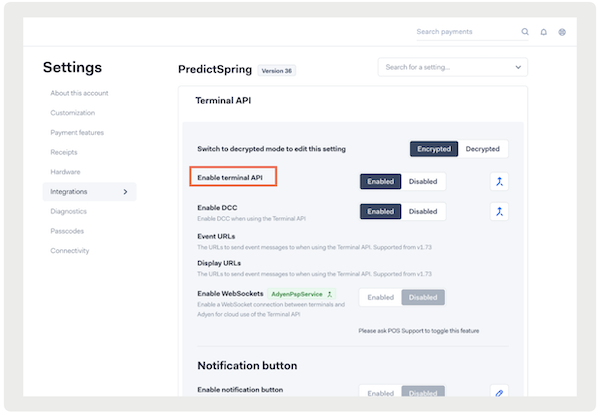
Disable Terminal API in Adyen Console
Salesforce Customer Support can configure these settings.
- Go to the Adyen Site, live site.
- If you're testing an Adyen device, go to the Test Site.
- Go to the In-person payments tab and select on the website.
-
Disable .
Configure Adyen Terminal to Use iOS SDK
Store managers with the admin password for the terminals can collectively configure all the store devices to use Adyen iOS SDK.
- Go to in the Admin menu of Adyen Terminal by selecting and .
- Select to get the changes made in the website synced with the terminal.
- After the update finishes, the terminal is switched back to using iOS Adyen SDK for transactions. Confirm by checking the removal of the cloud icon at the top of the home screen.
-
This step is only for V400M - Enable Print options for V400M:
- Go to the option on the website.
- Select under on Terminal.
- Select at the bottom of the screen.
Set up Standalone Terminal
The Adyen terminal can accept payments without being connected to the store associate app.
To see the full details of standalone terminals, check out this article.
Enabling Beacons
Beacon functionality in Adyen Terminal allows it to broadcast its presence to nearby Bluetooth devices. We use beacons in the Adyen terminals to locate them from our POS app and connect them to the one to carry out the particular transaction.
To learn more, check out the article on configuring beacons.
Ayden Pairing Guide
A new Adyen terminal has to fetch the configuration set up from the portal during the boarding process.
You can check out the pairing guide documentation in this article.
Adyen Reassigning Terminals
If for any reason you move a terminal to another store or merchant, you can do so in the Adyen console by assigning or reassigning Terminals to Stores under the same account.
To see more details on reassigning terminals, check out this article.
Point of Sale CMS Configuration
To learn how to configure Adyen as a payment gateway integration in CMS, refer to this article.