
You can configure different payment gateways at the store level, such as store-level settlements, reporting, and currency requirements and integrate Adyen into Point of Sale.
Before you start the configuration process, have this information ready:
- — If providing admin access, then provide the account name, username, and password.
- — If not providing admin access, then provide the admin menu pin, transaction menu pin, and maintenance menu pin.
- — If using the iOS SDK, then provide a Web service username and password. As of 2022, Adyen doesn’t support the e315 device.
- — If using the terminal API, then provide the encryption version, identifier, and passphrase.

Amex requires separate merchant IDs (MIDs) for ecommerce and Point of Sale (POS). Visa, Mastercard, and so on don't require separate MIDs.
Creating a Configuration for Adyen
- Go to .
- Select .
- Under , select from the dropdown.
- Log into your Adyen Console and select the right merchant account.
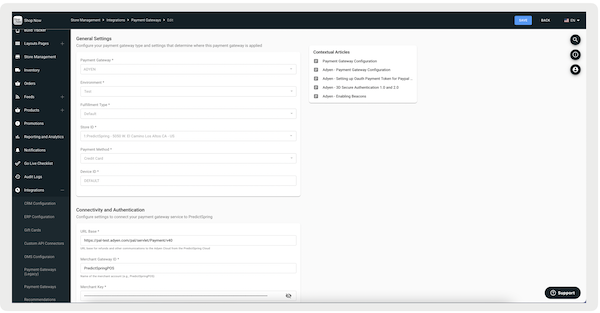
- Fill out all required fields using the table.
- Select to save your changes.
| Field | Field Type | Required | Description |
|---|---|---|---|
| General Settings | |||
| Payment Gateway | Pulldown | Yes | Type of payment gateway (for example Adyen) |
| Environment | Pulldown | Yes |
Environment of the account (for example Test) To test contactless payments, use a card version of 2.4 or newer. |
| Fulfillment Type | Pulldown | Yes | Fulfillment type— select Default if you want to create this configuration for a POS app to perform transactions |
| Store ID | Pulldown | Yes |
Select a particular store from the store dropdown to apply these settings to a particular store (for example, 1).
|
| Payment Method | Pulldown | Yes |
To distinguish between debit and credit card payments, you will need to turn on that with your Adyen representative (for example, Credit Card) For debit cards, refer to the Field Funding Source in your Adyen terminal account. Additionally, turn on Funding Sources and Return Parameters in Adyen. |
| Additional Payment Method | Pull down | No | This enables finance options to be processed on the POS app. Learn More |
| Device ID | Text | Yes | Device ID that needs to be associated with this configuration. Irrelevant for Adyen and set to Default |
| Connectivity and Authentication | |||
| URL Base | Text | Yes |
URL base for refunds and other communications to Adyen Cloud from Point of Sale. Reach out to your Adyen representative Test: https://pal-test.adyen.com/pal/servlet/Payment/[version] Live: https://[prefix]-pal-live.adyenpayments.com/pal/servlet/Payment/[version] For example https://pal-test.adye-n.com/pal/servlet/ Payment/V52 |
| Secondary URL Base | Text | Yes |
Adyen will sunset Classic Payment APIs on March 31, 2024. Use the secondary URL base. Test: https://checkout-test.adyen.com/checkout/v71 Live: https://{PREFIX}-checkout-live.adyenpayments.com/checkout/v71 |
| Merchant Gateway ID | Text | Yes | Name of the merchant account (for example POS) |
|
Merchant Key (API Key in Adyen Console) |
Text | Yes | API Key used by Point of Sale for all their API communication and POS for Pay By Link and Terminal Management. It can be found by going to Developers > Account Credentials. Check if you have a Web service user available. If not, reach out to Adyen Support to request a Web service user. Select the Web service user. In the Authentication section, you’ll see the API Key section. |
| Services | Checkbox | Yes | Services associated with the payment gateway. POS uses only Mail Order Telephone Order (MOTO). |
| Verify | Button | No | After you've entered all the necessary information to connect your payment gateway service to Point of Sale, select the button to verify a successful connection. An error message will display if any of the information is incorrect. This verification process is also done. |
| Terminal Configuration | |||
| Terminal Certificate Name Suffix | Auto-Complete | Yes | Terminal certificate name suffix associated with the payment gateway (for example, terminal.adyen.com) |
| Terminal Gateway ID | Text | No | Merchant gateway ID associated with the terminals (for example, merchantPOS). POS uses this for Terminal Connection Validation. It is also used for defining the merchant codes if requesting for Terminal Management and Pay By Link. |
| Terminal Key Identifier | Text | No | The key identifier in the Encryption Key section; used for API communication with terminals. |
| Terminal Key Encryption Version | Text | No | The key version in the Encryption Key section; used for API communication with terminals. |
|
Terminal User Name (Username in Adyen Console) |
Text | No |
The Web service username used to register the Adyen SDK for Legacy Terminal. Important: Support is no longer available for this field. |
| Terminal Key Passphrase | Text | No | The key passphrase in the Encryption Key section; used for API communication with terminals. |
| Terminal Beacon ID | Text | No |
The terminal beacon ID. Setting this value will allow a terminal connection via beacons before each transaction. This will also disconnect the terminal after the order completion. Important: Support is no longer available for this field. |
| Terminal Request Timeout Interval in Seconds | Text | No | The terminal request timeout. Using low values can cause problems. 150 seconds is the recommended default value. Negative values aren't allowed. |
| Payment Tokenization Events | Pulldown | No |
Select when to tokenize payment methods for later use. Select "Endless Aisle" to tokenize online portions of mixed carts (orders containing both in-store and Endless Aisle items). Note
If an Endless Aisle order cancels before online fulfillment, the merchant's OMS is responsible for sending a cancellation for the authorized amount and token to Adyen. |
| Payment Status Verification | |||
| Payment Status Check API Timeout in Seconds | Switch | No | The payment status check API timeout. The minimum interval is 5 seconds, and it can be adjusted up to 150 seconds based on the store's network quality. Setting the interval too short doesn’t give the terminal sufficient time to process and respond. |
| Transaction Verification Days | Switch | No | Retention period for verifying unverified transaction in days |
| Advanced | |||
| Skip Fraud Check | Switch | No | Turn on this feature if you want to skip the risk engine for Adyen transactions. |
| Has Cart Summary On Payment Terminal | Switch | No | Turn on this feature if you want to have the cart summary on the payment terminal. |
| Manual Payment Settings | |||
| Manual Credit Card Entry on Terminal | Switch | No | Turn on this feature if you want to have manual credit card entry on the payment terminal. |
| Manual Payment Capture | Switch | No | Turn on this feature if you want to turn on manual payment capture. Refer to this article to learn more about configuring capture payments. |
| Mixed Cart Payment: Partial Capture | Switch | No |
Turn on to capture in-store portions of mixed carts immediately while keeping online portions authorized. The app captures the online portion when the order ships. Works with Payment Tokenization Events set to "Endless Aisle".  Important
Don't turn on Mixed Cart Payment: Partial Capture if you use Edit Order. Combining these features creates a critical vulnerability in the refund flow that can lead to revenue loss or payment abuse. |
| Terminal Management Settings | |||
| Adyen Company Account Name | Text | No | The Adyen company account name. |
| Adyen Store Code | Text | No |
Adyen store code, which can be found by going to "In-person payments" -> Stores. For example, the Adyen store code is "001". Required for Tap to Pay if you’ve set up store-level payment settings in Adyen. For example, if certain payment methods are only available at specific stores, each of those stores must have an Adyen Payment Gateway configured in CMS with the correct Adyen Store Code. |
| Adyen Merchant Management URL Prefix | Text | No |
The merchant's URL prefix.
The Management API permissions must be granted on your Adyen console for these endpoints:
If any of the previous permissions aren't displayed in the console, reach out to Adyen support to have them turned on and displayed. |
| Adyen Terminal Management URL Prefix (Deprecated) | Text | No |
Adyen’s POS Terminal Management API is being deprecated with a planned sunset date of April 1, 2025. As the Management API is used instead, the merchant’s URL prefix should be provided in the new "Adyen Merchant Management URL Prefix" field in this Payment Gateway Configuration.
|
| Tap to Pay Settings | |||
| Adyen Tap to Pay URL | Text | No |
The URL endpoint that is used to create a payment session for the app.
|
| Pay By Link Settings | |||
| Pay by Link Base URL | Text | No |
The URL endpoint that is used to create a payment session for the app. Test: https://checkout-test.adyen.com/[version] Live: https://[prefix]-checkout-live.adyenpayments.com/checkout/[version] For example, https://checkout-test.adyen.com/v67 |
| Pay by Link URL Expiration in Hours | Number | No | The Pay-By Link expiration time. The minimum expiration time is 24 hours and the maximum expiration time is 1680 hours. |
| Send Store ID to Adyen | Switch | No | Enabled means that store details are included in the payload if a payment link is created using the pay by link or Remote pay by link flows. |
| Require Customer's Email to be Submitted | Switch | No | Enabled indicates that a customer email is required to support all Pay by Link orders. Note, this must be enabled for any merchants using PBL in the EU. Learn More |
| Callback URL | |||
| Generate Callback URL | Other | No |
For Salesforce to receive Adyen callbacks related to payment failures, Salesforce provided a callback URL. Important: The callback URL can only be configured at either the Company or Merchant level. It can't be configured in both places. Learn More |
| Gift Card Settings | |||
| Enable Gift Card | Switch | No | Enabled indicates that gift cards will be supported via the payment terminal |
| Enable Expiry Date Input Field | Switch | No | Enabled indicates that an input field for gift card expiry date shows in the terminal during gift card operations |
| Gift Card Provider | Text | Yes | Select the gift card provider that'll be used in the terminal |
| Gift Card SKU | Text | Yes | Product ID/SKU for a gift card |
| Cash Out Configuration | Window | Yes | Configure cash redemption thresholds for gift cards. For more information, refer to this article. |
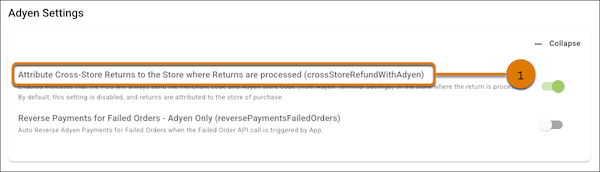
Turn On Cross-Store Refund Attribution for Adyen
Use this setting if your refund flow allows returns at a different store than the original purchase location, especially across different Merchant Codes. This helps makes sure the correct store information is passed to Adyen during refund transactions, helping prevent mismatches that can lead to refund issues.
- In CMS, go to
- Expand .
-
Turn on (1).
Configure Ayden and Set Up Payment Gateway
Set up Adyen to process payments securely and reliably. Define the URL base, merchant gateway ID, and merchant key within Adyen to work with Point of Sale.
Ayden Fields
: This is the URL base for refunds and other communications to the Adyen Cloud from Point of Sale. Reach out to your Adyen representative.
-
Test: https://pal-test.adyen.com/pal/servlet/Payment/[version]
-
Live: https://[prefix]-pal-live.adyenpayments.com/pal/servlet/Payment/[version]
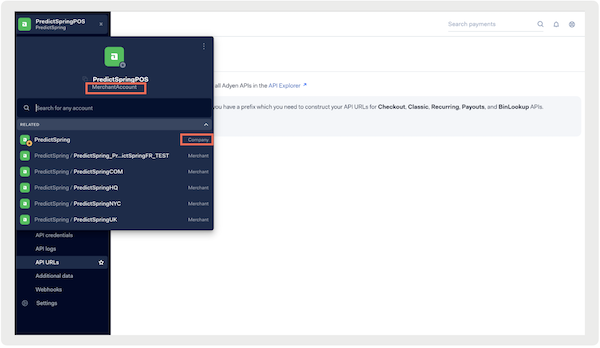
: Name of the merchant account (for example RetailCloudPOS in the image). This can be found by selecting your account in the upper left corner of the screen.

: This is the API key used by Point of Sale. Find your merchant key by going
to . Check if you have a Web service user available. If not, reach out to Adyen
Support to request a Web service user. Select the Web service user after it’s available.
In the Authentication section, you will see the API Key section. 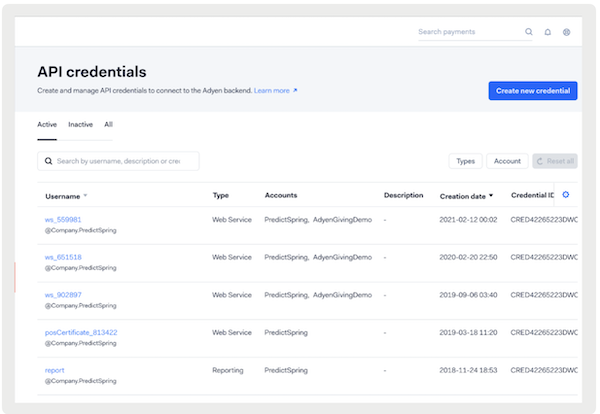
If an API key exists, check with the account owner to see if they have the API Key. If they can't provide it, confirm with Point of Sale if a new key can be generated.
: Select Generate New API Key.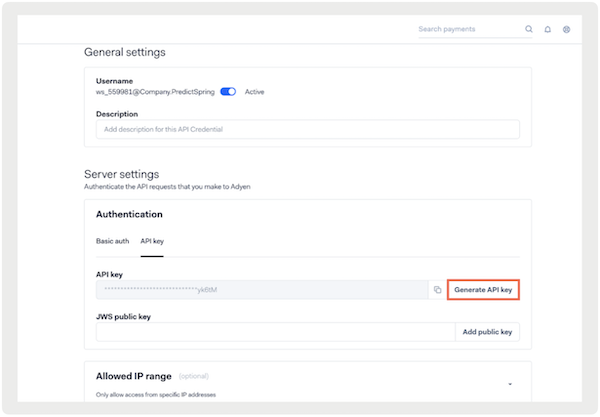
After you've saved the API Key, select confirm and save the API Key.
: The merchant gateway ID associated with the terminals. POS uses this for Terminal Connection Validation. It is also used for defining the merchant codes if requesting for Terminal Management and Pay By Link.
API Terminal Integration
- Go to .
- Turn on the terminal API. For any changes to the terminal API, make sure you're using mode as it will give you full access for any edits.
- Scroll down to the section.
-
If these fields don't exist, add new ones and select Save at the bottom:
- : Key version in the Encryption Key section; used for API communication with terminals.
- : Key identifier in the Encryption Key section; used for API communication with terminals.
- : Key passphrase in the Encryption Key section; used for API communication with terminals.
Callback URL
For Point of Sale to receive Adyen callbacks related to payment failures, Salesforce provided a callback URL. The URL shall be at the Point of Sale Merchant - Region level. Learn More
For enabling Pay by Link (PBL) for a merchant that is under a parent company, refer to Callback URL for Payment Gateway Integrations.
-
Generate a Point of Sale callback URL by going to your Point of Sale CMS staging
account.
- Go to .
- Edit an existing configuration or create one.
- Under , generate a new URL and copy it.
- Go back to your Adyen console, go to .
- (Optional) Under , enter a description for the webhook.
- Under , paste the URL you previously generated. Make sure that the Method is "", the Encryption protocol is "", and is turned on.
- Go to . Check with Salesforce if a test notification is received in their backend for the merchant in the respective environment.
- Go to .
Recommended Account Setup
The callback URL within Adyen should be configured at the Point of Sale Merchant - Region level. Each region requires a unique payment gateway configuration, which includes a distinct callback URL. For example, a callback URL intended for the Germany (DE) region shall be exclusively associated with the corresponding DE Adyen account.
If incorrectly configured, this can cause additional callbacks from Adyen, leading to inaccurate entries (false positives) in the Failed Order report. This happens if transactions intended for one merchant are mistakenly recorded under an unrelated account that doesn'tt recognize them.
To make sure your account structure is correctly set up, consult with your Adyen representative.
Deprecated Ayden Terminal Properties
These terminal properties for connecting to the Terminal via Beacons and Adyen SDK Integration with Point of Sale are no longer supported.
Terminal via Beacons [Support Deprecated]
The following properties are required for connecting to the Terminal via Beacons:
- Go to
- Select at the bottom (This will allow you to see the properties in plain text).
- Select .
- Scroll down to the section.
SDK Integration is used for legacy terminals such as the e315.
Important: As of 2022, Adyen has announced the end of support for the e315 device.
Terminal Beacon ID: Select Enable Beacons if not enabled. Use UUID from the Beacon section
Adyen SDK Integration [Support Deprecated]
SDK Integration is used for legacy terminals such as the e315.
Terminal Username: Name of the Web service user you used previously (for example If the name is ws@company, use WS).
Terminal Password: Select into the previous Web service user. In the Authentication section, you will see Basic Auth.
If a password exists, check with the account owner to see if they have the password. If they can't provide it, confirm with Salesforce if a new password can be regenerated.
Generating a new password:
- Type the password and retype it to confirm it.
- Copy the Password in a safe place immediately before it is obfuscated.
- Select .
- After you've saved the Password, select and save the Password
Frequently Asked Questions (FAQs)
Learn about the most often-asked questions about Ayden Gateway and how it functions with Point of Sale
How long does it take for money to be returned to a customer's card if processing a return with Adyen?
We don't support a postvoid CTA from the POS app. With Adyen, if the entire order is marked for return, our initial action is to void the order. If the payment hasn't been captured, Adyen cancels the order. If the payment has been taken, it starts the normal refund process. This usually takes 3–5 business days, but this time varies by bank and institution.
What's the typical time window for payment capture with Adyen before it cancels vs. refunds?
For in-store cash and carry, capture occurs before the Thank You screen on the POS app. For manual capture, typically during shipment. Sometimes partial capture can happen immediately. All these settings are configurable by the merchant.
Is it possible to perform a void auth with Adyen?
We attempt a cancellation (void) with Adyen first. If it fails because the funds have been captured, we proceed with a refund. The timing of capture is entirely configurable by the merchant. Cancellation removes the authorization on the card and makes the funds available again.
Does Adyen require canceling the entire order, or can specific lines be canceled, and can we update the authorization amount?
Yes, Adyen requires full order cancellation; specific line cancellation is not supported. Any adjustments to the authorization amount & follow the normal refund process.
How can we mark a sale as returned if the refund was initiated in Adyen?
Currently, marking a sale as returned directly from the POS isn't possible if the refund is processed through Adyen. It is recommended to coordinate with your accounting team to manage such cases. They can make the changes they need directly in Salesforce, using the Order Management Record (MOR), instead of through the POS system. Make sure that your Finance team, if they're handling refunds via Adyen, can modify orders in your Order Management System (OMS) accordingly.
How do I set up the POS for a merchant composed of two legal entities, each with its own bank account?
For a merchant with two legal entities and separate bank accounts, it's recommended to set up all stores from both legal entities in a single Point of Sale environment. At the store level, you can select a payment gateway (Adyen) and tie it to the respective bank account for each legal entity. Transactions from each store will be routed to the respective bank account associated with that store's legal entity. Keep in mind that store-level configuration for order posting is not supported, and each legal entity shall have its own merchant account, as per Adyen's documentation.