
Connect the Aurus terminal and configure Aurus as a supported payment reader in Retail Cloud.
The Point of Sale (POS) Platform supports Aurus Payment Gateway via the Link 2500 terminals. The Aurus team will preprovisione the terminals for a particular merchant before we try to pair
Set up a Link 2500 Device
Set up your Link 2500 device for optimal connectivity with the Point of Sale (POS) app.
Set up Wi-Fi in Link 2500
- On Initializing screen, press “”. You can see that the Card Reader shows up with a red logo if you just turned it on, but wait a few seconds for it to turn to the next screen.
-
After reboot, the Card Reader shows the ‘’ screen.
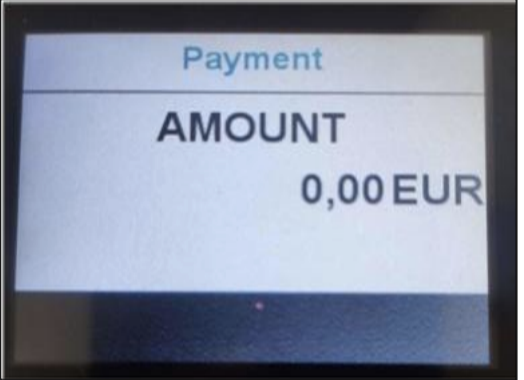
-
Press for the menu and go to . .
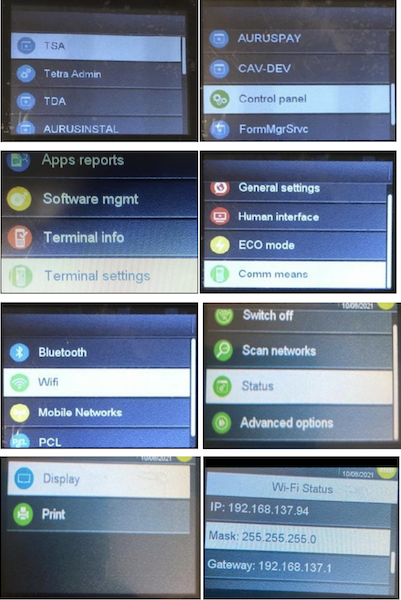 Use and to go up and down the menu. Use the green button to select an option.
- You can use Scan Networks to connect to your network or use Status to check the status of the network connection.
- Go back to the menu using the back yellow button, and select to go back to the idle screen.
Setting up Link2500 for IP Pairing
Within the Link 2500 device, change the parameters ECR IP and ECR URL to point to the IP address of the iOS device on which the SDK is running.
-
On UA's home screen key in 1957 (don't press enter) If the password prompt doesn’t show
up, immediately, wait a second and key in the sequence again.
- Password =
- From AurusPulse menu, go to by pressing and .
- Go to and select the green confirm button.
- Verify the IP address entered matches the iPad iP.
- Follow similar steps to verify the value configured for ECRIP. The IP address here matches the iPad IP address.
- Follow similar steps to verify the value configured for ECR Port, 8030.
- Press the red on the Card Reader to exit the menu. This saves the configuration and reboots the Card Reader
Setting up Link2500 for Bluetooth Pairing
- On Initializing screen, Press “”. You can see that the Card Reader shows up with a red logo if you just turned it on, but wait a few seconds for it to turn to the next screen.
- After reboot, the Card Reader shows the ‘Payment’ screen.
- Press for Menu and follow ”
- Tap on iPad or iPhone to connect to the terminal. Follow any pairing instructions provided on the iPad or Card reader
- To confirm, select on the card reader, and you’ll see your iPad or iPhone name. Similarly, you’ll find in “My Devices” section of Bluetooth.
Connect Aurus Terminal to POS
Set up Aurus as a supported payment reader within the Point of Sale (POS) app.
Point of Sale CMS Setup
- Configure Aurus as a supported Payment Reader in .
- You can also make Aurus the default payment reader in .
-
Set up the Payment Gateway Configuration for Aurus.
- Create one for Aurus if it doesn't exist in .
- Make sure to configure the URL Base, Secondary URL Base and Merchant Gateway ID.
-
Set up your Register to identify the Aurus terminal. Aurus doesn't support terminal
discovery and the POS app knows ahead of time the terminal ID to pair to.
- Enter the Serial Number of the terminal you have in Navigate to your . This is the SID+REG found on the back of the aurus terminal you have. It’ll be eight digits. If it's only seven characters long, prefix it with a .
- You can select as the in the same section.
POS App Flow with Aurus
Because the register knows which terminal to connect to, verify the terminal and iPad are on the same network. After you open the app and log in, the terminal connects automatically. The Aurus terminal has to be in a pairing state to make sure the pairing is complete.
means the terminal is actively trying to connect with POS and is indicated by
the "" message on the terminal display. This indicates the number of attempts. The
terminal tries nine times by default as soon as it is turned on and then goes into an idle
state.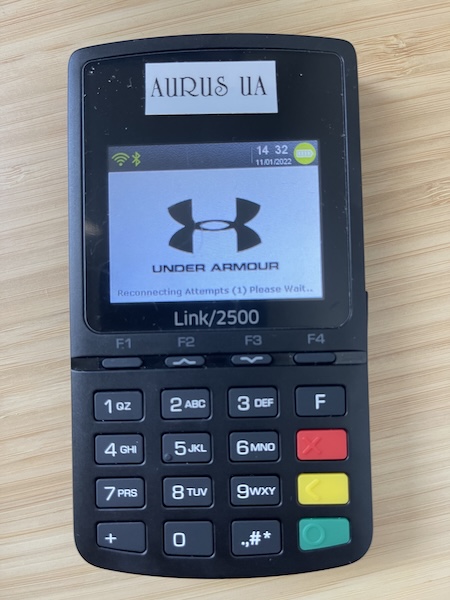
requires the user to select the green button to reconnect.
The Card Reader displays the UA logo currently. Next are the different states it'll be in.
- As soon as you boot up, the logo is red in color. This is just part of the boot-up sequence and it switches to black shortly.
- The display has a black logo as long as it isn't connected to a POS app.
- After you open the app and the pairing is complete, you’ll see the Card Reader switch to the red logo.
- If the application is terminated or backgrounded, the logo switches to black (indicating it isn't paired with the POS app anymore).
- If you open the application, and see that the logo is still black (even after the nine reconnect attempts as displayed on the screen), select the green button for it to immediately connect and switch to red logo (this only works if the POS app and card reader have previously been paired together).

If the app was launched and you went ahead to checkout page and realize the terminal is showing the black logo, you can always select the green button and the terminal auto connects.