Increase security by using Point of Sale CMS to generate brand and environment-specific Activation QR Codes. Simplify the process of managing API keys for different Point of Sale (POS) app brands and environments.
Prerequisites
- Modern POS App build: 8.0.1 & later
- Supported POS device
- Offline Support: NA
Activation Code in CMS
Go to the environment you want to switch the app to, and go to . If it's the first time activating the app, switch to Production.
POS App Flow
The next sections show how the POS app works within each environment.
First Time POS Activation - Production
On the first launch of the POS, the app presents the Welcome Screen with a message to scan the
Activation QR code.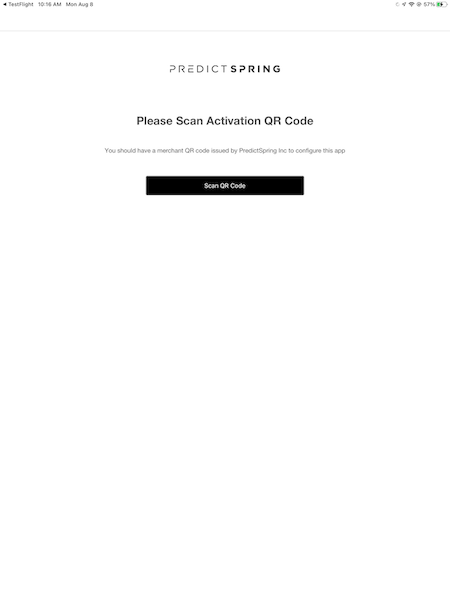
Tap "Scan QR Code" and you will launch the camera scanner. You can scan the activation QR code
found in .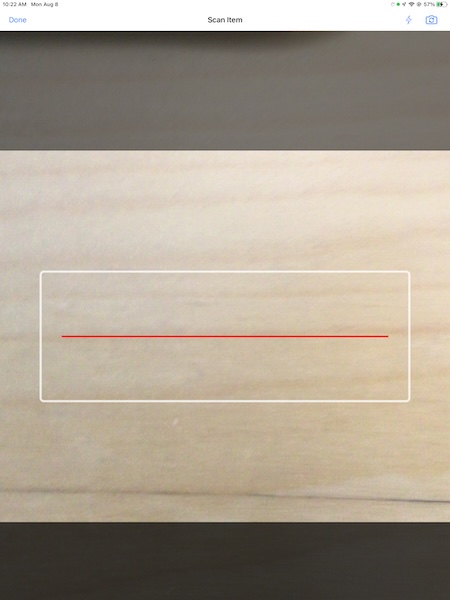
If the scan is successful, the app initializes with the corresponding configuration for that brand QR code.
First Time POS Activation - Staging
From version 8.2.1 and onwards, users can activate and directly enter the Staging environment by scanning the Staging activation QR code. The Staging QR code is different from the Production code and can be accessed via the respective CMS site.
On a successful scan of a Staging code, the user is prompted to enter the configuration token
from that specific environment. After it's applied, the app initializes with the corresponding
environment and configuration token.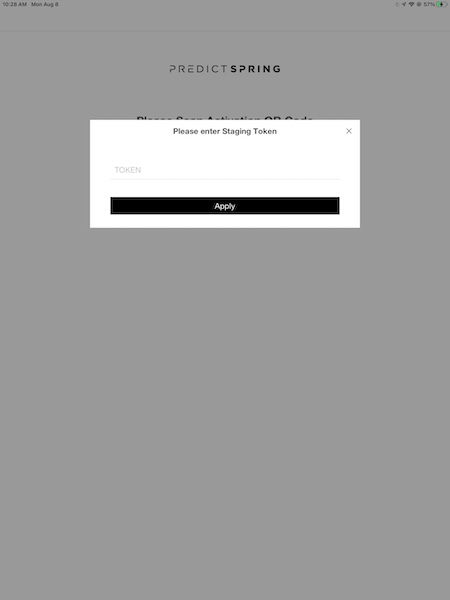

Switching to an Environment First time
If this is the first time you're switching to the staging environment with 8.0.1, the POS app prompts the user to scan an environment-specific QR code.
Upgrading from a previous version from Staging Environment
If you're currently in the Staging environment on versions 7.16.5 or earlier and upgrading to
8.0.1, the POS app prompts you to scan the respective environment's activation code to continue.
This is similar to switching to a different environment for the first time on the new
version.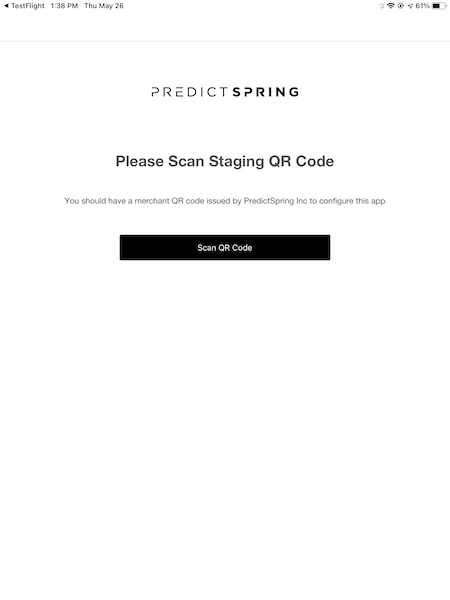
Updating API Keys After 8.0.1 Rollout
If a brand decides to update API Keys after rolling out the 8.0.1 version, all POS apps undergo a reset to clear the current environment-specific API Keys. Use the Advanced Reset POS deep link to reset the POS app and begin the Activation Step again.
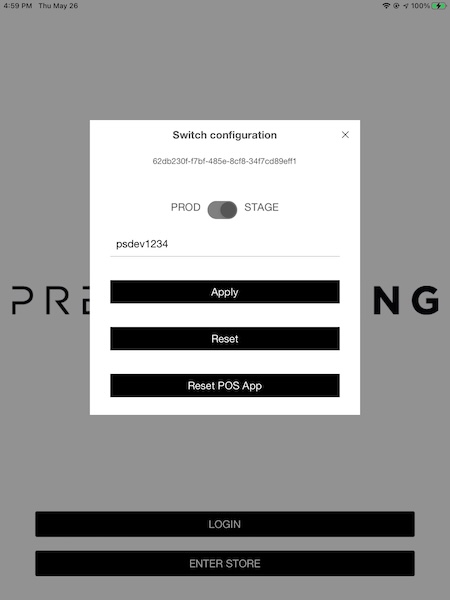
Troubleshooting

If for some reason, the activation failed and you see a Retry screen if clicking on or in the launch screen, bring up the reset UI from the launch Screen. Then, select.