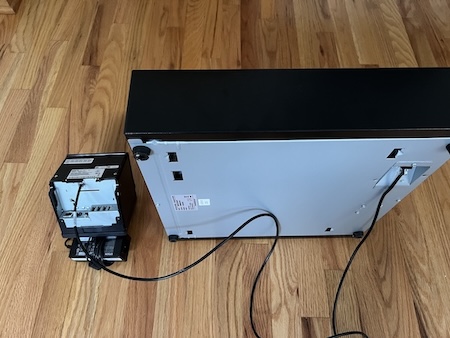
Integrate your APG 320 cash register with your receipt printer for operations within the Point of Sale (POS) app.
Prerequisites:
:
- Modern POS App build: 7.1.0 or later
- Platform Support: iPhone & iPad
- Offline Support: yes
CMS Configuration
You will need to configure your cash drawer as "APG" within our CMS. To do so, follow these steps:
Go to .
- Under
- Under
- Under
Ports and Cable
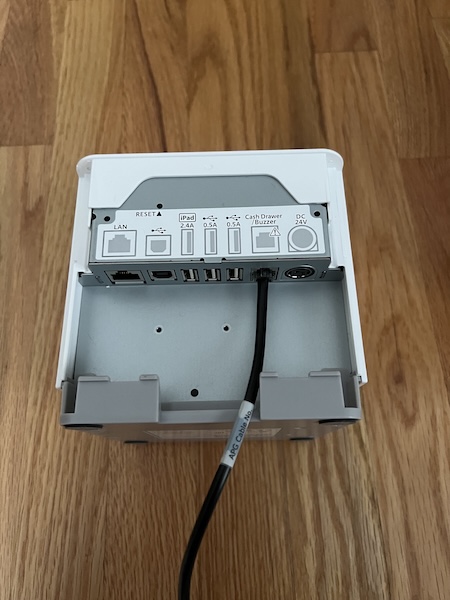
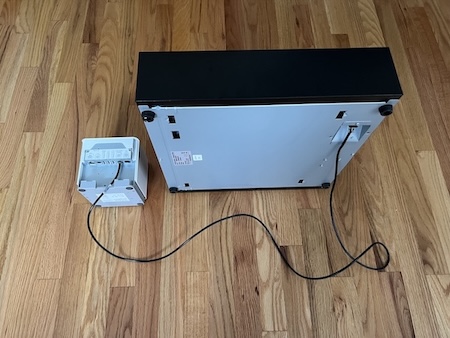
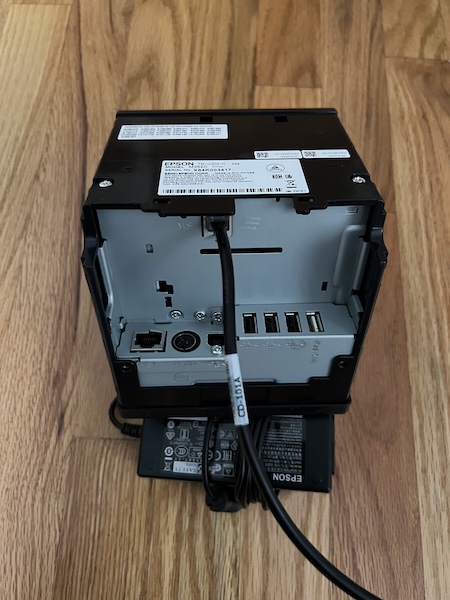
Printer cables aren't interchangeable, meaning you need to have the cable that came with the drawer. Also, make sure the cable is plugged into the correct device. Cables have a printer end and a drawer end.
- The cash drawer is controlled through the printer and it has to be connected to the printer.
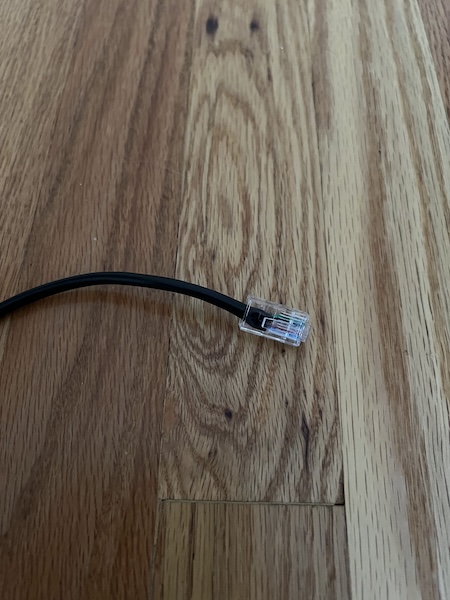
- Connect the cash drawer with the printer as the app communicates with the drawer through the printer. The cable used on the printer side needs to be RJ11.
RJ11 cable ends must be connected to the printer.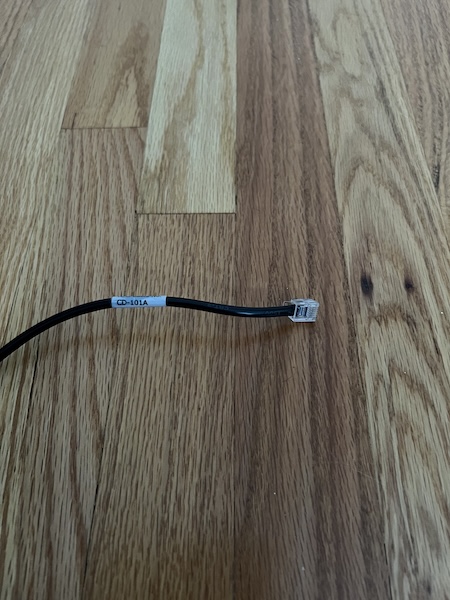
Ethernet cable ends must be connected to the Cash Register.