
Turn on AirPrint and configure the Point of Sale platform so you can print different document types, including A4 documents, to conventional printers using AirPrint.
You can print the following document types:
- Customer Quotes
- Order Receipts
- Return Receipts
- Refund Receipts
- Exchange Receipts
- Gift Receipts
You can only configure one receipt printer type at a time. By configuring AirPrint for the register, it blocks other types of peripheral printers from being discovered in the device menu.

Note If you're looking for contract printing, see this article.
- In CMS, go to .
- Select a store.
-
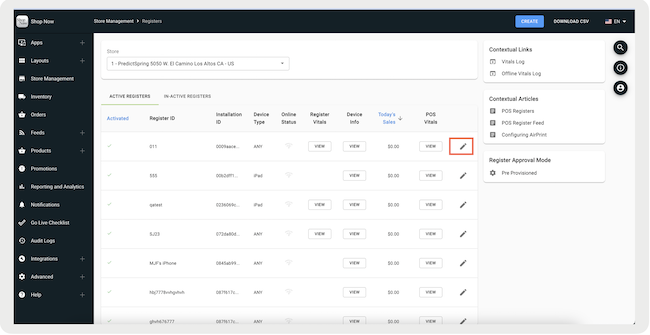
Select the pencil icon to the right of the register you want to turn on Airprinting.
-
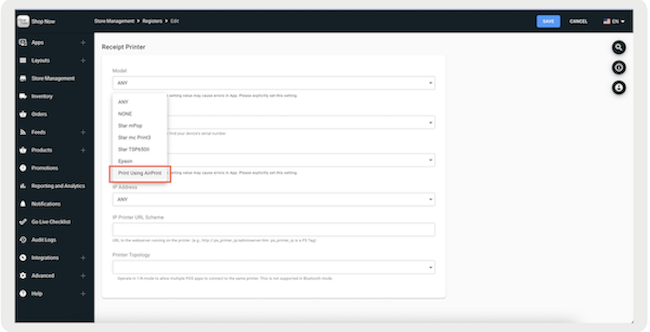
Go to , under , select .
- Save your changes.
Note Quit and reload the application to load the new settings for the register. The specific
device that you're printing to can be chosen at the time that you print the receipt.