
Activate your iOS device and install it as in-store register. First, download the TestFlight and Point of Sale (POS) apps on your iOS device.
Prerequisites:
- CMS Access
- iOS Device (iPad)
- TestFlight and Point of Sale apps downloaded on your iOS device
- TestFlight account
- On your iOS device, download the latest build via TestFlight. After the build appears on your device’s home screen, open the POS app.
-
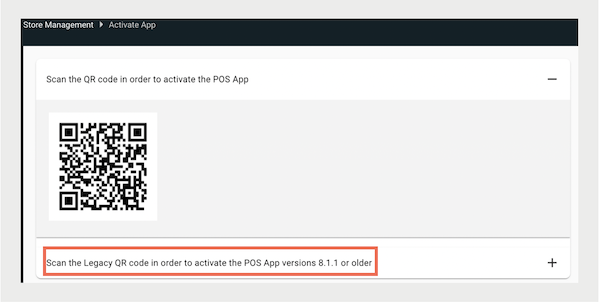
Scan the remote registration QR code using your device’s camera. To access the QR code,
in CMS, go to . You can choose to scan by merchant environment or by a specific store. A
login screen with the Salesforce logo opens.
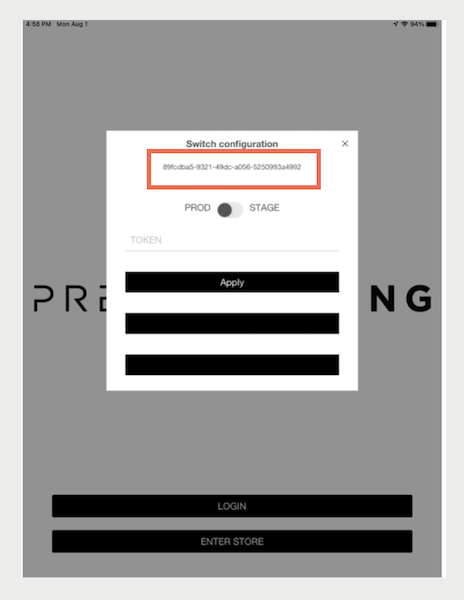
- Rapidly tap the upper right-hand corner of the screen until a menu pops up.
-
Make note of the Installation Device ID right below Switch configuration. This number
is unique to your device. Keep this number readily available because you need it for CMS
configuration verifications.[The installation device ID under Switch Configuration]
verifications.
-
In CMS, go to the Registers page through either of these options:
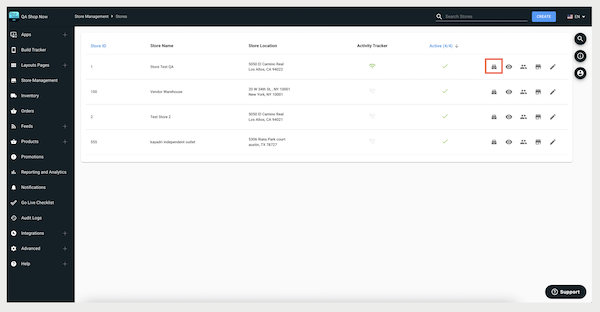
- . Search for your store and select the register icon.
- .
- Click Create. Set your Register ID to whatever you like, but make sure that it's unique and easily identifiable.
-
Select a register installation option:
- To autopopulate your device’s Installation ID and allow remote activation, turn on Remote Installation Registration and then Automatically Set Register to Active on Remote Activation.
- To install manually, enter or select your Installation Device ID and then turn on Register is Activated.
- Set Cash Drawer Mode to Disconnected Cash Drawer (appears as EXTERNAL_CASH_MODE), and set Till Management to Automated (appears as AUTO). You can leave everything else as is.
- Go back to your iOS device and reset the POS App.
- Scan the remote registration QR Code again. This QR Code is also on the Registers page in Store Management.
-
From the Saleforce login page, rapidly tap the upper right-hand corner of the screen to
bring up the menu popup again. Flip the switch to STAGE, enter in
the token from your App Config, and select Apply. The app token can
be found in the CMS by going to . The token is listed under the App Config. You are prompted to scan the QR
code again.
 Note If you switch a register from one region to another, relaunch the app.
 - If you have created Store Associate credentials, enter them here.