
Set up the ATCUD for each register and document type by sharing the required information with your Point of Sale Customer Success Manager
Document series are established for each document type and assigned to a specific register. Document types include:
-
Sale in Online mode (Prefix FR-A)
-
Return in Online mode (Prefix RD-A)
-
Sale in Offline mode (Prefix FRM-AO)
-
Return in Offline mode (Prefix RDM-AO).
Document series are established for each document type and assigned to a specific register. Document types include:
-
Sale in Online mode (Prefix FR-A)
-
Return in Online mode (Prefix RD-A)
-
Sale in Offline mode (Prefix FRM-AO)
-
Return in Offline mode (Prefix RDM-AO).
Each document series must be registered on the Portugal tax site, and upon registration, the client will receive the ATCUD (a unique code) for each series. The information required for registering a document series includes:
-
Sale Document
-
(FR A-\<StoreID\>-\<RegisterID\>/\<SequentialDocumentno.\>)
-
Where SequentialDocumentno. starts at 00000001 (at launch).
-
-
SAFT document type FR
-
Beginning Date: Go live date
-
-
Return Document
-
(RD A-\<StoreID\>-\<RegisterID\>/\<SequentialDocumentno.\>)
-
SAFT document type NC
-
Beginning Date: Go live date
-
-
Offline Sale Document
-
(FRM AO-\<StoreID\>-\<RegisterID\>/\<SequentialDocumentno.\>)
-
SAFT document type FR
-
Beginning Date: Go live date
-
-
Offline Return Document
-
(RDM AO-\<StoreID\>-\<RegisterID\>/\<SequentialDocumentno.\>)
-
SAFT document type NC
-
Beginning Date: Go live date
-
To set up the ATCUD for each register and document type, share this information with your Customer Success Manager.
If a new register is added in Portugal, it's crucial to first register the document series with the Portuguese tax authorities and provide the ATCUD to your Customer Success Manager.
Configuration process - Point of Sale CMS
Point of Sale CMS groups fiscalization settings in one place. The navigation path you use depends on whether you’re setting up fiscalization for the first time.
- For new merchants, go to and create a configuration. If you can’t create a configuration, switch to a merchant region that supports fiscalization. For example, a U.S. merchant region that doesn’t support fiscalization won’t allow you to create one.
-
For legacy merchants, go to
-
Expand All and enable/configure these settings:
Enabling FiscalizationEnter all prefixesTax Identifier (merchant tax ID)
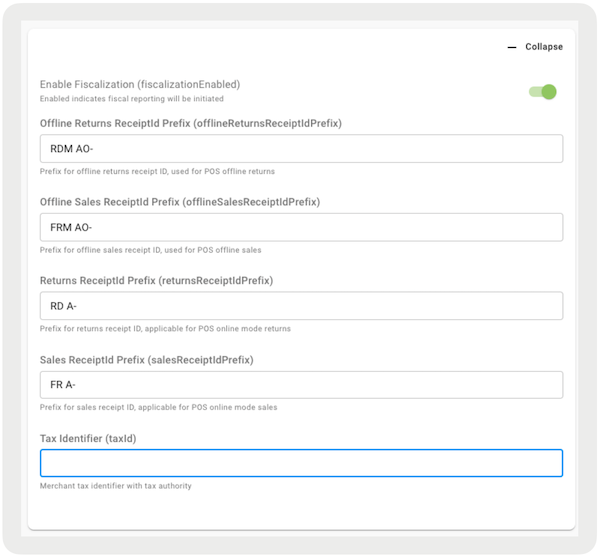
-
Expand Portugal and enable or configure the following settings:
-
Enter the in Portugal
-
in Portugal
-
window in days (for example 30 or 60— the number can be a max of 365)
-
Enter (value of 770011632)
-
For , enter the below text:
-
*M01-Artigo 16.o n.o 6 do CIVA (Ou similar),M02-Artigo 6.o do Decreto‐Lei n.o 198/90, de 19 de Artigo 6.o do Decreto‐Lei n.o 198/90, de 19 de Junho,M03-Exigibilidade de caixa,M04-Isento Artigo 13.o do CIVA (Ou similar),M05-Isento Artigo 14.o do CIVA (Ou similar),M06-Isento Artigo 15.o do CIVA (Ou similar),M07-Isento Artigo 9.o do CIVA (Ou similar),M08-IVA - Autoliquidação,M09-IVA ‐ Não confere direito a dedução,M10-IVA - Regime de isenção,M11-Regime particular do tabaco,M12-Regime da margem de lucro - Agências de Viagens,M13-Regime da margem de lucro - Bens em segunda mão,M14-Regime da margem de lucro - Objetos de arte,M15-Regime da margem de lucro - Objetos de coleção e antiguidades,M16-Isento Artigo 14.o do RITI (Ou similar),M99-Não sujeito; não tributado (Ou similar) *
-
-
-
Expand All and enable/configure these settings:
Layouts
- Set up Customer Information and Cart Option layout to get the customer's full name and related Tax/VAT identifier information.
- Configure the layouts configured in Staging and Production environments across all app configs.
Print Receipt Configuration
For printing the Fiscal QR code on printed receipts, add specific fiscal tags to the receipt template (more details on the printed receipt template can be found here).
- :ps\_fiscal\_label
- :ps\_fiscal\_value
