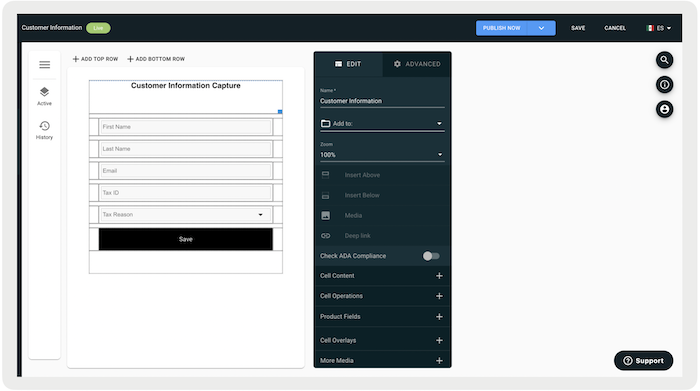
Merchants who want to use Point of Sale's services in Mexico must set up a FiscalPop account. During setup, give Point of Sale key merchant details such as the Stamping URL, Auth Token, and Invoice URL.
Merchants seeking to use Point of Sale's services in Mexico must collaborate with FiscalPop and establish an account with them. During the initial setup phase, Point of Sale will require specific merchant details from either the merchant or FiscalPop. These details include:
-
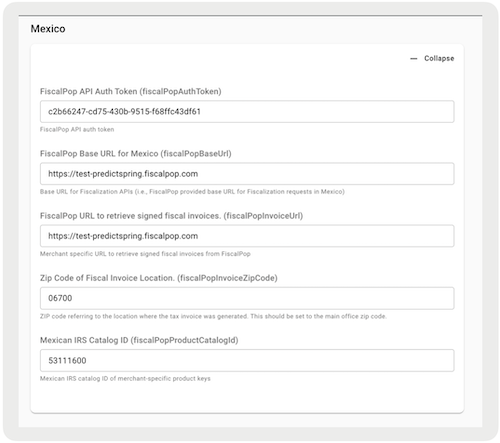
Stamping URL: This is the base URL used to submit transactions to FiscalPop for the merchant. Point of Sale uses precise APIs provided by FiscalPop for reporting transactions. These APIs include:
-
/order/stamp: If all required customer information is provided during the sale.
-
/order/pending: If necessary, customer information isn't provided during the sale, but the transaction still needs to be reported to FiscalPop. This step lets customers go to a specific FiscalPop-hosted page, enter the needed information, and get electronic proof of payment.
-
/order/refund: This API is used to report returns to FiscalPop.
-
-
Auth Token: This authorization token grants Point of Sale access to FiscalPop APIs for the merchant.
-
Invoice URL: FiscalPop provides a merchant-specific URL that is printed on receipts both in plain text and in the form of a QR code. Customers can use this URL/QR code to go to the FiscalPop page and generate and print their electronic proof of payment.

Configure Settings
Point of Sale CMS groups fiscalization settings in one place. The navigation path you use depends on whether you’re setting up fiscalization for the first time.
- For new merchants, go to and create a configuration. If you can’t create a configuration, switch to a merchant region that supports fiscalization. For example, a U.S. merchant region that doesn’t support fiscalization won’t allow you to create one.
-
For legacy merchants, go to
-
Expand All and enable/configure these settings:
Enabling FiscalizationTax Identifier (merchant tax ID).
-
Expand Mexico and configure the required fields.
-
Expand All and enable/configure these settings:
Print Receipt Confirmation
For printing the Fiscal QR code on printed receipts, add specific fiscal tags to the
receipt template (more details on the printed receipt template can be found here). 
Email Receipt Confirmation
If a merchant intends to use Point of Sale's email receipt template for printing Fiscal data on the email receipts, add specific fiscal tags to the email receipt template (more information on the email receipt templates can be found here)
-
{fiscal\_print\_placeholder\_start}
-
{fiscal\_print\_label}
-
{fiscal\_print\_value}
-
{fiscal\_print\_placeholder\_end}
.