
Set up your Epson fiscal printer to connect to your POS. Then, obtain the IP address so you can manually add the printer to the POS app and begin fiscalization.
**Setting Up Your Epson Printer**
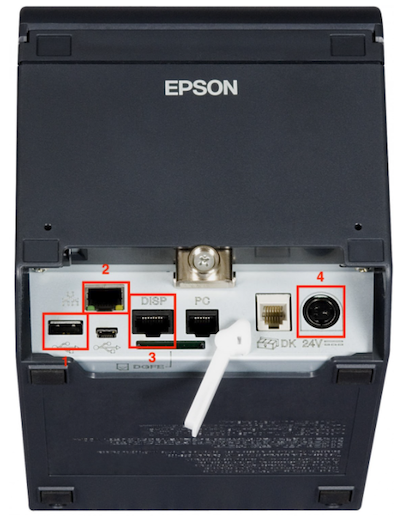
This is an image of an example Epson printer and its available ports.
- 1. USB Port for the numeric keyboard
- 2. Ethernet port
- 3. Display port
- 4. Power port
Set up the Printer
Follow these steps to set up your printer.
- Put the display cover in the display so the cable hangs out.
- Connect the display to the display port (3).
- Connect the numeric keyboard to the printer through the USB port (1).
- Connect the Ethernet cable from your router to the Ethernet port (2).
- Insert the paper roll into the printer.
- Connect the power port (4) to the printer and turn the switch on.
-
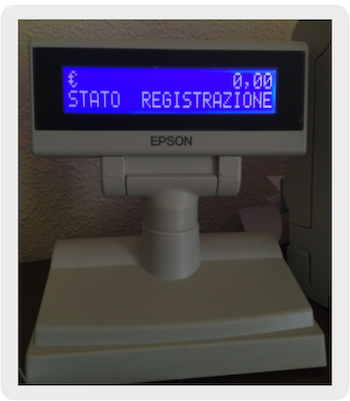
If everything is correctly set up, the display looks like this.
A representative from the tax authority will need to validate the production setup in terms of both hardware and software in the actual store.
Obtain IP Address
The default IP address of the FP90 printer is 192.168.0.2. However, this value may be different.
To obtain the IP address, make certain the printer is connected to a network using an ethernet port.
- Begin when the printer display shows STATO REGISTRAZIONE.
- Enter 3333.
- Press CHIAVE.
- Enter 19.
-
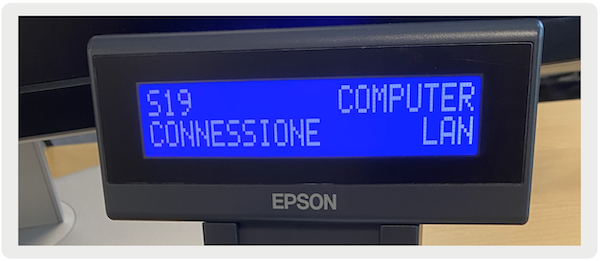
The display should now show the following information:
- Press SUBTOTALE and the printer will print the IP address along with other network details on the receipt.
Disabele Auto Opening of Cash Drawer
By default, when the receipt is printed, the cash drawer will reopen. To turn this off, press the following combination using the numeric keyboard:
- Start from the state where the printer's display shows STATO REGISTRAZIONE.
- Enter 3333.
- Press CHIAVE.
- Enter 1.
- Press SUBTOTALE. This action will print out the menu with index keys for each setting.
- Check the number of the index for the cash drawer (AP.?AUT.?CASSETTO). It should be index 26.
- Input the index 26.
- Change the status by pressing X and the updated status should be 0.
- Press CONTANTE.
- Press CHIAVE.
Enable Rounding on Printer
By default, rounding of the total amount will be disabled on the printer. To turn it on, press the following combination using a numeric keyboard.
- Start from the state where the printer's display shows STATO REGISTRAZIONE.
- Enter 3333.
- Press CHIAVE.
- Enter 15.
- Press CONTANTE until flag 27.
- Check that the value is 1 or press 1 to update.
- Press CONTANTE.
- Press CHIAVE.
Enable Printer in POS App
Epson fiscalization models can't be discovered automatically in the network. The printer's IP address must be added manually into the POS app. After the IP address is known:
- Register setup should have the printer set up to the IP connection and the printer type should be Epson All.
- On the POS app, go to the Device Manager screen.
- Tap on Add Printer and enter the IP address shown by the printer based on the instructions covered in Obtaining IP Address section of this article.
- The POS app will connect to the printer via IP. A message will be shown if there has been an error. Otherwise, the printer will be added to the Device Manager screen.
Enable Reprints on Printer
For reprints, a manual login to the printer must be performed. To do that, press the following combination using the numeric keyboard:
- Start from the state where the printer's display shows STATO REGISTRAZIONE.
- Enter 3333
- Press CHIAVE.
- Enter 39.
- Press the following keys: 17, 18, 19, 20, 21.
- Press G.
Change Logout Time
After login is done, by default, the printer will log out again in 30 minutes. To update this time, press the following combination using the numeric keyboard. Make sure to perform the login first to change the logout time frame.
- Start where the printer display shows STATO REGISTRAZIONE.
- Enter 3333.