
To issue tax-free forms in the POS app, integrate Global Blue in Point of Sale CMS.
- Go to , and then create a configuration.
- Select Global Blueas the tax-free provider (1).
- Enter the Base URL provided by Global Blue (2).
-
Under Global Blue Stores, associate the configuration with each
store that supports Global Blue (3).
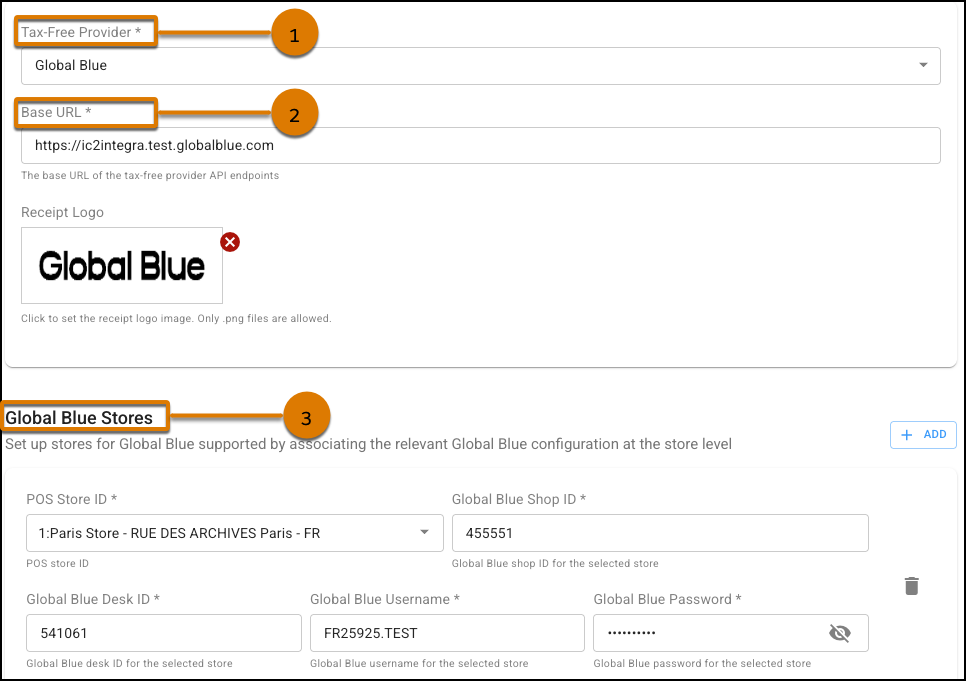
- To add stores in bulk including Desk ID, click ADD and select Import Values from CSV. Example CSV file: Global Blue Store File.csv
-
If your store has a unique Desk ID per register, configure register-level Desk IDs using
either of these methods.
- Go to Store Management | Register | Register GB Desk ID and assign a unique Desk ID to each register manually.
- Use the Register Feed to bulk-configure Desk IDs across registers.
-
Configure country-specific fields. If you operate stores in France, Italy, or Portugal,
complete the additional configurations to comply with local tax-free regulations.
Country Configuration France For items priced above 500 EUR, configure these product feed attributes so the POS can send the required compliance data: goodCategory, brand, color Italy - Turn on Generate Tax-Free Document Number in Point of Sale CMS. This flag automatically generates sequential tax-free document numbers for all issuances and void operations. This consecutive counter ensures compliance with Italian tax-free documentation standards.
- For items with a VAT rate of 0%, set the goodCategory product attribute to the appropriate value. Consult your Global Blue account manager for accepted values.
Portugal For items priced above 500 EUR, configure the serial number attribute. For more information about adding a serial number during fulfillment or checkout, see Serialized Products in the POS App Flow. - Save your changes.