
Schedule an export job in Point of Sale to extract quiz data that provides customer-relevant information. You can export data, such as customer IDs, question IDs, and updated quiz answer times. Use the exported data to analyze customer responses and improve engagement.
For information on how to create a quiz, refer to Create a Quiz.
Set Up Field Mappings
Field mapping is optional, but it allows you to export quiz data into your merchant-specified fields, ensuring readability on your side. If no field mapping is configured, Point of Sale's backend will use the following default header names for export, which will appear in TLogs:
CustomerID, OrderID, ProductID, UpdatedOn, QuestionID, QuestionText,
     Answer
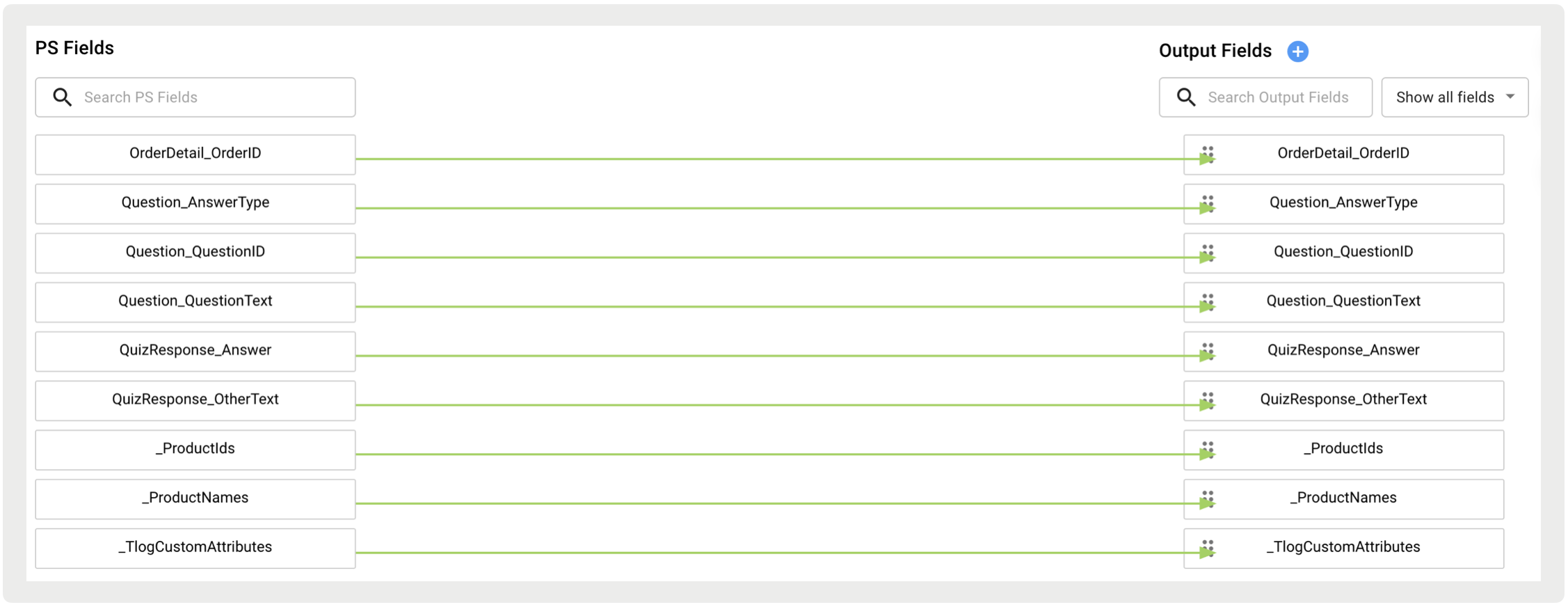
If mappings are configured, Point of Sale's backend will use the fields specified under PS Field and generate the query to retrieve the data accordingly. Please note that the backend will always query the following fields:
_ProductIds, _TlogCustomAttributes, _ProductNames
But the above fields will only be added to the TLog if mapping is configured.
- In CMS, go to .
-
Under PS Fields, map the fields to your fields under Output Fields.
-
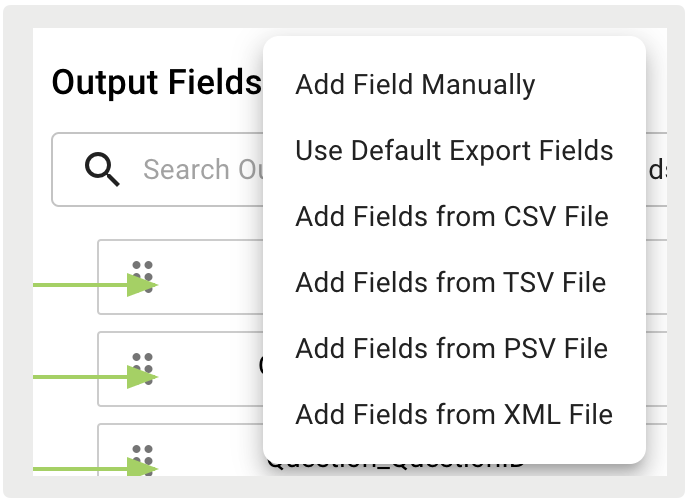
Fields under Output Fields can be added in multiple ways (manually, uploading file, or
using default mappings) by clicking the blue icon next to Output Fields.
- Save your changes.
Schedule an Export Job for Quiz Data
Scheduling export jobs is similar to scheduling feeds. For the basics of creating scheduled jobs in the CMS refer to the article on Schedule Feed Runs in Point of Sale CMS.
- In the CMS, go to .
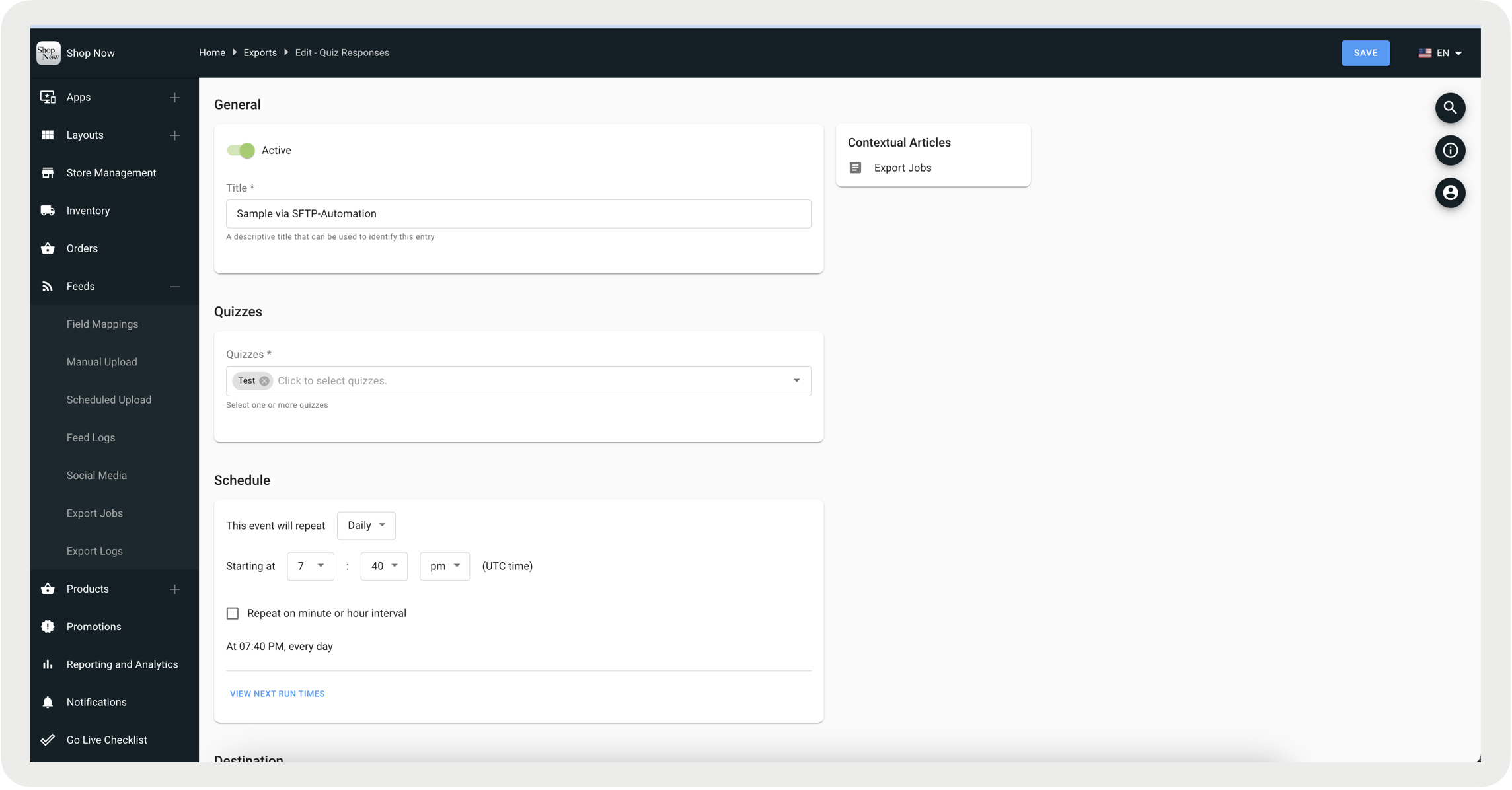
- Click on the + icon to create an export.
- Select Quiz Responses.
- Under Quizzes, select one or more quizzes to export their data.
-
Complete the rest of the fields by referring to Schedule Feed Runs in Point of Sale CMS and click
SAVE.
- Back in CMS, go to .
-
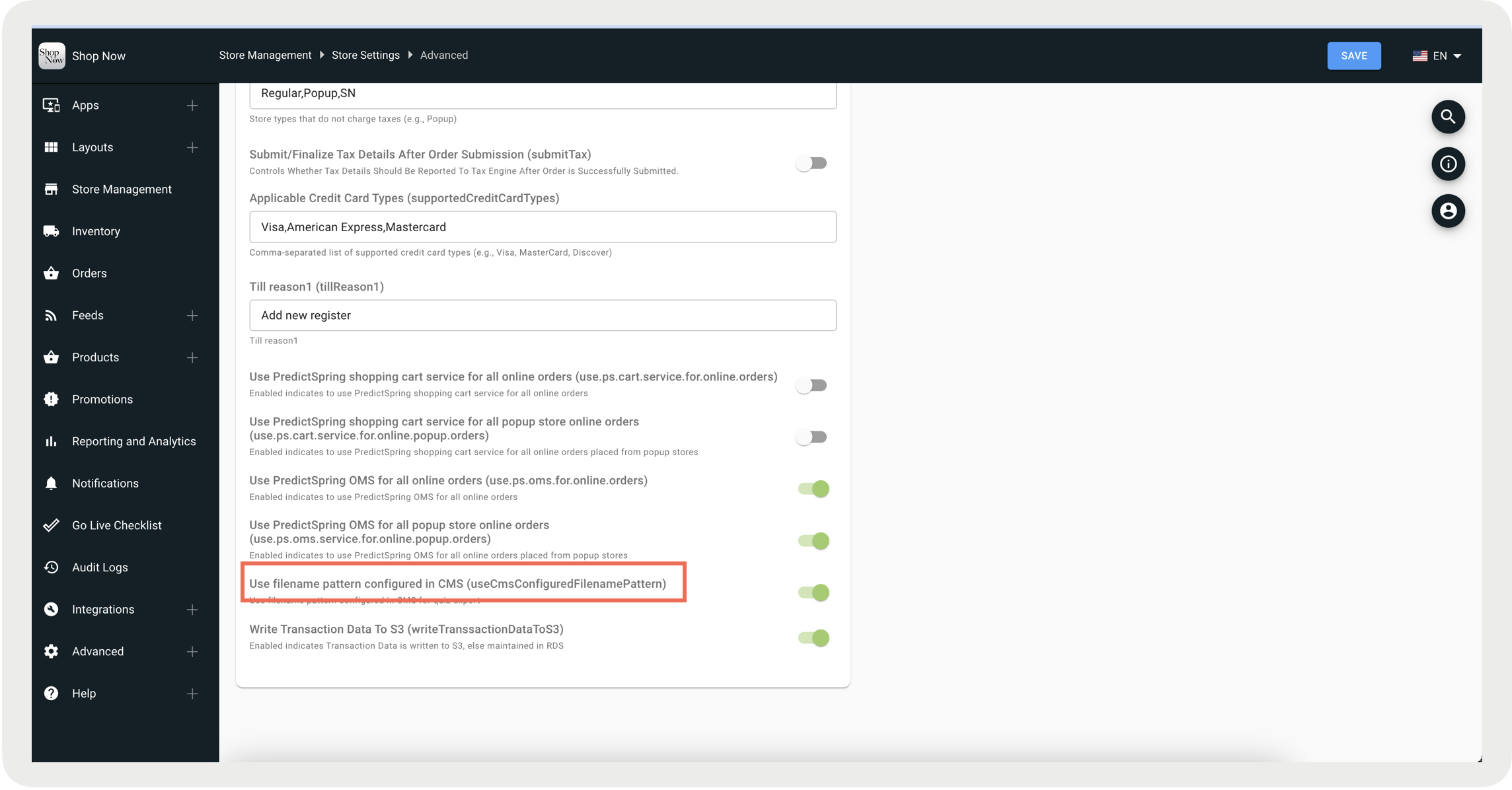
Under Quiz, toggle on the flag, Use filename pattern configured in CMS. By enabling this
feature, the exported file will be properly named with the date and time configured. Save your
changes.

An example file of the exported data can be found at Example Quiz Export Data.
Known Issues & Restrictions
As part of the 8.10.1 app build, the pre-checkout quiz was adjusted to include the CartID instead of the OrderID. In general, the CartID and OrderID will match. However, in some cases, they will not match if there was an error with the cart conversion and a new OrderID ends up being created during execution.
