
Set Field Mappings in Point of Sale to transform data from external sources into the format that Point of Sale uses. Field mappings use transformations and regular expressions. When you import data feeds, the field mappings ensure that your data is accurate and consistent. This consistency helps to streamline your retail operations.
Add Fields
You can add fields manually by typing the field names individually, or you can add many fields at once from a file. For CSV, TSV, and PSV files the field names should be in the first row of the file. In an XML file, you can select a parent tag and add all of the child tags that are found beneath the first instance of the specified parent tag.
- In CMS, go to .
- Click the blue + icon

<store>
  <name>
  <address>
  <city>
  <phone>
  <store-hours>
</store>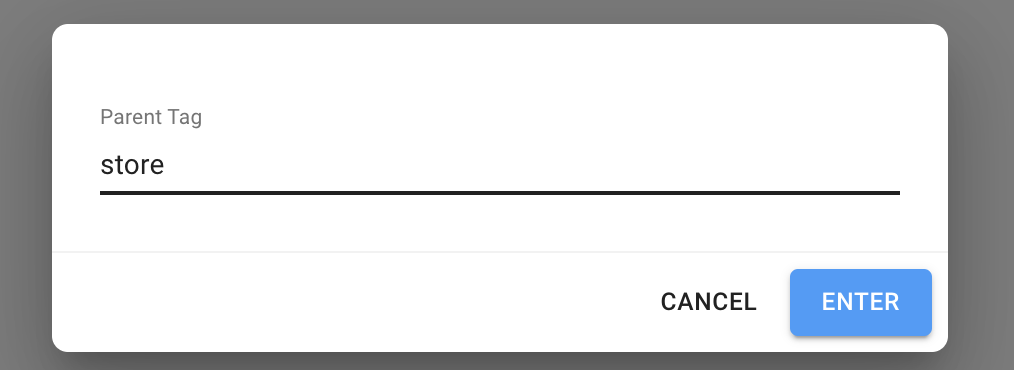
Map Fields
To map a Source Field to a Target Field:
- In CMS, go to .
- Click a Source Field on the left to select it.
- Click a Target Field on the right to create the mapping.
Once a mapping has been created, a line points from the Source Field on the left to the
Target Field on the right.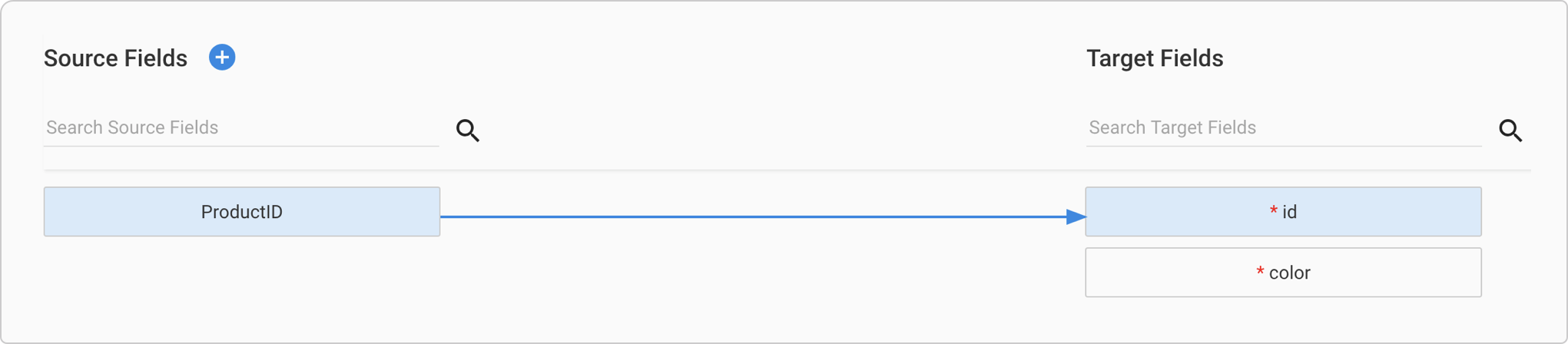


Use Custom Target Fields
When a Source Field does not fit any of the default Target Fields, use a custom Target Field:
- CustomString
- CustomInt
- CustomDecimal
- CustomDateTime
A custom field can be referenced from different contexts like the search config and PDP.
Map Many to One
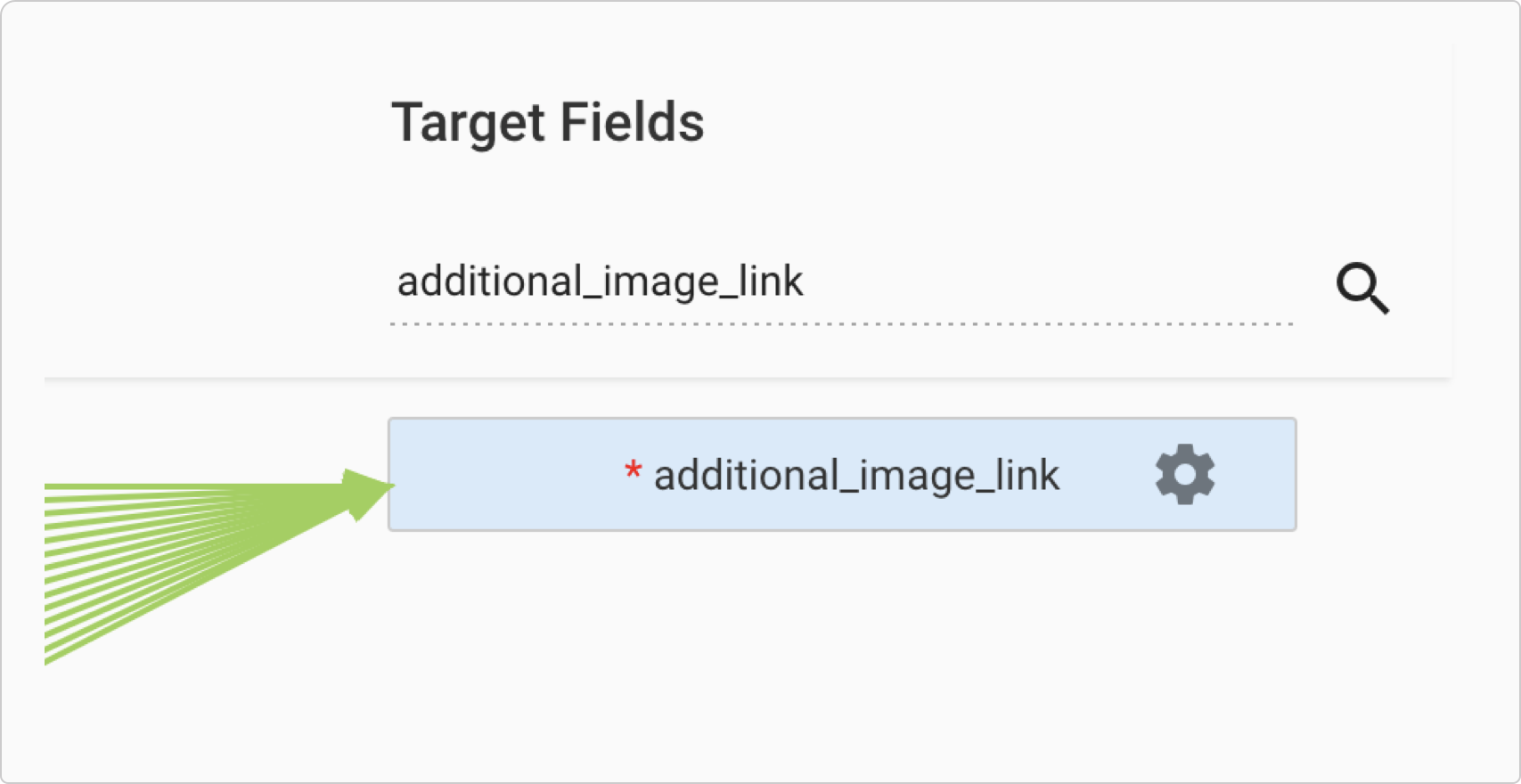
It is common for a Target Field to be composed of multiple Source Fields. For example, a product description might be composed of various Source Fields that are transformed and ordered in a particular way. This functionality is easier to manage now. Click on a Target Field to select it and view all Source Fields that are mapped to it.
Set Source Field Sort Order
First, select a Target Field to see the Source Fields that are mapped to it. To change
the order in which the Source Fields are concatenated (i.e., the sort order), just drag and drop
them into the desired order. 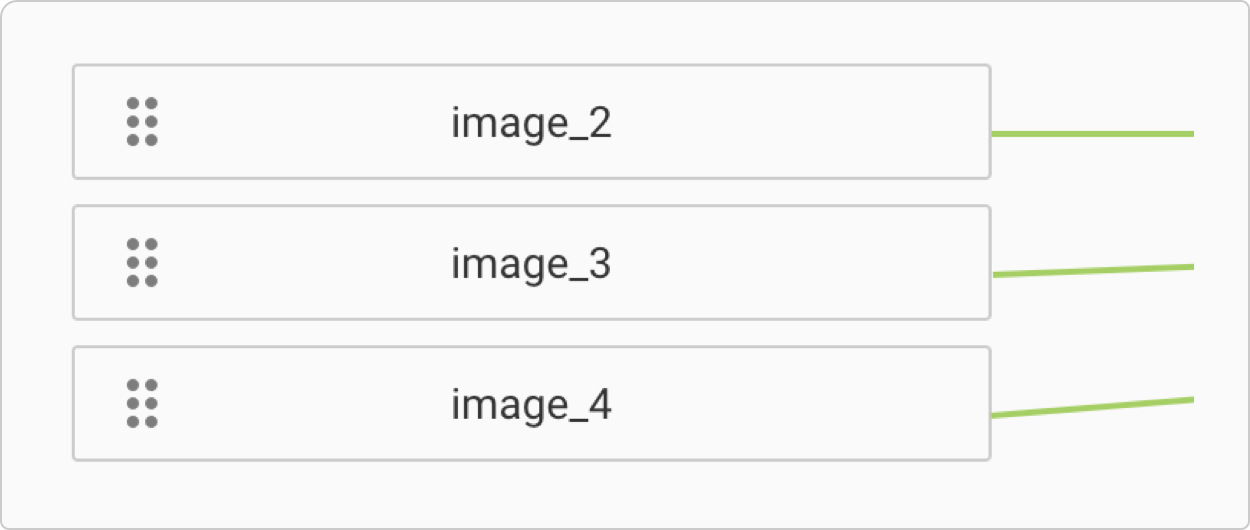
Edit Separating Characters
When many Source Fields are mapped to one Target Field, the source fields are concatenated and a separating character or characters is placed between the fields.
To edit the separating characters:
- Select a target field to see the source fields that are mapped to it.
-
Then click the gear icon.
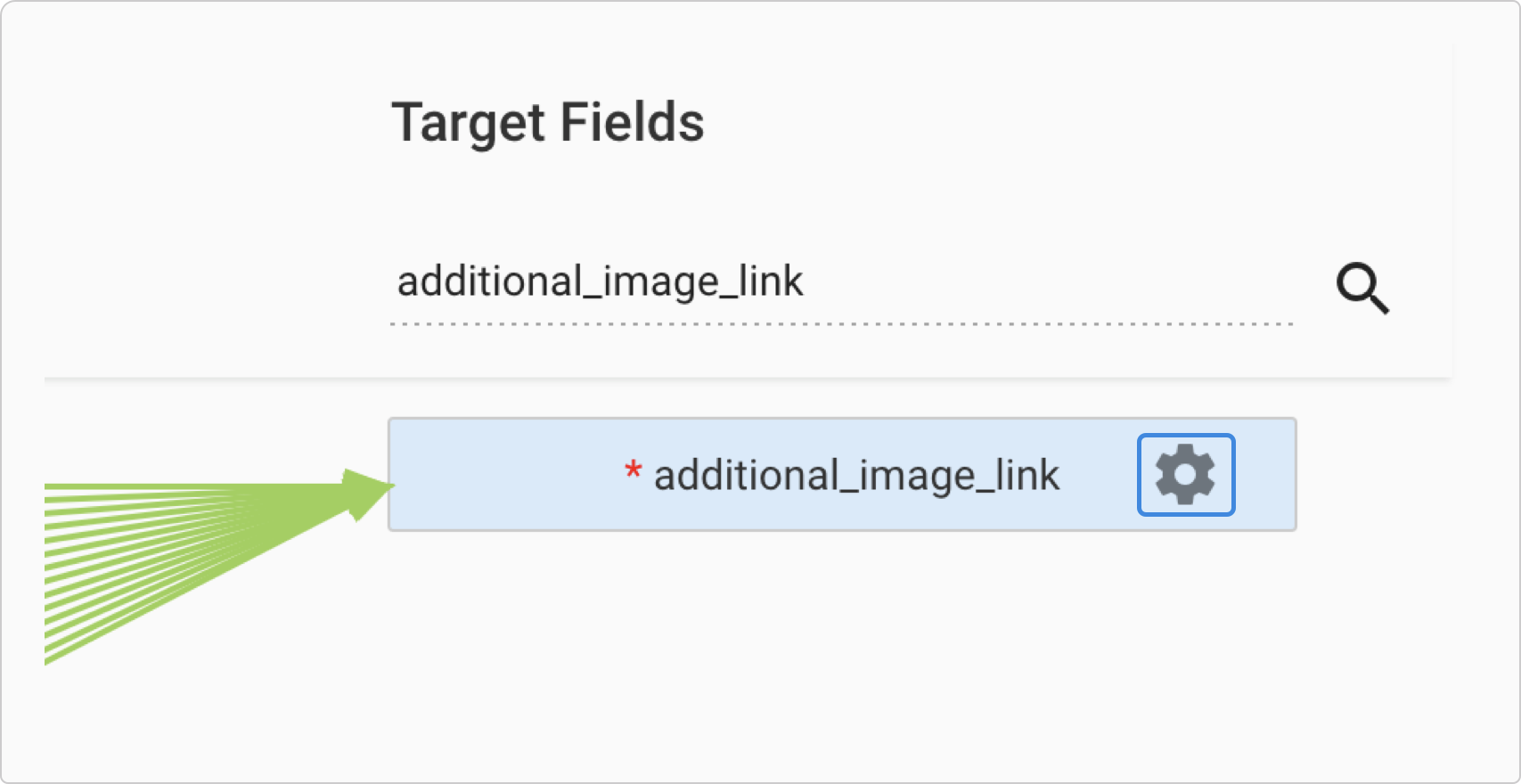

Replace Semicolons with Pipes
Let's say that your feed contains a column called AlternateImages that contains a list of image URLs separated by semicolons. Instead of generating a new feed, you can use a field transformation to replace the semicolons with pipes so that it conforms with the Google spec.
- Map AlternateImages to additional_image_link.
- Click the mapping line to launch the Transform Function popup.
- Select Replace All from the dropdown.
- Type ; in Find and | in Replace.
- Click OK then save.
Find Source and Target Fields
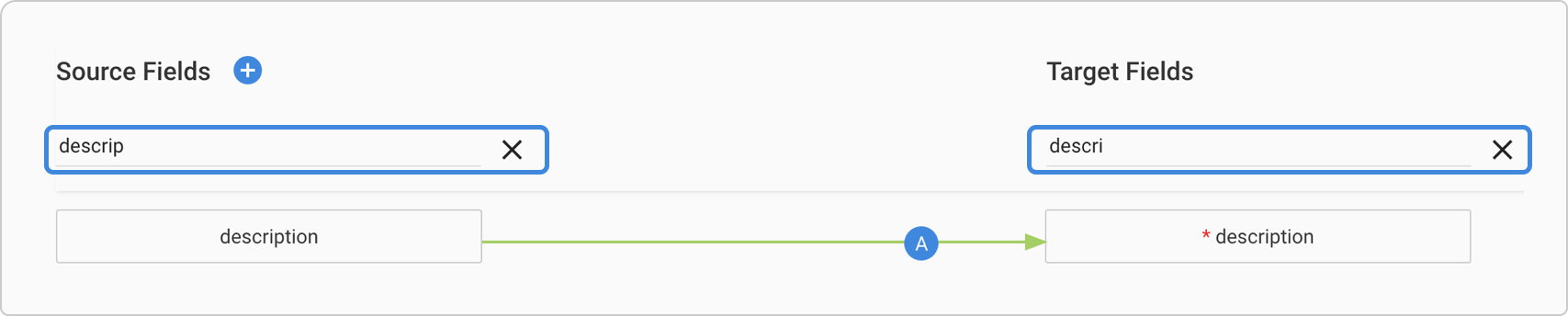
To filter the Source Fields and Target Fields, type into the search bars above the fields. This feature helps you locate fields and create mappings quickly.
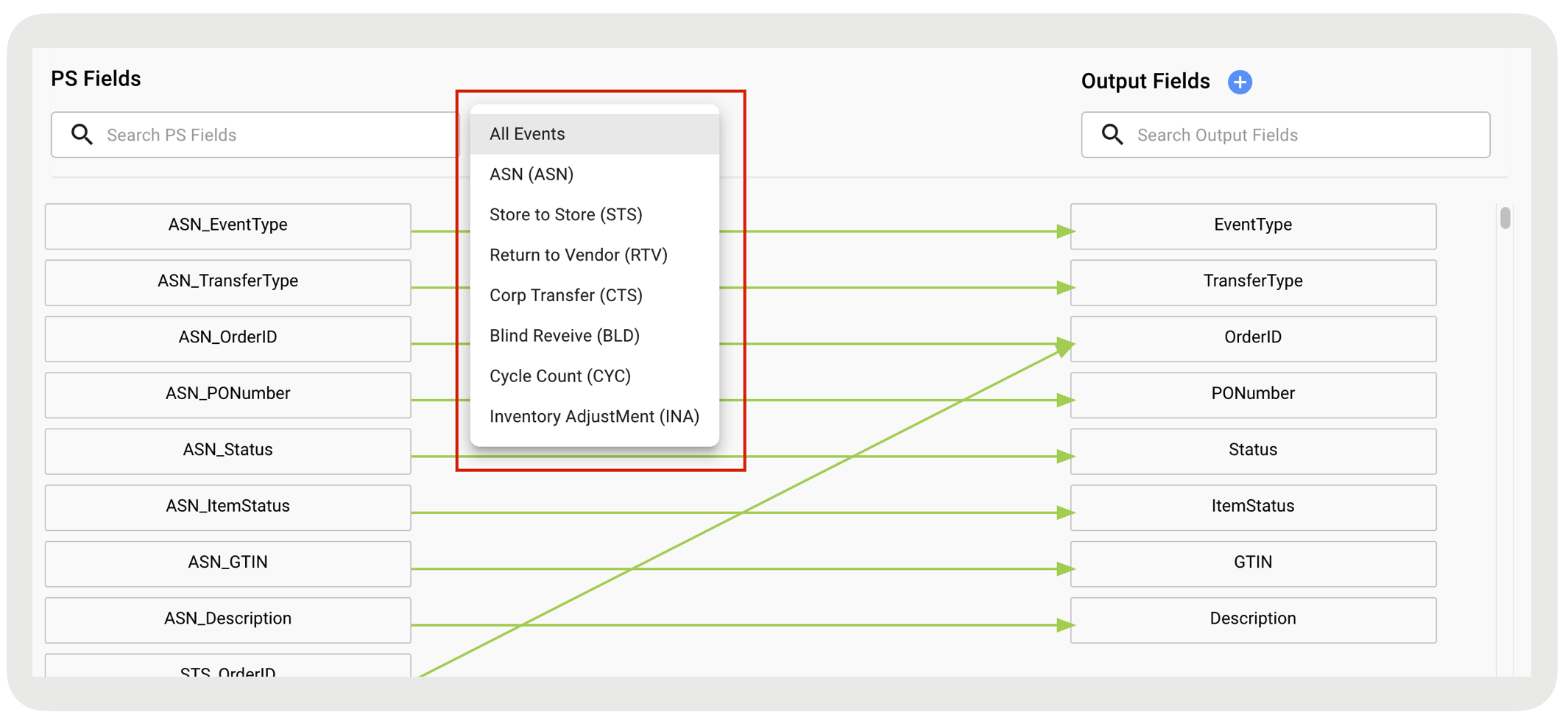
Filter Source Fields for Inventory Events
While creating field mappings for Inventory Event Exports you can filter the source column further by using the Event Picker Pulldown Menu.
Create Field Transformations
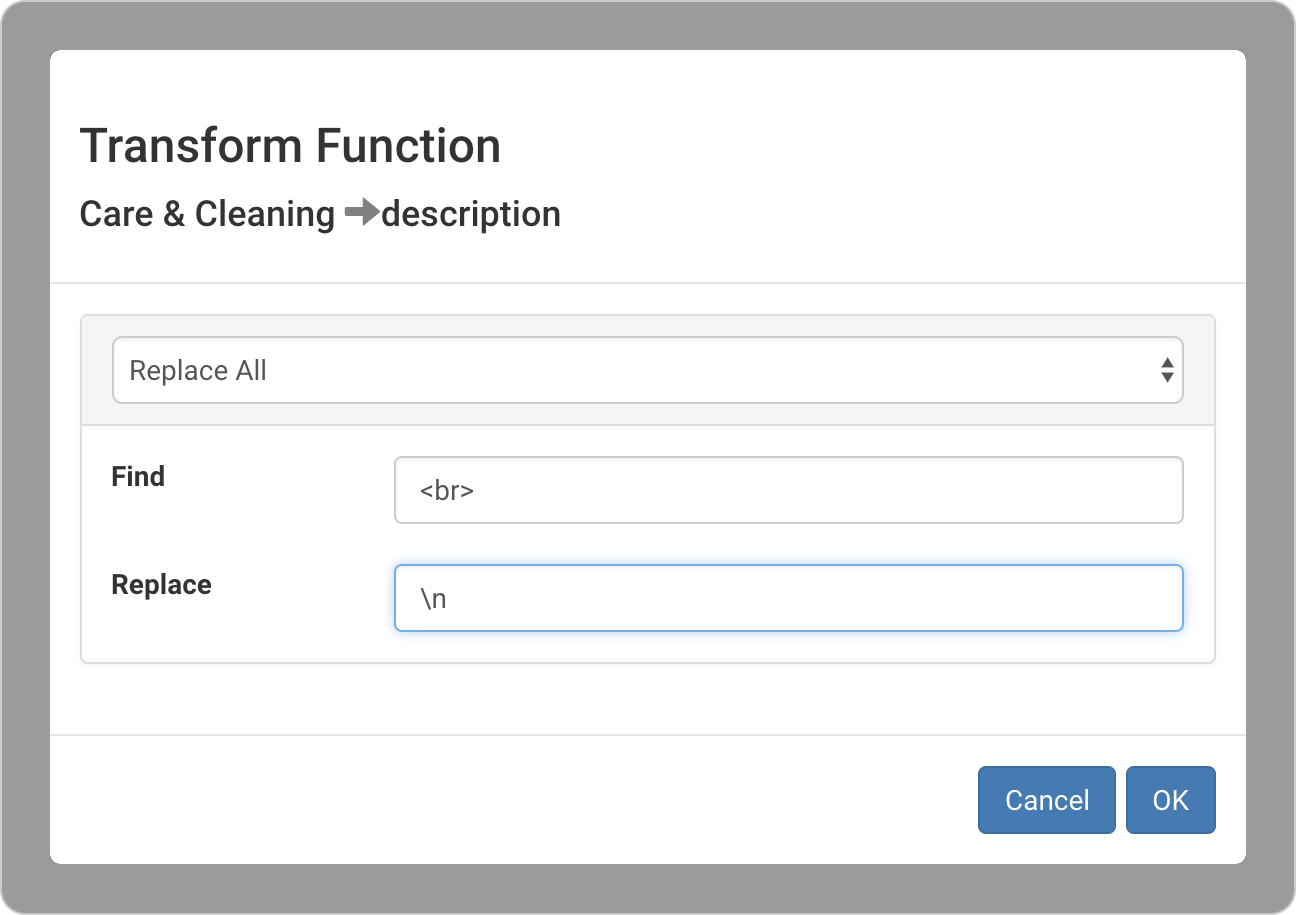
Field transformations are used to manipulate the data inside of a column.
To create a field transformation:
- Click on the mapping line.
- Select the type of transformation.
- Complete any required fields.
- Click OK then save.
Field transformations are indicated by a circular icon on top of the field mapping arrow. The letter inside the icon corresponds with the type of transformation.
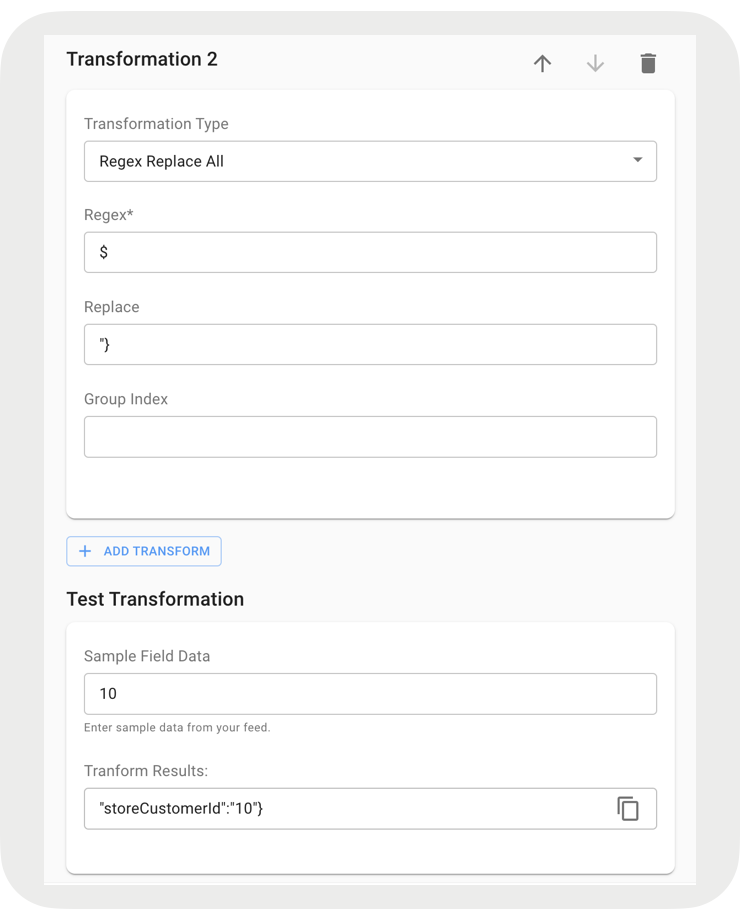
Test a Field Transformation
To test a field transformation function:
- Click on the mapping line to view the transformation function.
- Click Test Transformation.
-
Enter an input value and click Test.
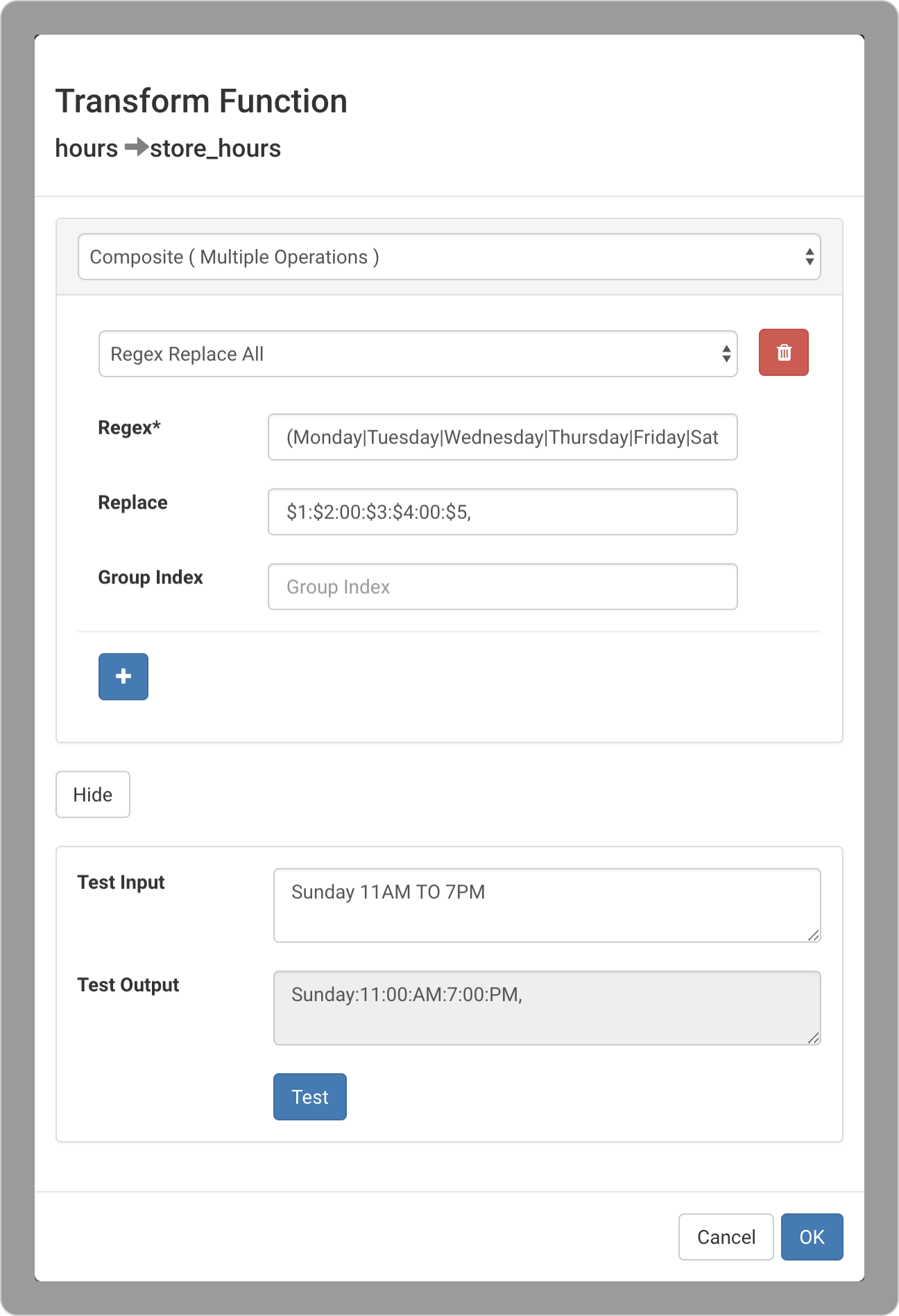
Map the ERP Config Field
Point of Sale includes a data mapping from the feed server, which will allow merchants to upload the store ERP configuration through the feed.
-
Click the blue + in the upper left next to Source Fields. Tip: Clicking the
store_erp_configuration field will change the UI to something similar to this:
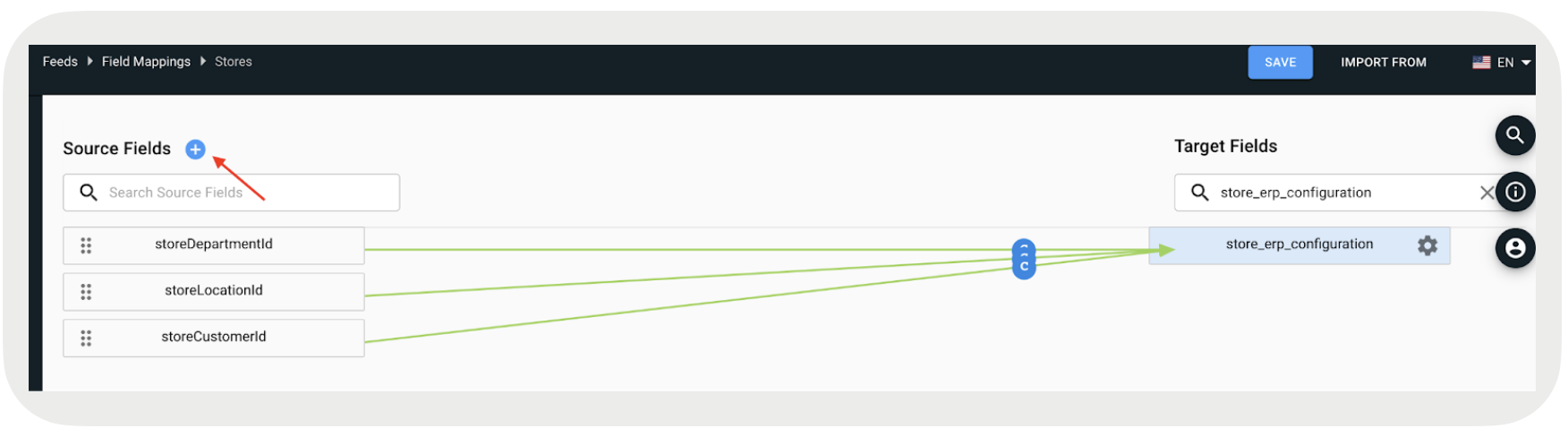
- Select Add Field Manually.
-
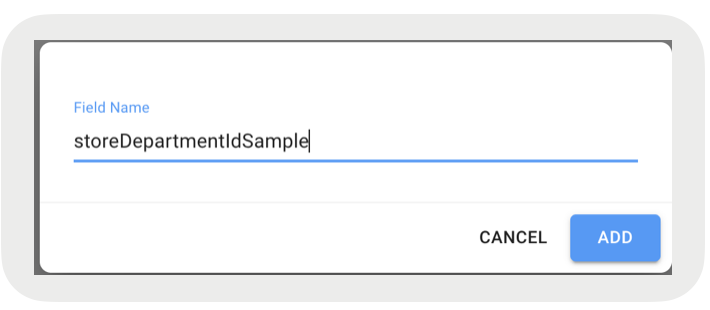
You will need to add new fields that the store ERP requires. E.g., storeDepartmentId,
storeLocationId, storeCustomerId. The key names are referenced in the CSV.
-
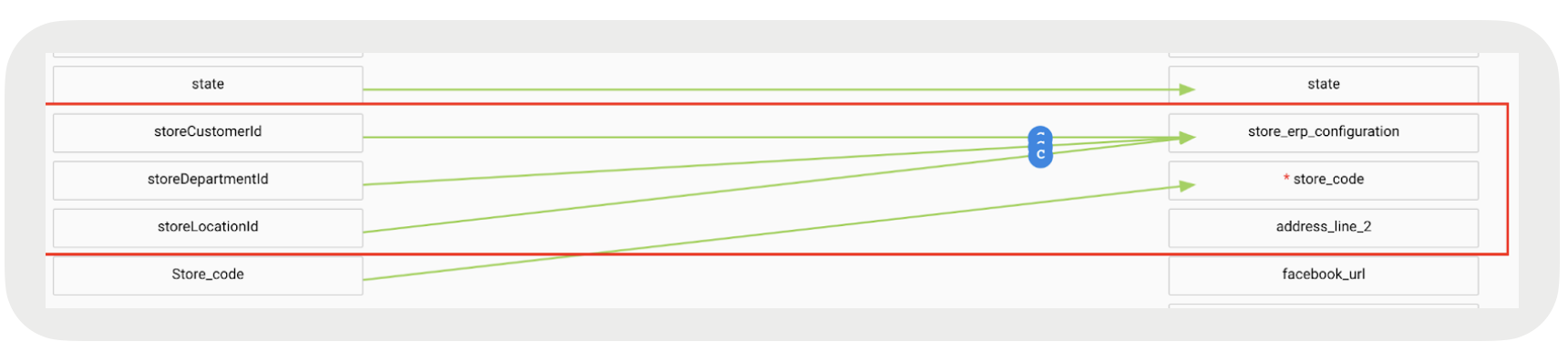
Map all the keys to the store_erp_configuration under Target Fields.
-
Click on the Composite icon (C) to modify the transform using these rules:
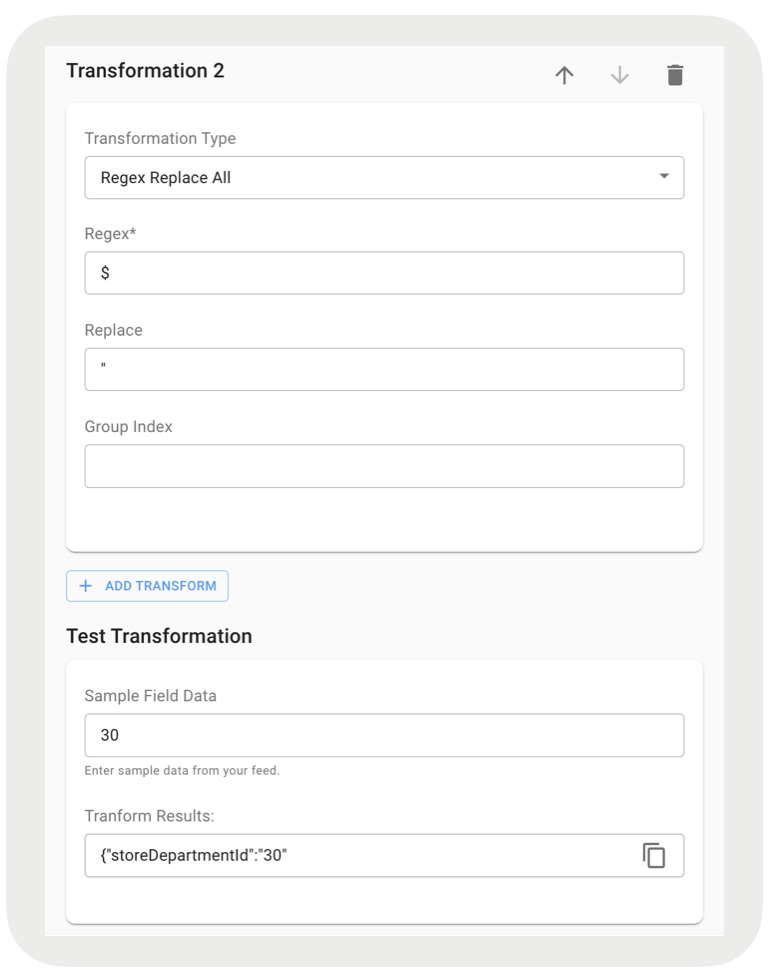
- First field transformation rule example:
-
Transformation 1 Replace Value:
{"fieldName":"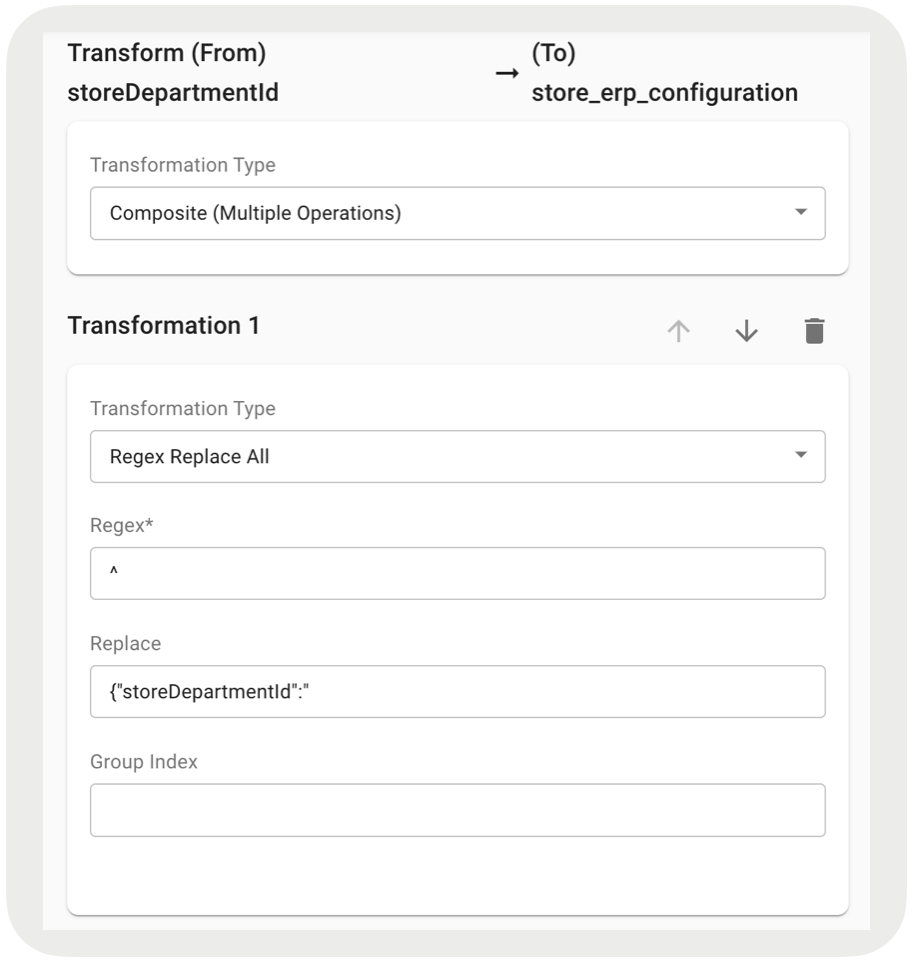
-
Transformation 2 Replace Value:
"
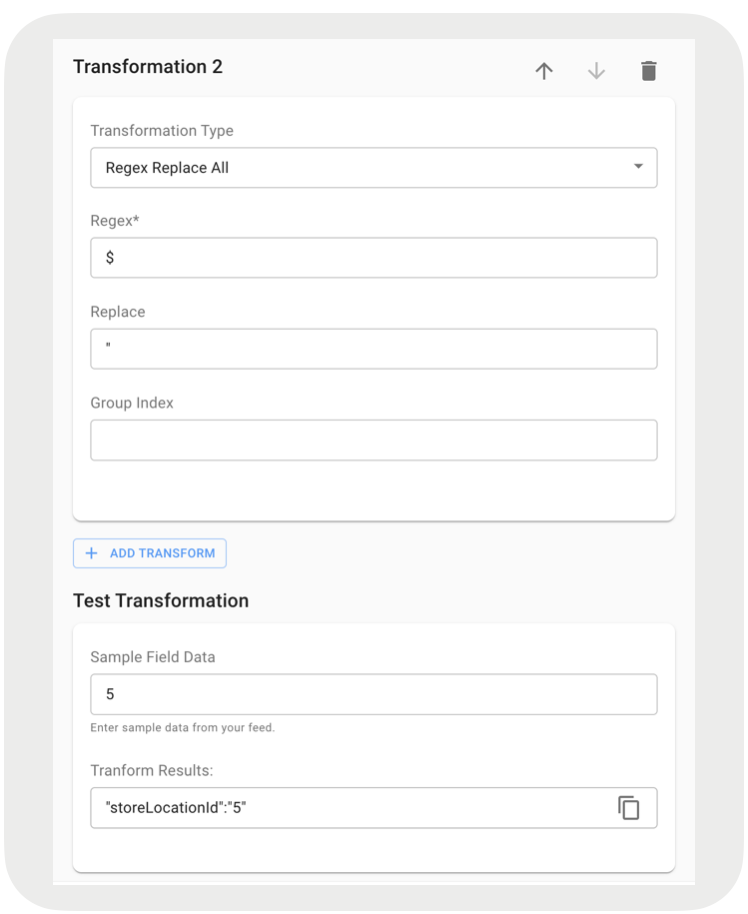
- Middle field transformation rule example (Note: The store ERP could contain multiple middle fields):
-
Transformation 1 Replace Value: ,
"fieldName":"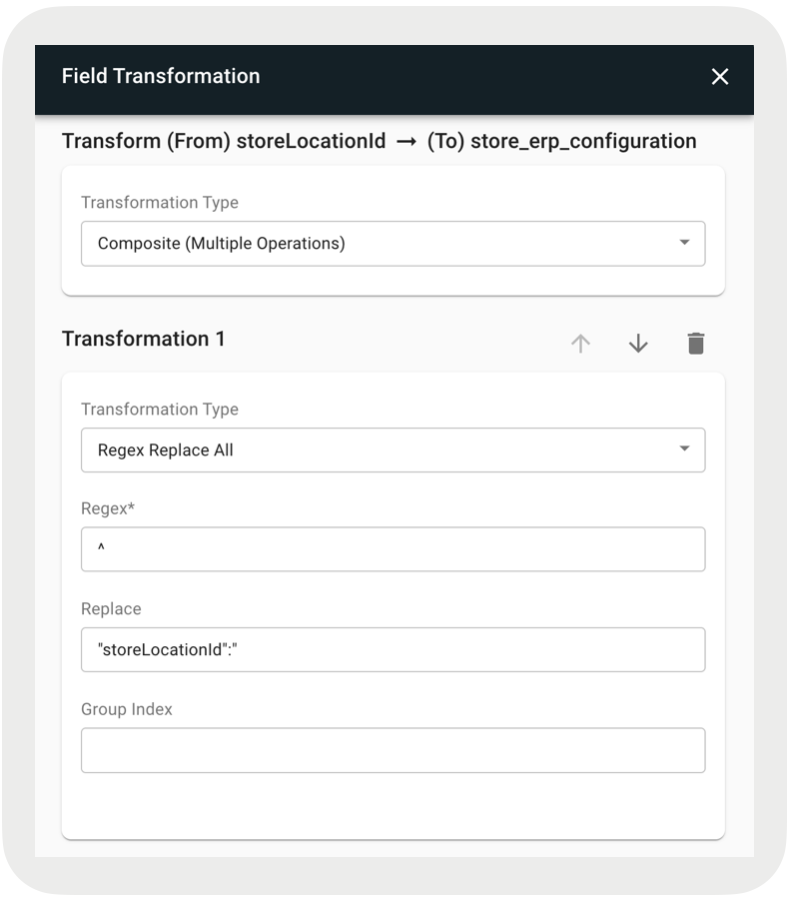
-
Transformation 2 Replace Value:
"
- End field transformation rule example:
-
Transformation 1 Replace Value:
,"fieldName":"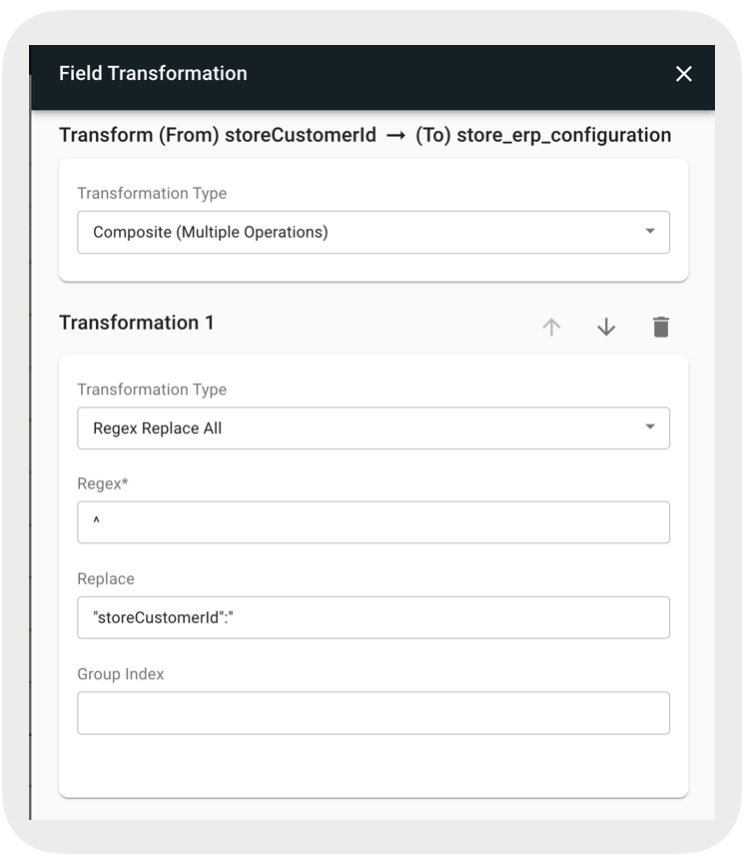
-
Transformation 2 Replace Value:
"}
- If null is passed to the fields, then the ERP configuration will remain as the old ERP configuration in the Point of Sale database.
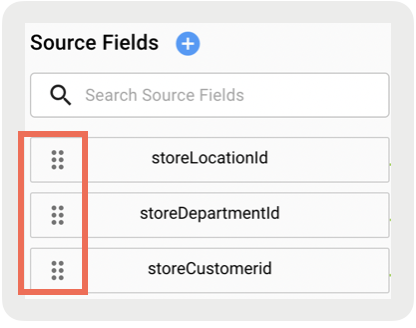
You can modify the order of the Source Fields by clicking and dragging the double vertical ellipsis. But make sure:
- The first (top) field follows theFirst field transformation rule.
- Any middle field follows the Middle field transformation rule.
- The last (end) field follows the End field transformation rule.
Additional Tips
- Use labs environment - When testing a new feed or changes to field mappings do these tests in the labs environment.
- Debug with small files - When debugging, don't use large feed files. Modify the file so that it is as small as possible but still allows for debugging.
- Use regex tools - Use tools, i.e., regex101 and Java Regular Expression Tester when working with regular expressions.