
Create feed pipelines in Point of Sale to schedule feed types to run in a specified order. Running feed pipelines on a set schedule keeps your data current and accurate. Configure the pipeline, add the feed types, and set the schedule. You can also edit a pipeline as business needs change.
Create a Feed Pipeline
- In CMS, go to .
- Click the + icon.
- Select Pipeline.
-
Set the Schedule by specifying the time, repeat interval, and days.
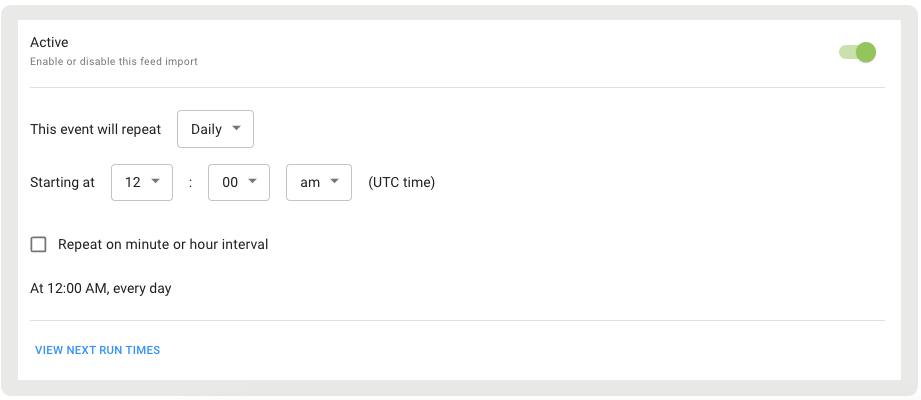
- (Optional) Import a scheduled feed immediately using the Import Now feature.Refer to Import a Data Feed on Demand.
- Click SAVE
Add Feeds to a Pipeline
- Go to the PIPELINE tab.
- Click the + icon.
- Select the feed type(s). Note that adding a feed will automatically generate a new tab.
-
Fill out the fields in each feed you add including Feed Source Type, Filename(s), and
Auxiliary Settings. For the basics of creating scheduled jobs in the CMS refer to Schedule Feed Runs in Point of Sale CMS.
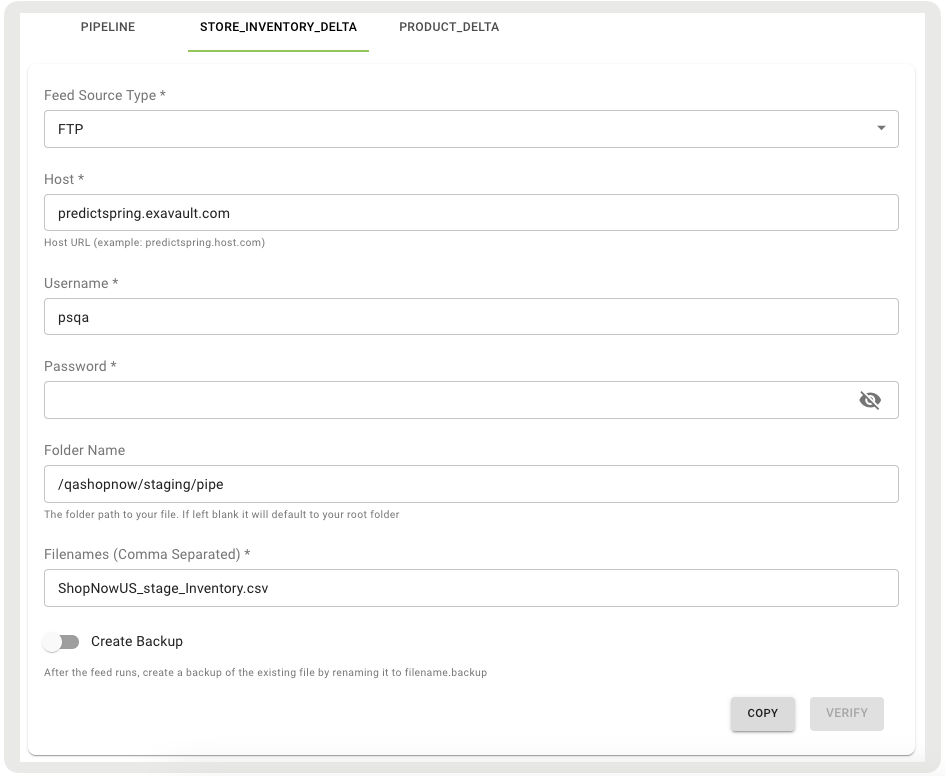
- Click Verify to verify the feed source.
- Click SAVE.
Change the Sequence and Deleting Feeds
- To change the sequence, go to the PIPELINE tab.
-
Drag one feed type and drop it on top of another.
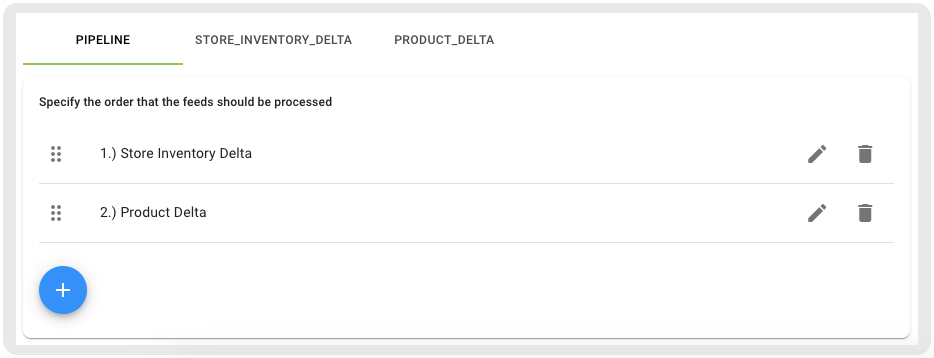
- To delete a feed, click the red trash icon to the right of the feed.

Special Use Cases
These instructions outline how to create and edit a pipeline based on use case.
Full Pipeline
For running a full pipeline, you'll need the Product, Inventory Full, Inventory Deta,
Pricing, and Sizing feeds with Map Data Feed Fields configured for each feed. 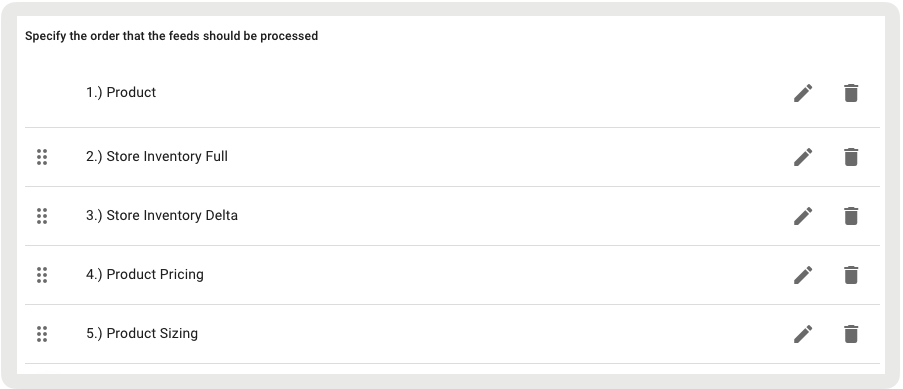
Inventory Pipeline (Full)
For full inventory loading, you'll need to configure a Inventory Full and Inventory Delta feed. You'll need to pass these two files to Point of Sale via SFTP.
- The first file should include "store_id", "product_id", and "quantity".
- The second file should include "store_id", "product_id", and "store_online_quantity".
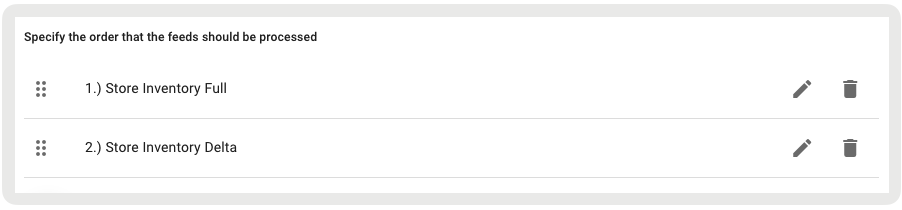
Additionally, you'll need to set the Store Inventory Field Mappings including "store_id", "product_id", "quantity", and "store_online_quantity".
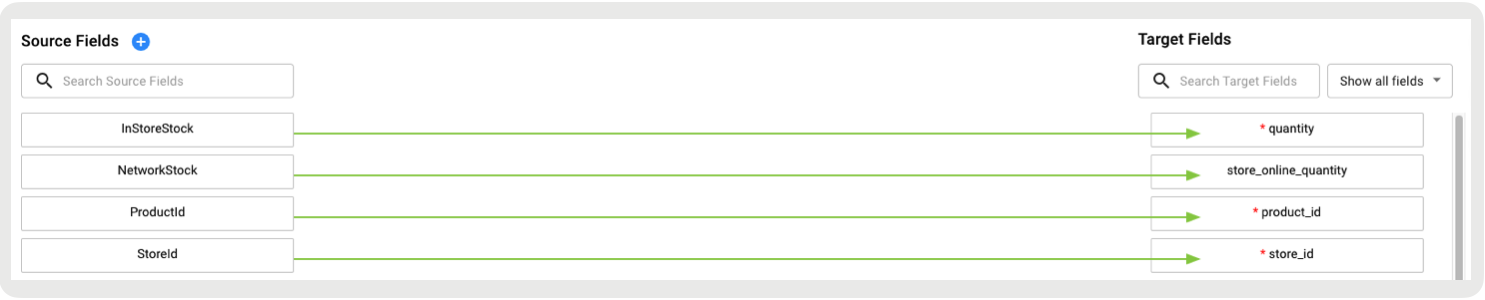
Point of Sale will process each file separately and add the respective values to the store's in-store and online stock.
Inventory Pipeline (Delta)
For running a delta inventory pipeline, you'll need to configure an Inventory Delta feed with two files.
- The first file should include "store_id", "product_id", and "quantity".
- The second file should include "store_id", "product_id", and "store_online_quantity".

Additionally, you'll need to set the Store Inventory Field Mappings including "store_id", "product_id", "quantity", and "store_online_quantity".
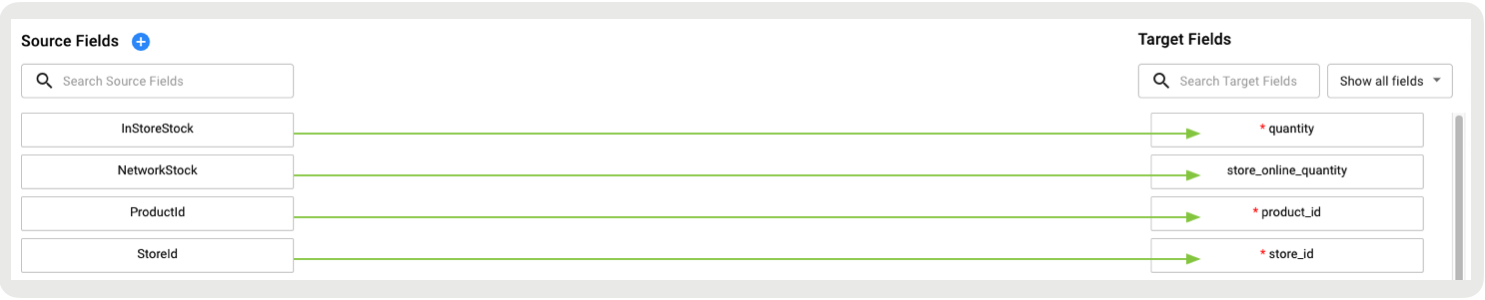
Point of Sale will process each file separately as well as add or remove the store's in-store and online stock accordingly.