
Sometimes you need to run a data feed right away. You can manually run data feeds in Point of Sale to update your data immediately, rather than waiting for the next scheduled run. Implement these steps when you need the most current data.

Important All feed files should be saved in a UTF-8 format else you receive an error
during upload.
Here are some of the most common feed types:
Note: Refer to Review Feed File Specifications for a list of all feed types.
- Product - A feed that has all the products, i.e., clothes, shoes, furniture.
- Promotion - A feed that has all the active promotions, i.e., Spring Sales.
- Category - A feed that contains category information.
- Product Bundle - A feed that contains information about product groups or collections and includes the bundle id, description, list of products, etc.
- Store - A feed that contains the list of stores and includes the store id, store name, address, phone number, hours, etc.
- Store Inventory - A feed that contains information on product inventory and includes the store id, product id, quantity, etc.

Note All feed files should be saved in a UTF-8 format else you receive an error during upload.
-
In CMS, go to .
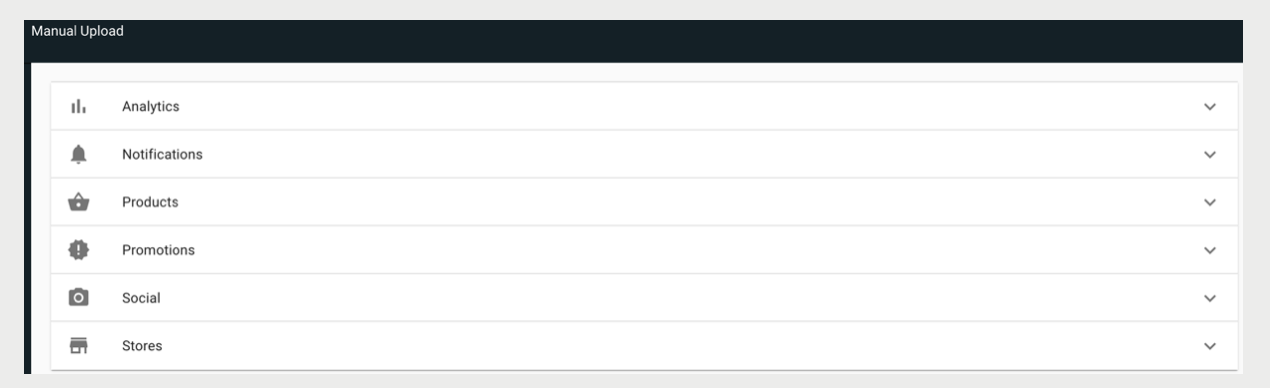
-
Select a feed type.
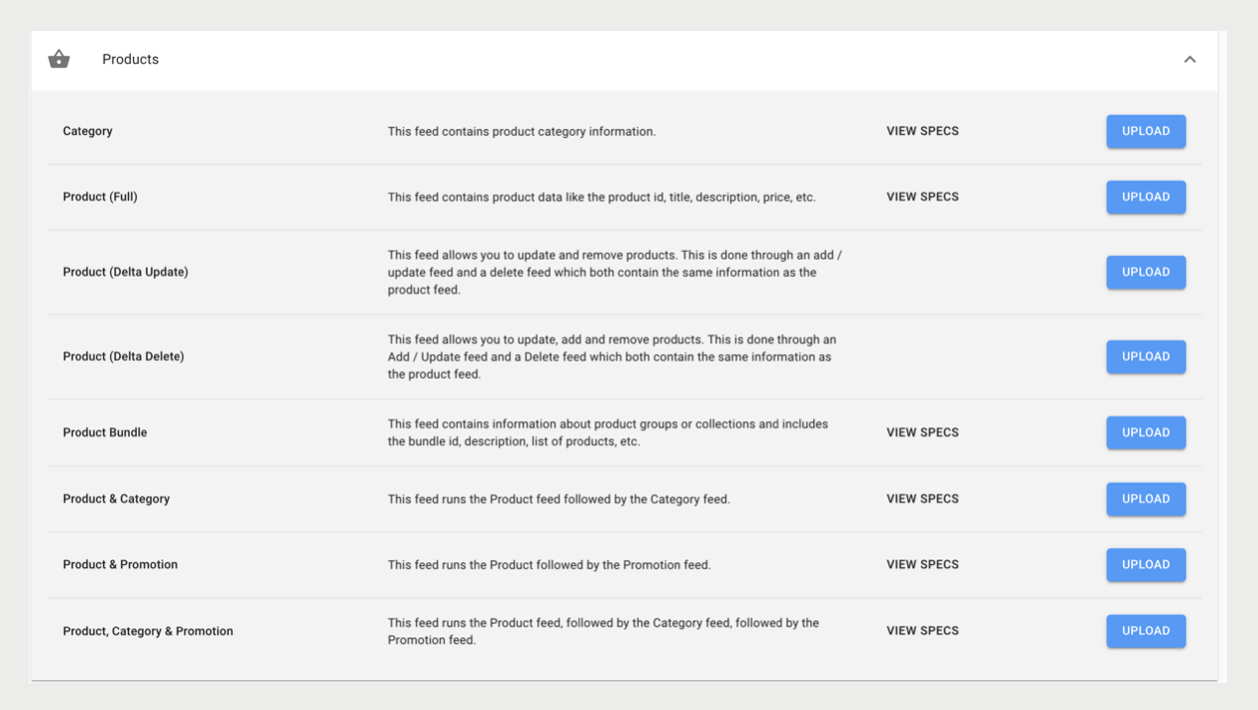
-
Complete all required fields.
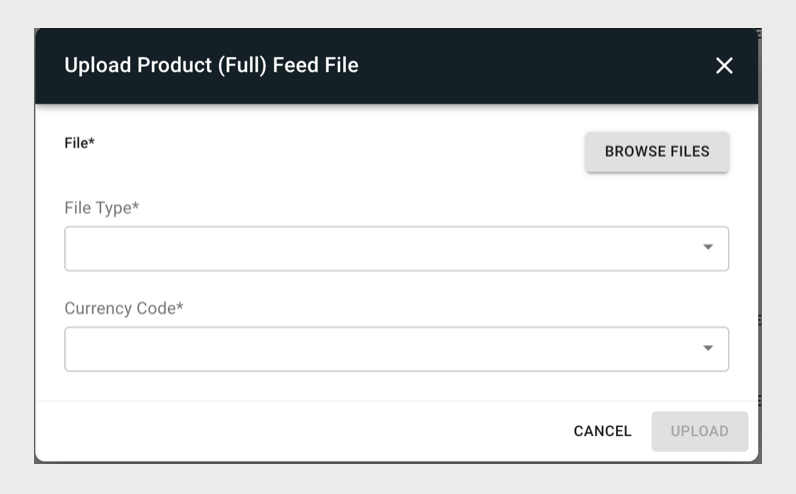
- Click UPLOAD.
Note This operation overwrites data from the last feed that ran.
Tips
- Use labs environment - when testing a new feed or changes to field mappings do these tests in the labs environment.
- Debug with small files - when debugging, don't use large feed files. Modify the file so that it is as small as possible but still allows for debugging.