
The Document Export feature lets merchants export documents, such as finance contracts, as PDF files to their SFTP or FTP servers. By configuring an export job in CMS, you specify key details such as the destination and file naming. Contract files convert to PDF, transfer to Retail Cloud's backend, and forward to your specified server. You can also update or delete export jobs as needed.

Note Point of Sale plans to deprecate support for ExaVault. Merchants who still require a way to
export documents are recommended to use the Document Export feature instead.
- In CMS, navigate to
-
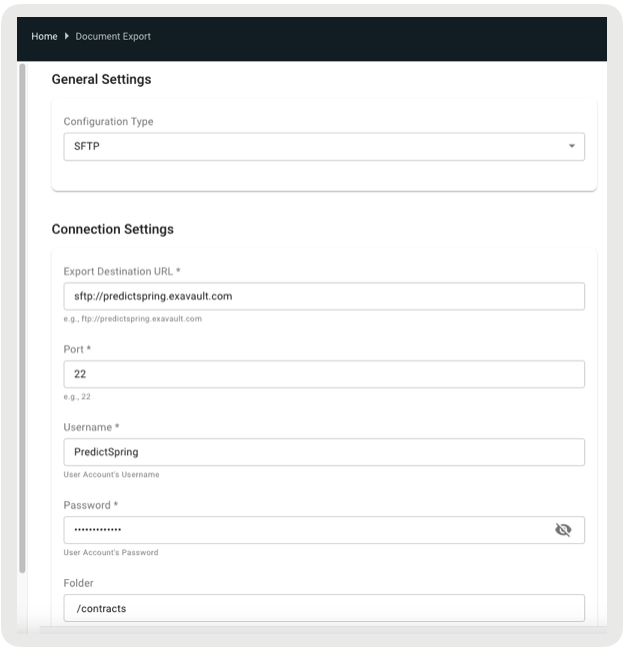
Configure the export as follows:
- Configuration Type: Select the type of export protocol (e.g., SFTP, FTP).
- Export Destination URL: Enter the full URL for the server where files will be exported (e.g., ftp://predictspring.exavault.com)
- Port: Specify the port number used for communication with the server (e.g., 22). Common port numbers include 21 for FTP and 22 for SFTP, but this may vary depending on your server configuration.
- Username: Provide the username required to log in to the export destination portal.
- Password: Enter the corresponding password for the export destination portal.
- Folder: Specify the folder path on the server where the exported files will be stored (e.g., /logs/cyclecount). Important: This path is case-sensitive and must match the directory structure on the server.
- File Name Suffix: Add a suffix to the exported file’s name for identification purposes (e.g., -daily-report).
-
(Optional) Send E-Receipt: Enable this option to send an email receipt for the
order.
- Click Update to save the export configuration.
- To delete the export, click Delete.