
To calculate taxes, apply exemptions, and support tax overrides during checkout, configure a tax engine in the Point of Sale CMS.

As of 2025, Salesforce discontinued the Native Tax Engine. Originally designed as a backup tax solution and not a primary tax engine, the Native Tax Engine no longer receives technical updates or maintenance for new or existing customers. If you're still using the Native Tax Engine, migrate to an alternative solution immediately to avoid interruption to business operations.
- Pre-built integrations: Point of Sale includes native connectors that support Avalara, OneSource (Sabrix), and Vertex.
- Custom solutions: For any other third-party tax provider, a service provider interface (SPI) is available to facilitate your integration.
- In the Point of Sale CMS, go to .
- Create or edit a configuration.
-
Complete the fields by referring to the table.
Field Description Settings Tax Engine Tax engine type for calculations. Example: Point of Sale Basic - Flat 8.5% tax Environment Account environment for tax calculations. Example: Testing, Staging Base URL API endpoint for external tax engines. Examples:
- Avalara: https://sandbox-rest.avatax.com/api/v2/
- OneSource WSDL: https://kpmg-uat.hostedtax.thomsonreuters.com/sa-brix/services/taxcalculationservice/2011-09-01/taxcalculationservice
Currency Currency code for tax calculations. Example: US dollar (USD) Shipping Tax Configuration Shipping Class Configuration Tax class type for shipping methods. Select from three options:
- Default — Apply a single tax class to all shipping methods
- Custom — Configure a unique tax class for each shipping method
- None — Exclude shipping from tax calculations.
 Note For Avalara integration, the system assigns the default Avalara shipping tax class (FR020100) to shipping methods before sending them to Avalara, regardless of your selection.
Default Shipping Tax Class Tax class for shipping costs. Example: FR020100 Merchants Merchant Gateway ID Account identifier for external tax engines. Merchant Key Authentication credential for external tax engines. Merchant Reference Code Company identifier for external tax engines. Acts as the global fallback for stores without a value in Store Tax Field Name. This field is case-sensitive. Store Tax Field Name Store record field that contains the reference code for tax calculations. Assign store-specific tax profiles by region or brand. Stores without a value fallback to the global Merchant Reference Code.

Tax Functionality
The POS app uses a tax engine to provide this tax functionality. This section also lists tax engine details for each function, including when the system calls and how many times the system can call.
- Calculate taxes and fees: POS makes multiple calls to the tax engine during checkout for
these cart operations. For more information about fees, see Special Fees:
- Add items to the cart.
- Remove items from the cart.
- Modify the quantity of an item from the cart.
- Apply or change the shipping method.
- Apply or change the shipping address.
- Apply or remove any promotional coupons or manual price overrides. For example, item-level price overrides or cart-level transaction discounts.
- Calculate taxes based on tiered tax rates: Similar to the calculate taxes and fees functionality. The difference is how you configure tax rates in the underlying tax engine, as the tax rates have multiple tiers. For more information, see Tiered Taxes.
- Provide tax exemption: A single tax exemption calls for a selected tax exemption code. For more information, see Tax Exemption.
- Apply tax override: A single tax override calls the tax engine for a store. Multiple tax overrides call the tax engine for individual items from a cart.
- Calculate taxes and fees in offline mode: No tax engine call. The system calculates taxes using rates from the last online login.
- Calculate taxes based on tiered tax rates in offline mode: Same as the Calculate taxes and fees in offline mode functionality.
- Provide tax exemption in offline mode: No tax engine call. The system applies a tax exemption using codes from the last online login.
- Apply item-level tax override in offline mode: No tax engine call. The tax override applied to the selected item.
- Calculate taxes and fees for returns: No tax engine call. The system uses the saved taxes from the original sale transaction instead of recalculating them during the return process.
For more information about how taxes, tax exemptions, and tax overrides appear in POS after the underlying tax engine call, see POS App Taxes Overview.
Tax Engines
POS supports these tax engines:
- PredictSpring Tax Engine: See Native Tax Engine Integration (not supported for new customers as of 2024; use one of the other supported tax engines)
- AvaTax by Avalara: See Avalara Tax Integration
- Onesource (Sabrix) by KPMG: See Onesource (Sabrix) Tax Integration
- SPI: See SPI Tax Integration
Tax Engines Feature Matrix
The table shows the Point of Sale service matrix for tax-related features across all supported tax engines.
| Tax Feature | Native Tax Engine | AvaTax | OneSource | SPI |
|---|---|---|---|---|
| ONLINE | ||||
| Sales Tax - InStore | Supported | Supported | Supported | Supported |
| Sales Tax - Endless Aisle | Supported | Supported | Supported | Supported |
| Sales Tax - BISPIS | Supported | Supported | Supported | Supported |
| Sales Tax - Confirmation | Supported | Supported | Not supported | Supported |
| Fee | Supported | Supported | Supported | Supported |
| Tax Override | Supported | Not applicable | Not applicable | Not applicable |
| Tax-Exempt - Load exempt categories | Supported | Supported | Supported | Supported |
| Tax-Exempt - Post exemption details | Supported | Supported | Supported | Supported |
| Tiered Taxation | Supported | Supported | Supported | Supported |
| OFFLINE | ||||
| Sales Tax - InStore | Supported | Supported | Supported | Supported |
| Sales Tax - BISPIS | Supported | Supported | Supported | Supported |
| Fee | Supported | Not supported | Supported | Not supported |
| Tax Override | Supported | Not applicable | Not applicable | Not applicable |
| Tax-Exempt - Load exempt categories | Supported | Not applicable | Supported | Not applicable |
| Tax-Exempt - Post exemption details | Supported | Not applicable | Supported | Not applicable |
| Tiered Taxation | Supported | Supported | Not applicable | Supported |
For the native tax engine, Point of Sale uses standard tax classes based on the destination address. You can skip shipping tax configuration. External tax engines, for example, Avalara, have multiple tax classes for shipments, and one is always the default.
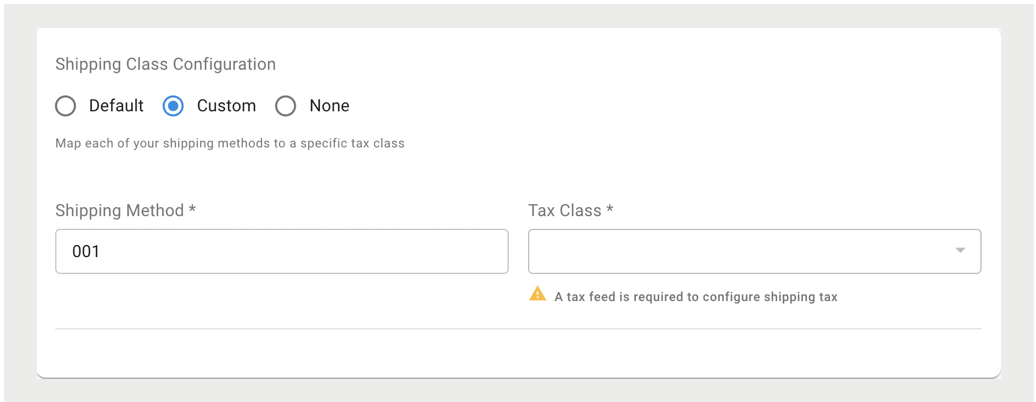
For example, Avalara's Tax Class FR020100 is the default for shipping products. To use a different tax class, select Custom and provide the new tax class.
Product Field Mapping
Point of Sale Product Feed has 13 custom attributes. These attributes are named CustomString0, CustomString1,..., CustomString10, CustomString12.
Point of Sale receives the tax class through the feed file by using any of these custom attributes.
Configure the selected custom attribute in CMS at ).
Enter the attribute name in camelCase. For example, if you selected CustomString12, enter customString12. This configuration tells Point of Sale which custom attribute to use for the tax class.
After configuring the custom attribute, use the same attribute in product feed mapping. Product field mapping specifies the mapping between feed file attributes and Point of Sale system product attributes. Configure the mapping in CMS (. Configure the field mapping for tax class for one of these scenarios:
- Product-specific tax rates: If the tax rates are product-specific, each product from the
feed file has its corresponding tax class. Example: The product feed file has a taxClass
column that maps to CustomString12, the selected custom attribute for tax.
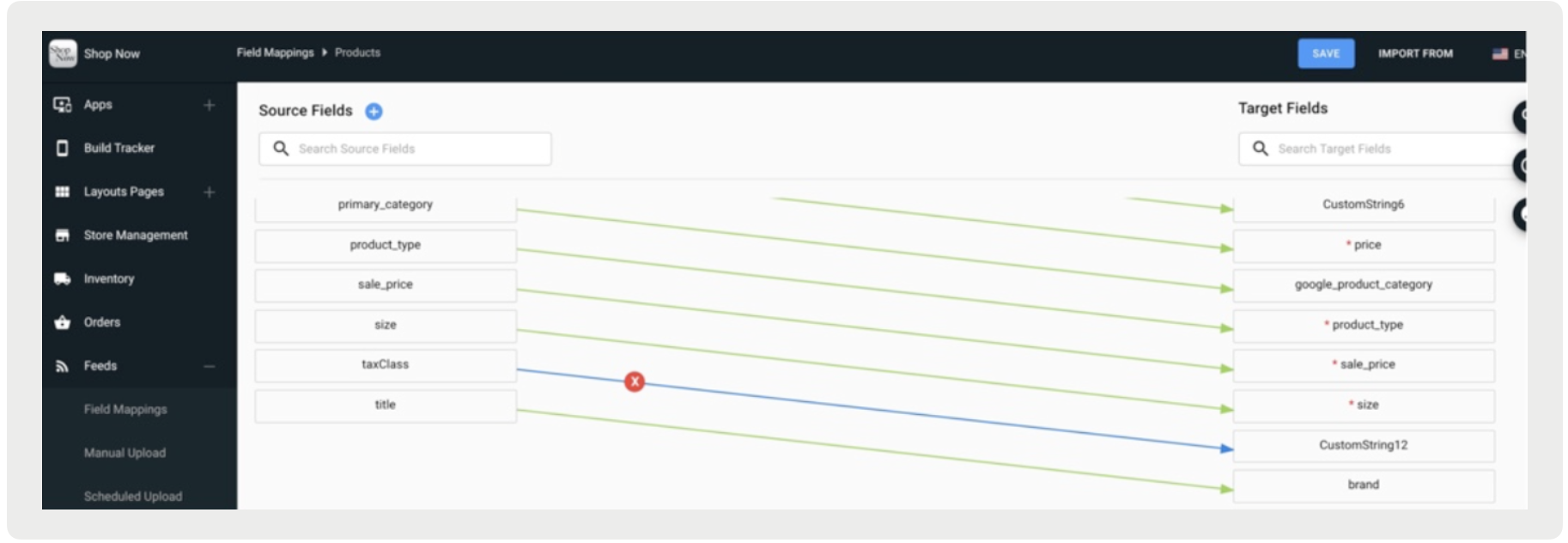
- Uniform tax rate across all products: All products have the same tax rate, so don’t provide
a tax class in the product feed. Point of Sale derives it automatically through field
transformation and field mapping. Map the SKU or Product ID field to the tax class's custom
attribute—in this case, CustomString12.
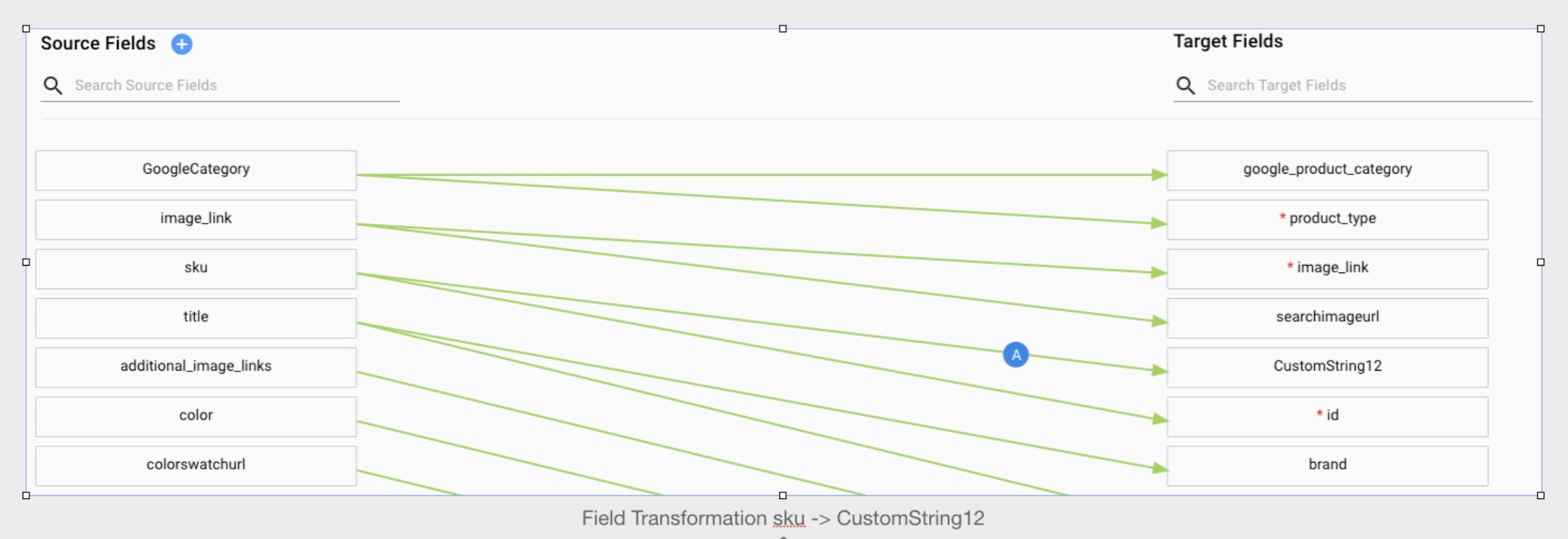
Use Field Transformation, available on the connecting line between SKU and CustomString12, to specify the tax class. In this example, GENERIC is the tax class, which also appears in the tax feed file with its tax rate.
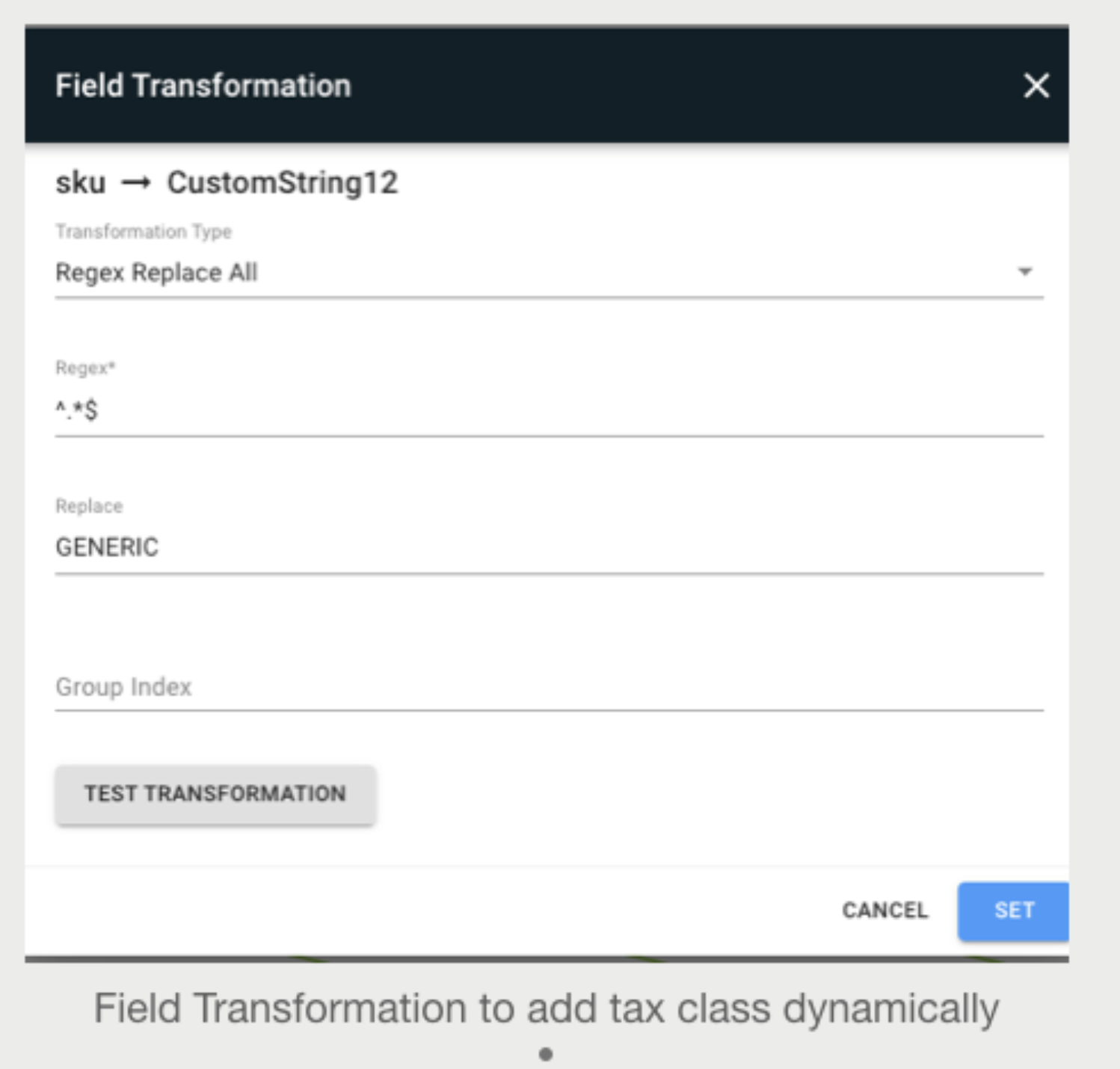
This configuration automatically maps all products to tax class GENERIC, without requiring a tax class column in the product feed.
Troubleshooting
- Make sure that the Merchant Reference Code matches the Company Code in Avalara's portal, including capitalization. An exact match prevents upload and download errors.