
Facilitate tax calculations during sale transactions with OneSource (Sabrox) tax engine. Ensure that the OneSource engine handles all necessary tax computations. The process operates as follows: a real-time request is sent to OneSource with the cart details, and the corresponding VAT information is retrieved. For transactions occurring in offline mode, the necessary data is stored to enable offline processing.
- Modern POS App Build: 6.5.4 or greater
- Platform Support: iPad & iPhone
- Offline Support: Yes, however, tier taxes and tax overrides are not supported offline.
- Technical Prerequisites:
- Merchants are responsible for configuring the tax rates directly into the OneSource system.
- The Product Feed file should have mapping for the tax class for each product. Refer to changes needed in the Product Field Mapping .
-
Merchants are to provide the supported tax exemptions (exempt code and exempt name). Refer to step 5 from Onboarding Merchant for OneSource Integration
-
Configure the tax engine through CMS as mentioned in Set Up Tax Engine
- Special Fee Support: Refer to Special Fees to know more about prerequisites needed for fees.
Supported Tax Functionality
These tax-related functions are supported by the POS if it is powered by the OneSource tax engine:
- Calculate taxes and fees: Refer to Special Fees to learn more about fees
- Tax exemption
- Tax override: If overridden, tax rates (for example tax holidays), are configured in OneSource
- Tier taxes: If Tier taxes are configured in OneSource
- Tax exemption during offline
Set Up Tax Engine
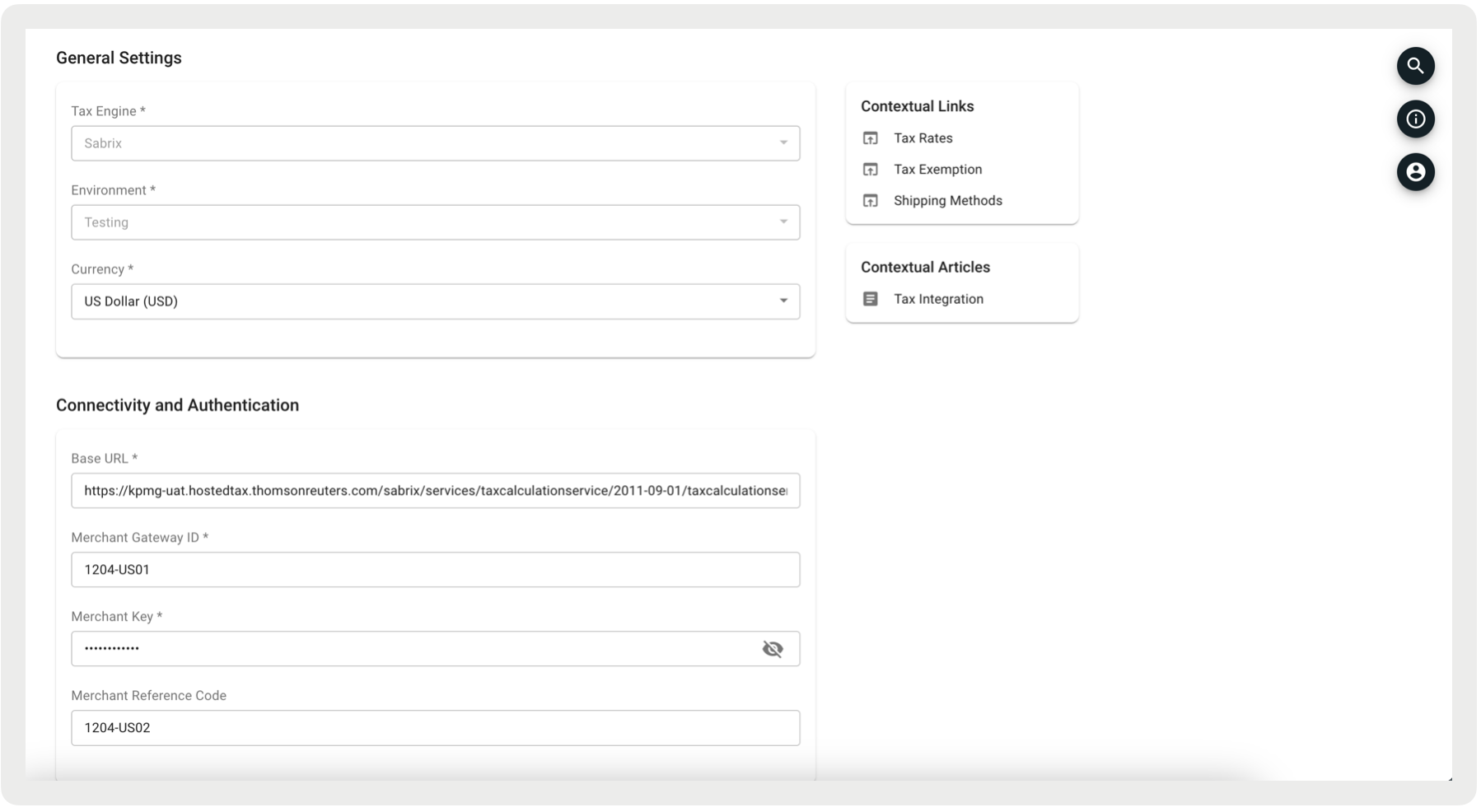
The integration screen from CMS allows setting up the OneSource within the Point of Sale system.
- In CMS, go to .
- Click Create.
-
Under , provide these details:
- Tax Engine: Select "".
- Environment: Select the environment (Testing or Production).
- Currency: Select the currency code (for example, USD).
-
Under , provide these details:
-
: Input the OneSource WSDL URL, e.g.,
https://kpmg-uat.hostedtax.thomsonreuters.com/sabrix/services/taxcalculationservice/2011-09-01/taxcalculationservice. - : Provide OneSource's tax calculation service username.
- : Provide OneSource's tax calculation service's password.
- : Provide the external company ID.
-
: Input the OneSource WSDL URL, e.g.,
- Under , configure custom shipping costs and the default shipping cost.
-
Under , configure the values for CallingSystemNumber and HostSystemNumber if required
for tax calculations. The specified values will be included in all tax requests. If a value is
saved, it's sent with each request. If no value is provided, the field is omitted.
Schedule Tax Rate File Download
As taxes are computed directly by OneSource, the tax feed isn't necessary for online processing. However, to calculate the taxes during the offline mode, the tax feed needs to be downloaded directly from OneSource.
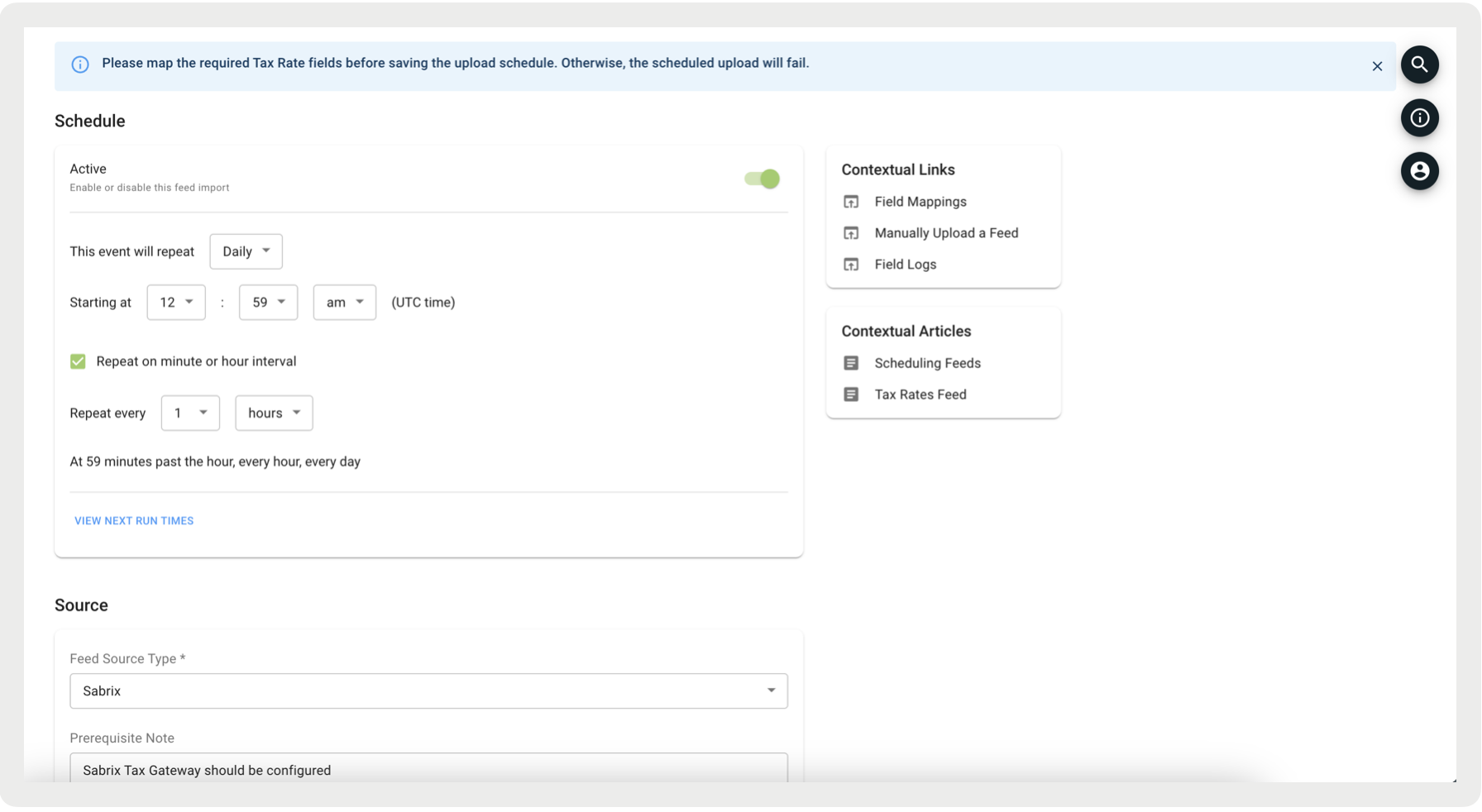
To download the tax rate file from OneSource, schedule a download job in CMS as mentioned below:

- In CMS, go to .
- Click to create a job and select .
- Under , select "".
-
Configure the rest of the required fields.
- Save your changes.
Ad Hoc Tax Rate File Download
As mentioned in the earlier section, the tax feed is important for tax calculation during offline mode and it can also be downloaded as and when needed along with the above option of scheduled download. To download the tax rate file from OneSource into Point of Sale, the 'Import Now' option from the scheduled job can be used as below:
- In CMS, go to .
- Edit the previously configured Tax Rate job.
- Click Import Now.
Product Field Mapping
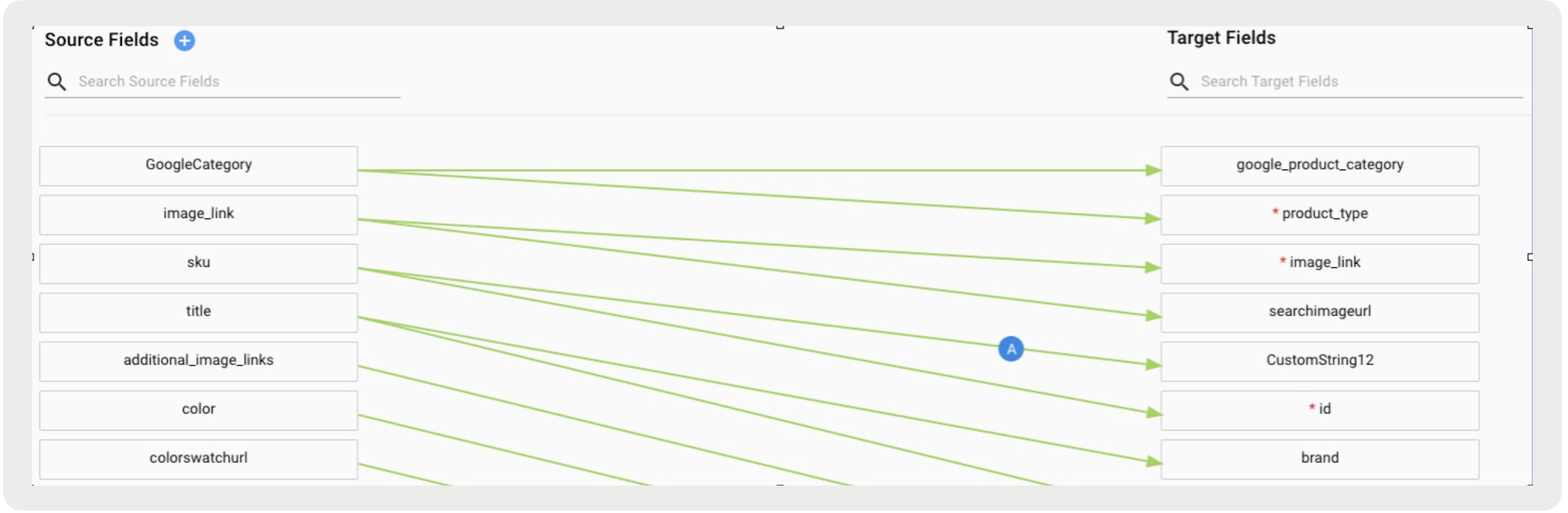
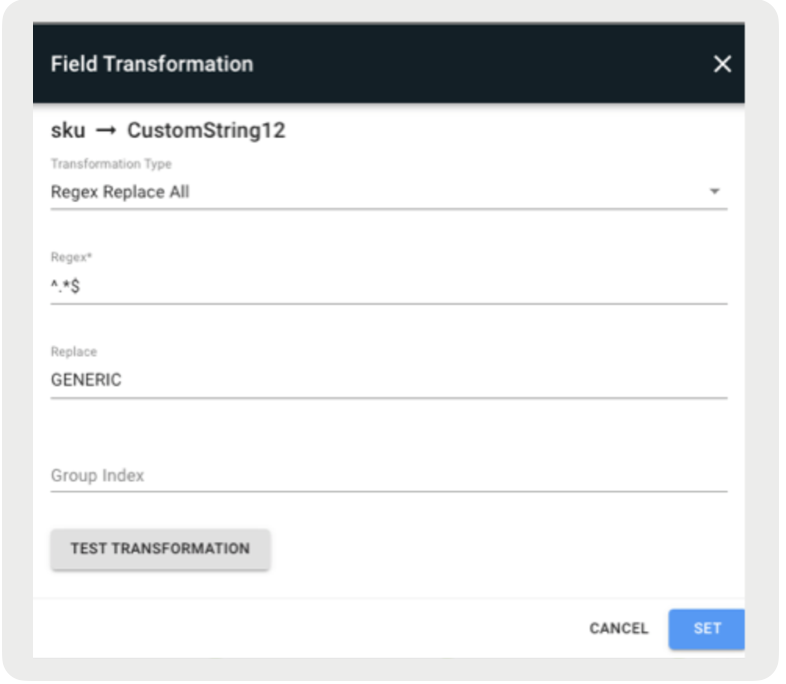
To support tax calculation in offline mode, the following product feed attribute mapping is needed to add tax type dynamically while setting up the field mapping for product feed.
- In CMS, go to
- Using Field Transformation, map the SKU / Product ID field from the product feed file to CustomString12. CustomString12 is the Point of Sale attribute for the product-level tax class used by the POS app during offline mode.
Commit Tax Transaction
The POS allows committing the tax transaction conditionally in OneSource after-sale transactions. The conditional commit allows merchants to complete the tax transaction after the invoicing is done on the sale transaction. By default, the POS doesn't commit the tax transaction but lets the merchant commit it. But to enable the auto-commit after completing the sale transaction in the POS app, the following CMS config needs to be set:
- In CMS, go to .
- Turn on .
- Save your changes.
Onboarding Merchant for OneSource Integration
- Merchants are to provide the OneSource details per the Technical Prerequisites.
- Point of Sale's integration with OneSource is SOAP-based.
- For offline transactions, Point of Sale supports the tax rate file download from OneSource. Point of Sale uses CalculateTax SOAP API to obtain the taxes for all stores and tax classes from respective stores. The same API determines the tax exemption rates for all stores and tax classes.
- Product feed changes for OneSource integration. The CMS configurations listed under Product Field Mapping are required for proper tax computation during offline transactions.
- Merchants are to provide the supported tax exemptions (exempt code and exempt name) to configure in the system. The job, mentioned in Step #3, that downloads the tax exemption data directly from OneSource, needs this list of supported tax exemptions for the first time run.
Online vs Offline
Online
In online mode, the process begins with items being added to the cart. Subsequently, detailed cart data, including product IDs, tax codes, and quantities, are sent to OneSource for tax computation. OneSource then calculates and returns the VAT amounts based on the provided data. Following the VAT computation, the transaction moves to the tendering phase where payment is processed. The process concludes with the completion of the order, during which the Transaction Log (tLog) and Electronic Journal (EJ) record the total order amount and the VAT component.
Known Issues and Restrictions
These features aren't supported as part of OneSource integration and hence, merchants that use OneSource can't use them.
- Tier taxes in offline mode: OneSource has a limitation where it does not provide the tier tax rates for offline calculation.
- Tax override in offline mode.