
Automate tax calculations and tax filing by using Avalara in Point of Sale.
When you configure Avalara for POS, Avalara performs all tax computations for sale transactions.
Requirements:
- Modern POS App Build: 6.2.3 or later
- Platform Support: iPad
- Offline Support: Yes
- Avalara account
- Product feed file with a column for Avalara's Tax Code
- OMS integration for refunds, exchanges, and cancellations
Set Up Tax Engine

- In CMS, go to .
- Click Create.
- Under Tax Engine, select Avalara V2.
- Configure the remaining fields. For field descriptions, see Integrate Tax Engines.
- (Optional) After filling out the fields under Connectivity and Authentication, click Verify to test the connection to Avalara.
- In CMS, go to .
- Turn on Pre-generate order ID and use it as cart ID. This setting enables Avalara's Sales Invoice Number to use Point of Sale's Order ID.
- Save your changes.
Product Field Mapping
Field mapping applies only if you upload products using feed files and support both online and offline transactions. If you upload products using an API, provide the tax class using the selected custom attribute in the payload. For payload specifications, see Point of Sale's SwaggerHub documentation.
To support tax calculation in offline mode, map product feed attributes to include tax types dynamically.
- In CMS, go to .
-
Under Source Fields, map the tax custom attributes to a different custom attribute. For example, map taxClassID to CustomString12.

- In CMS, go to .
- Expand Tax.
-
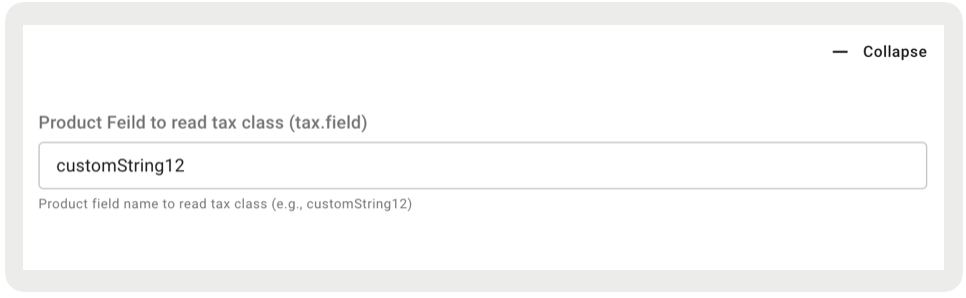
Under Product Field to read tax class, enter the custom string you previously mapped in camelCase format (for example, customString12).

This screenshot shows the tax class "GENERIC" configured in the product feed. During offline processing, this tax class determines the tax rate. Your tax class can differ (for example, PC040100 or PC000000) based on your Avalara mapping.
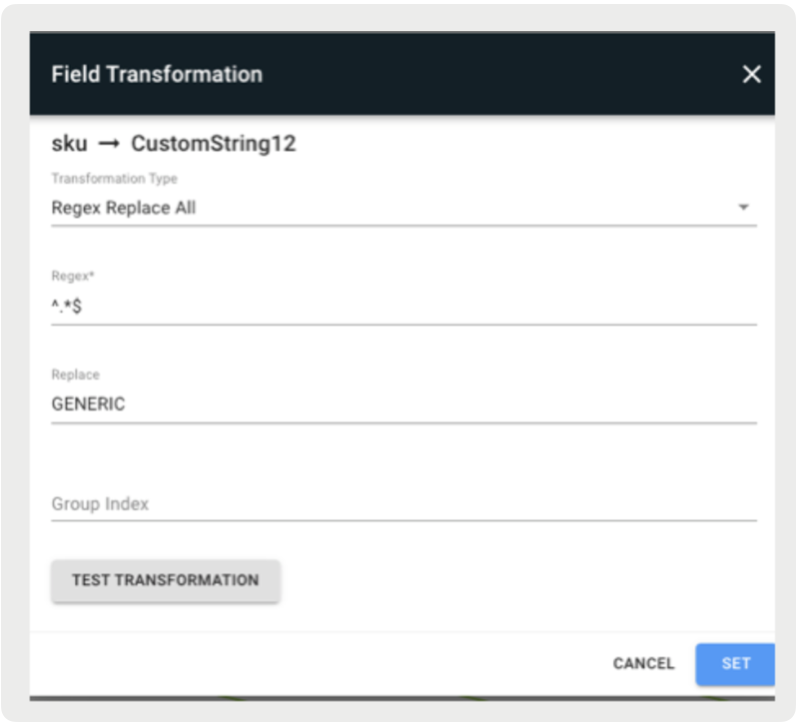
Offline process requires this product feed setting because offline processing supports a default tax class configured for all store locations.
Schedule Tax Rate File Download
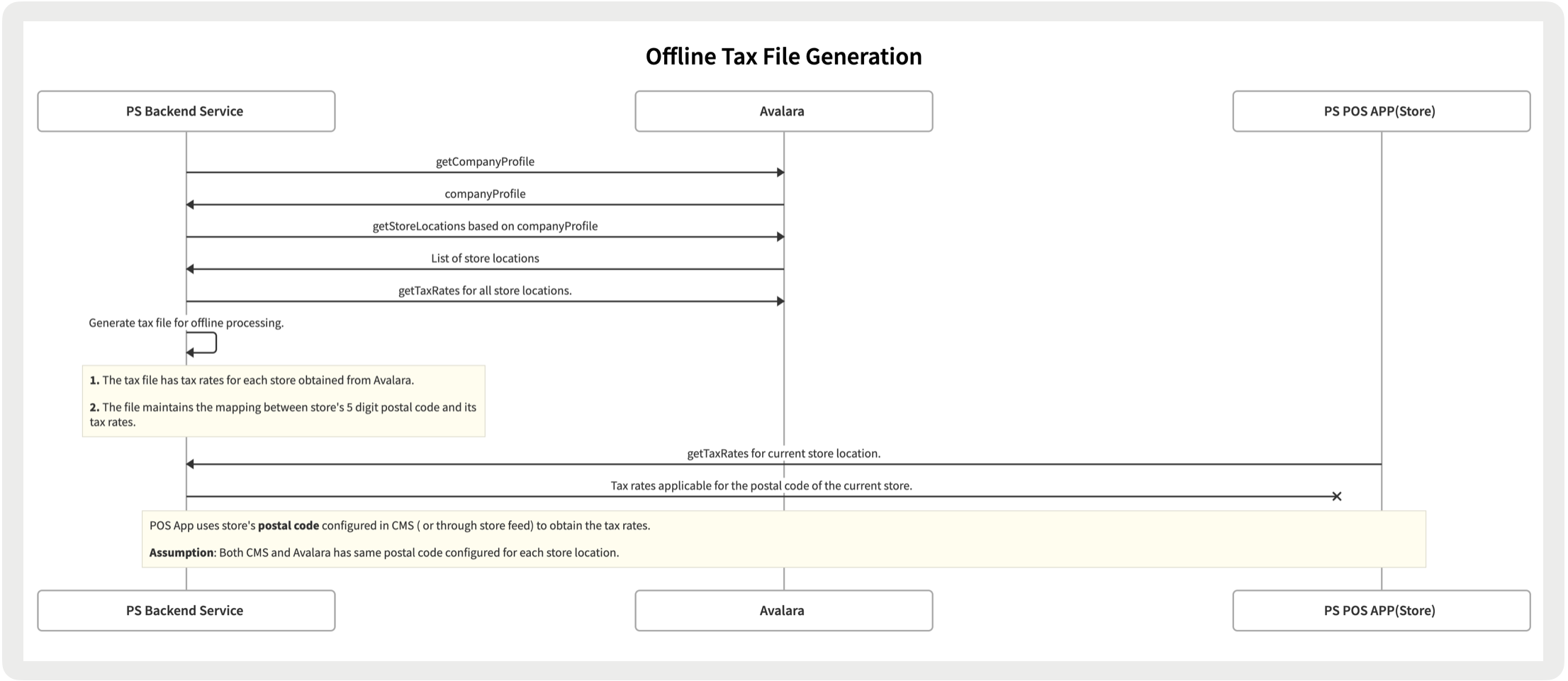
Avalara computes taxes directly, so the tax feed isn't necessary for online processing. If you support both online and offline processing, upload the tax feed from Avalara to calculate taxes during offline mode. Tax rates are zip code-specific, so make sure that the store's postal code in CMS and Avalara match. For more information, see Avalara's Download Feature.
You can upload the tax feed from Avalara at scheduled intervals.
- In CMS, go to .
- Click the plus (+) icon and select Tax Rates.
- Configure the date and time of the schedule. For field descriptions, see Scheduling Feeds.
- Under Feed Source Type, select Avalara.
- Under Account ID, enter your Avalara account ID.
- Under License Key, enter your Avalara license key.
-
Under Base URL, enter the Avalara base URL (for example,
https://sandbox-rest.avatax.com/api/v2). - Under Feed File Type, select the feed file type (for example, CSV or TSV).
Commit Tax Transaction
Point of Sale supports conditional tax transaction commits in Avalara after a sale transaction to confirm that the appropriate tax applies in the app. By default, Point of Sale doesn't auto-commit the tax transaction. To turn on auto-commit after completing a sale transaction, configure this setting.
- In CMS, go to .
- Under Modules, go to Tax.
- Turn on Submit/Finalize Tax Details After Order Submission.
Enable Value-added Tax (VAT)
To send tax-inclusive pricing to Avalara and map external tax IDs to your downstream systems, enable the VAT setting.
- In CMS, go to .
- Turn on Is VAT enabled for this merchant.
OMS Integration
Set up an OMS integration (for example, NetSuite) to post order refunds, exchanges, and cancellations to Avalara.
- In CMS, go to .
- Click Create.
- Select the OMS type and configure the remaining fields.
Additional Information
Onboard Merchant for Avalara Integration
Point of Sale's integration with Avalara uses the REST model for authentication. For more information, see Avalara's Authentication Method.
For offline transactions, Point of Sale supports tax rate file downloads from Avalara. Tax rates are zip code-specific. For more information, see Avalara's Download Feature.
Product feed changes for Avalara integration:
- Online transactions only: You don't need to add tax-related attributes in the product feed.
- Online and offline transactions: POS requires the CMS configurations in this topic for proper tax computation during offline transactions.
Tax Codes
Avalara Tax Codes apply the appropriate tax rates to individual products. Map the codes to your products as described in Product Field Mapping.
After mapping, Point of Sale sends the product ID as the itemCode and the mapped field (for example, CustomString12) as the taxCode. Avalara first looks for a match of the itemCode. If found, Avalara associates it with a tax code. If not found, Avalara looks for a match of the taxCode and applies the appropriate tax rate. Avalara defaults to P0000000 if the taxCode isn't available.
Supported Avalara Endpoints
Point of Sale supports these Avalara endpoints:
| Avalara Endpoint | Point of Sale Usage |
|---|---|
| CreateOrAdjustTransaction |
|
| CommitTransaction |
|
| DownloadTaxRatesByZipCode |
|
Example JSON Request
When Point of Sale calls Avalara's API, we provide the following information and more:
- Product IDs
- Tax classes
- Shipping addresses
- Store addresses

Tax service request: {
 "createTransactionModel": {
   "code": "PS00270499",
   "type": "SalesInvoice",
   "companyCode": "DEFAULT",
   "date": "2023-11-28",
   "purchaseOrderNo": "PS00270499",
   "currencyCode": "USD",
   "lines": [
     {
       "number": "1",
       "quantity": 1,
       "amount": 40.00,
       "taxCode": "P0000000",
       "itemCode": "HRL75-RF1A",
       "description": "CRMSN SPARKLE DRESS-TM D",
       "addresses": {
         "shipFrom": {
           "line1": "75 Rockefeller Plaza",
           "city": "New York",
           "region": "NY",
           "postalCode": "10019"
       },
       "shipTo": {
         "line1": "75 Rockefeller Plaza",
         "city": "New York",
         "region": "NY",
         "postalCode": "10019"
       }
     }
   },
   {
     "number": "2",
     "quantity": 1,
     "amount": 0.05,
     "itemCode": "ECHOBAGNY05",
     "description": "ORDINANCE BAG TAX",
     "addresses": {
       "shipFrom": {
         "line1": "75 Rockefeller Plaza",
         "city": "New York",
         "region": "NY",
         "postalCode": "10019"
     },
     "shipTo": {
       "line1": "75 Rockefeller Plaza",
       "city": "New York",
       "region": "NY",
       "postalCode": "10019"
     }
   }
 }
 ],
   "addresses": {
     "shipFrom": {
       "line1": "75 Rockefeller Plaza",
       "city": "New York",
       "region": "NY",
       "postalCode": "10019"
  },
   "shipTo": {
     "line1": "75 Rockefeller Plaza",
     "city": "New York",
     "region": "NY",
     "postalCode": "10019"
    }
  },
  "customerCode": "Guest"
}
}, apiEndpoint: /transactions/createoradjust, method:POST
Known Issues and Restrictions
The following features have limitations with Avalara integration:
- POS uses tax class during offline tax calculation only. Online tax calculation is based on the mapping provided in Avalara.
- Offline tax exemption isn't available because Avalara doesn't provide a tax exemption feed for offline processing.
- Configure overridden tax rates (for example, tax holidays) in Avalara to support tax override.
- Fee for online mode is available only if configured in the Avalara system.
- POS doesn't support offline tax override.
- POS doesn't support fee for offline mode.