
The Point of Sale (POS) app supports gift card integration with Clutch. Learn how to configure a Clutch account with the supported functionality.
- Modern POS App build: 6.6.2 or above
- Platform Support: iPhone & iPad
- Offline Support: No
- Clutch Account Setting: To support issuing refunds using a Gift Card during a return, Clutch needs to set up a maximum refund amount on the merchant's Clutch account.
This functionality is supported in the POS App:
- Purchase of a gift card
- Show the balance of a gift card
- Add balance to an existing gift card (available in staging but not in production)
- Refund to the gift card (gift card as a return tender)
This functionality is not supported in the POS App:
- Void a gift card transaction
- Virtual gift card
Tip: Refer to Gift Card Support in POS for more information on gift cards.
Configure Clutch Integration
- In CMS, go to .
- Click Create to create a configuration for Clutch.
-
Configure the fields. Note, an asterisk(*) denotes a required field.
Field Description General Gift Card Service* Select "Clutch" Store ID* Select "Default" to apply this configuration to all stores, or choose a specific store to apply it to Card Type* Select either "Gift Card" or "Reward Card" Currency* Select a currency code in ISO 4217 (e.g., USD) Store Configuration Location ID* Enter Clutch's location ID Terminal ID* Enter Clutch's terminal ID Routing Routing ID* Enter Clutch's brand ID Credentials Username* Enter Clutch's API key Password* Enter Clutch's API secret key Token Endpoint* Enter Clutch's base URL (e.g., https://api-stage.clutch.com/merchant/ or https://api.clutch.com/merchant/) Advanced Name Space Enter Clutch's name space (e.g., https://api-stage.clutch.com/merchant/) Cash Out Configuration Configure the threshold when redeeming cash with a gift card, refer to this Gift Card Support in POS for more information Allow Gift Card Purchase Enabling this flag allows gift cards to be purchased Require Activation Enabling this flag requires the gift card to be activated when purchsed

Enable App Config Settings
To set up a gift card as tender in the checkout flow, refer to Gift Card Support in POS in Gift Card Support in POS.
Mandating Gift Card Pin
You can configure whether a PIN is required for checking a gift card balance or redeeming it. Point of Sale offers three options: Optional, Required, or None. For the Clutch connector, the PIN is optional and passed as a parameter to Clutch. Merchants wishing to disable this feature entirely should contact Clutch support for assistance.
Important: The pin settings location depends on the app build version. For app builds 10.6.1 or higher, set the pin under . For app builds 10.5.1 or lower, set it under .
App Builds 10.6.1 or Greater
- In CMS, go to .
- Edit a Clutch integration.
-
Under select one of the following options:
- Optional: PIN is not mandatory but can be used if available
- Required: PIN must be entered to check the balance or redeem the gift card
-
None: PIN is required, and the system will process gift cards without PIN validation
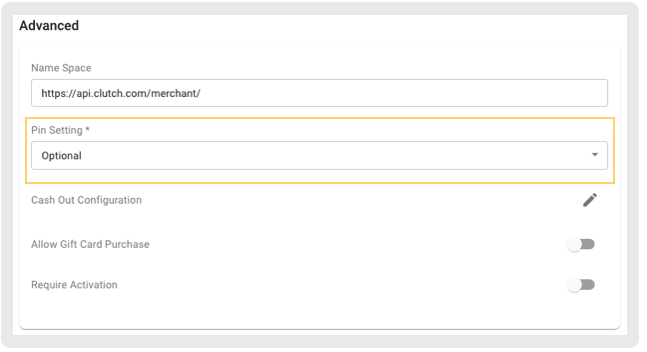
- Save your changes.
App Builds 10.5.1 or Lower
Note: For app builds 10.5.1 or lower, ensure only one pin setting (Optional, Required, or None) is configured in both locations: App Configs and Integrations > Gift Cards, as Retail Cloud's Backend validates the pin setting only under Integrations > Gift Cards.
- In CMS, go to App Configs.
- Edit an app config and go to
-
Under Gift Pin Settings, select one of these options:
- Optional: PIN isn't mandatory but can be used if available
- Required: PIN must be entered to check the balance or redeem the gift card
-
None: PIN is required, and the system will process gift cards without PIN validation
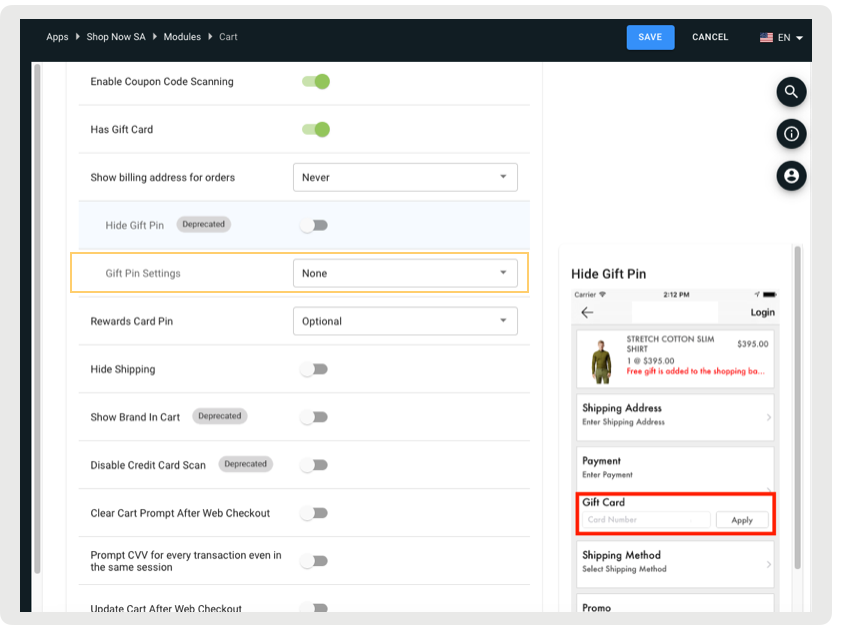
- Save your changes.
Create a Gift Card Product
For gift card purchases in the POS, the gift card SKU/product needs to be entered into the POS system using.
- Product Feed: Add a gift card SKU to the product feed. Make sure to add its productClass with a value of GiftCard. Refer to Product Feed for more information.
- Create gift card in CMS: Refer to Create a Gift Card Product in Configure Gift Card Payments in Payment Terminal.
Enable POS Settings for Returns
Starting with app build 6.6.2, Point of Sale's POS app supports refunds to gift cards. To set up the gift card as a return tender, refer to Configure Returns to Gift Card via Tender Mapping in Gift Card Support in POS.
Configure Deep Link on Layout
Gift card purchases are supported in the POS app and are available on the cart screen if configured correctly. To learn more about this configuration, refer to Configure Gift Card Deep Links in Gift Card Support in POS.
Known Issues and Restrictions
- A refund to a gift card is supported only using brand new non-activated gift cards.
- When a Corporate Gift Card is used to make a purchase and there is a request to return the purchase and refund the same card, the workflow is different than adding balance to an existing gift card. On the return flow, the refund needs to be issued on the original authorization token.