
HiPay allows Point of Sale to generate a hosted page or payment link where customers can pay securely. Learn how to implement this in CMS implementation and get details of the user flow in the POS app. By enabling HiPay, you provide a secure and trusted payment experience for your customers.
- Modern POS App build: 8.0.1 or above
- Platform Support: iPhone & iPad with a terminal device
- Offline Support: No
-
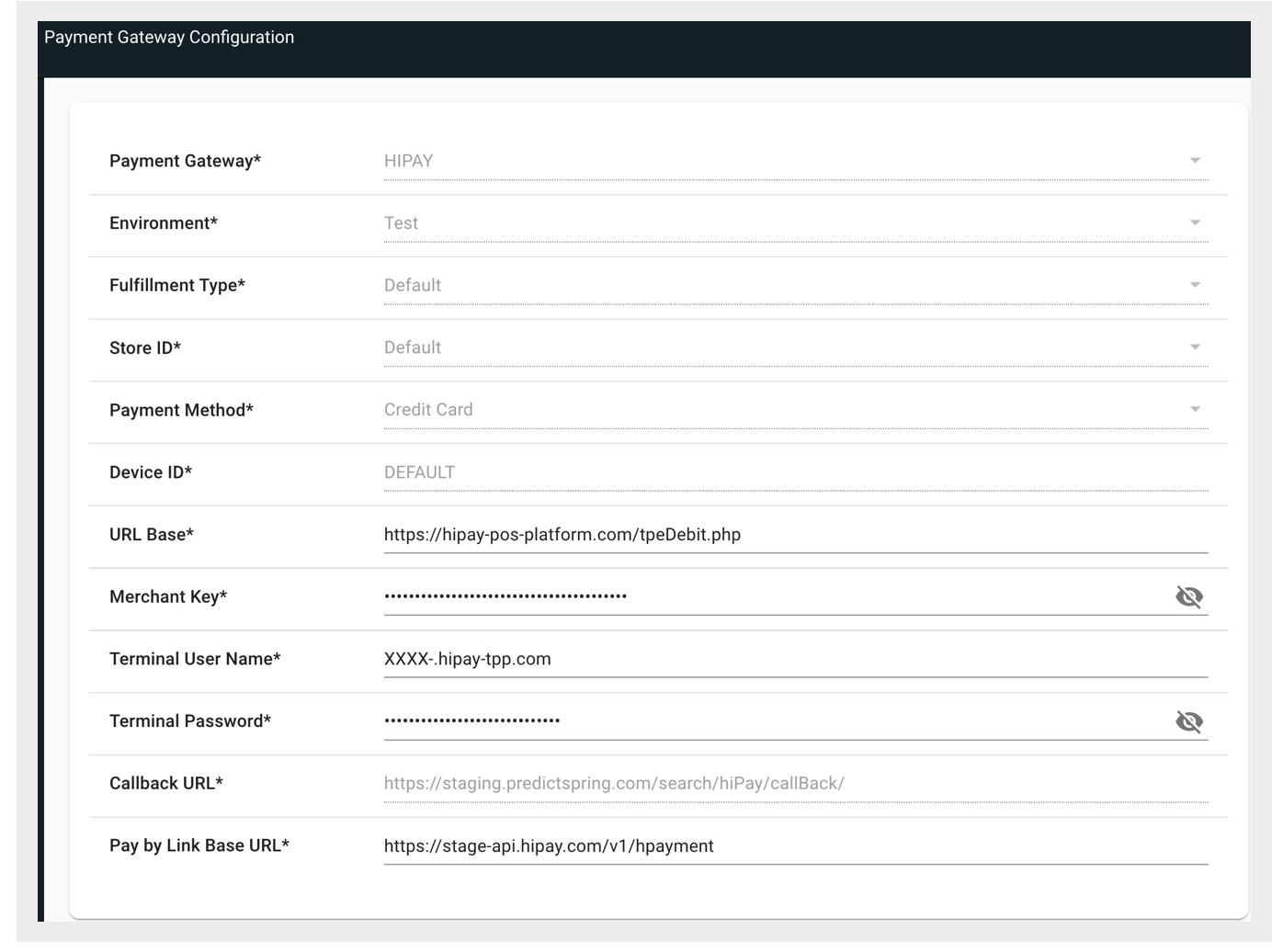
In CMS, go to Integrations> Payment Gateways.
- Click CREATE to create a new configuration or click the Edit icon to edit an existing one.
- Select HIPAY from the dropdown.
- Complete all of the required fields and click SAVE.
-
Next, go to Store Managment > Store Settings > Payment.
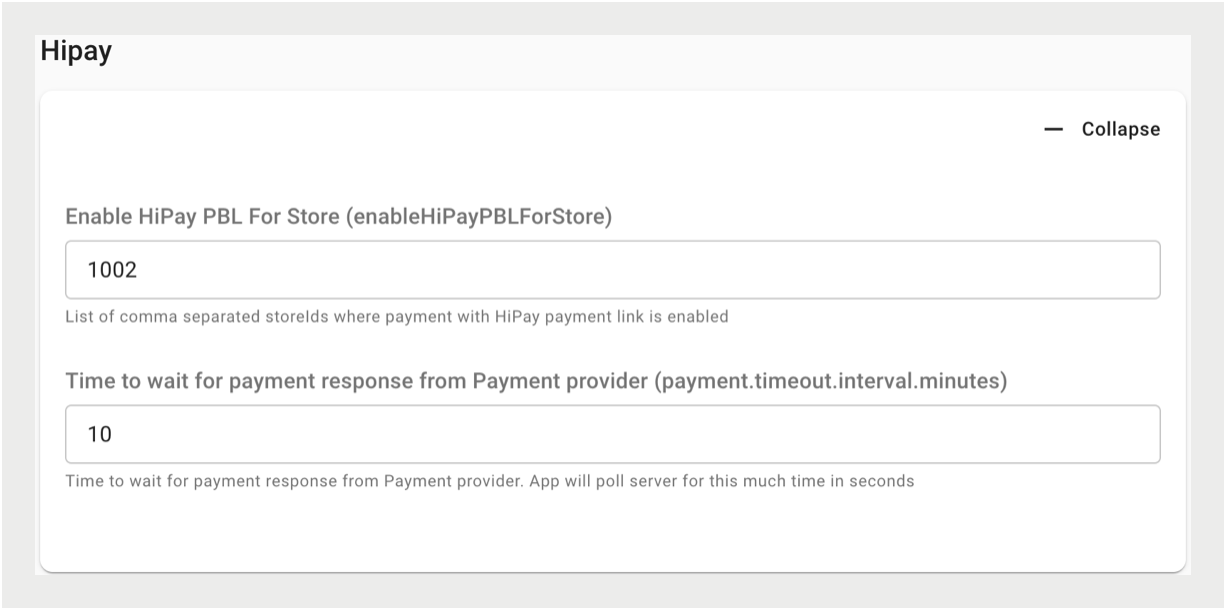
- Under HiPay, complete the fields and click SAVE.
- Enable HiPay PBL For Store (enableHiPayPBLForStore) - A list of comma separated storeIDs where payment with HiPay payment link is enabled.
-
Time to wait for payment response from Payment provider
(payment.timeout.interval.minutes) - The time to wait for the payment response from the
payment provider.
POS behavior
All requests to the HiPay Enterprise API require identification through HTTP Basic Authentication. Your API credentials can be found in the Integration section of your HiPay Enterprise back office.
- TerminalUserName:
"XXXX-.hipay-tpp.com"//API Login - TerminalPassword:
"Test_987456akqmbyf"//API Password - PayByLinkBaseUrl:
"https://stage-api.hipay.com/v1/hpayment"//HiPay PBLUrl
POS App User Flow
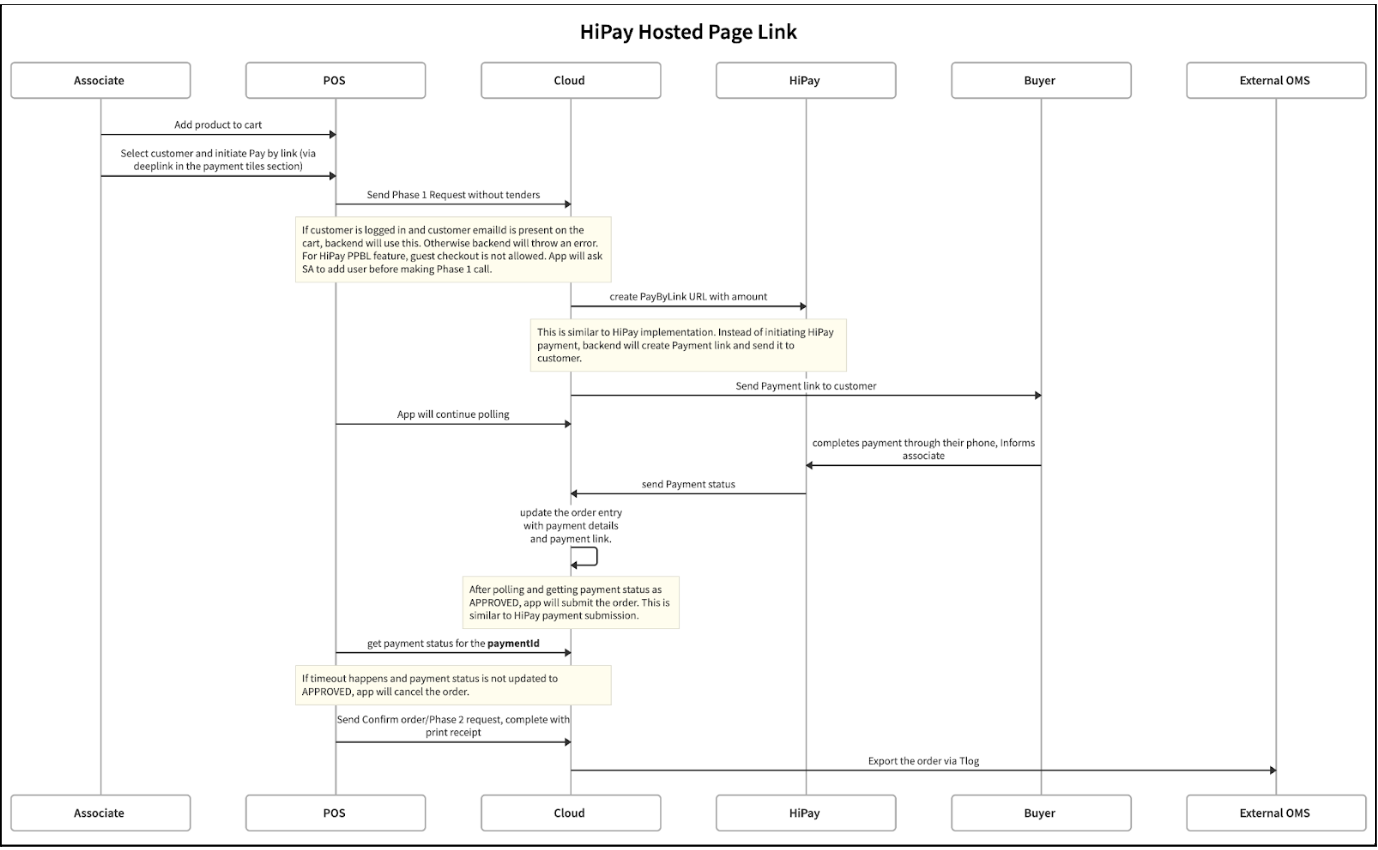
- On the POS, the store associate will add items to the cart and submit the cart.
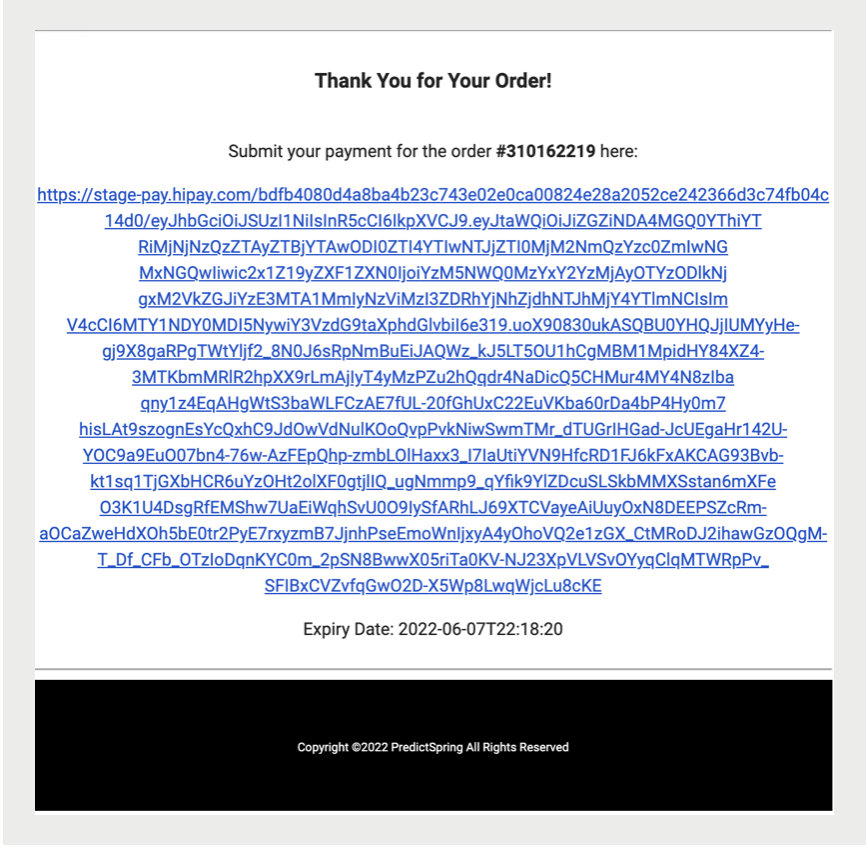
- The Point of Sale will call the HiPay API, generate a URL, and send it to the customer.
- Customer Email: Point of Sale will use the customer email address present in the cart to
send the payment link to the customer.
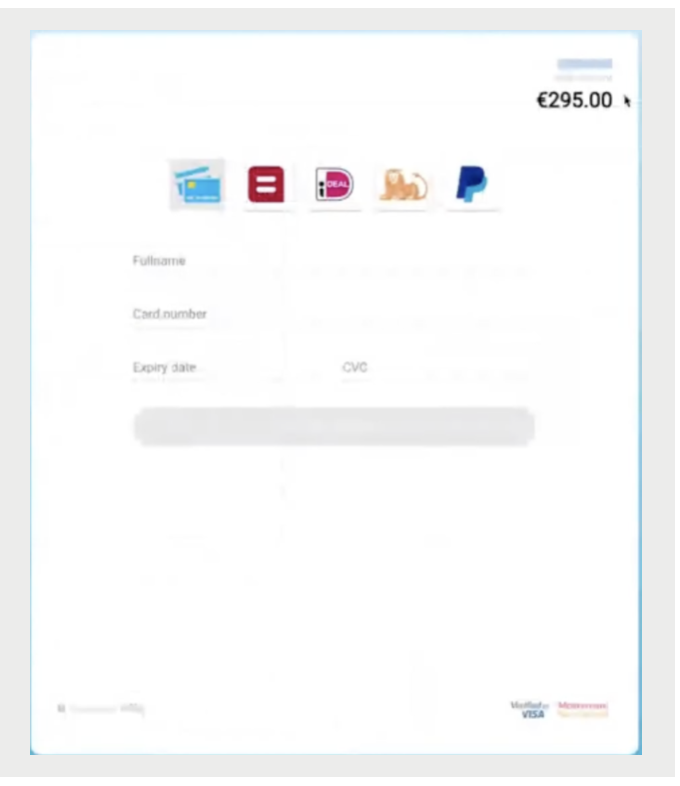
- The customer will complete the payment on their device.
- HiPay will be able to notify Point of Sale's server through their notifications system.
- Point of Sale will provide a URL endpoint to the HiPay back office so they can send the appropriate notifications regarding each transaction.
- If the notification is unsuccessful, it will automatically retry in the next five seconds, and in the next 10 seconds, etc. It will reach up to a point in which it will do the last retry 24 hours after the first try.
- The POS will continue polling to get the updated payment status.
- Once the Point of Sale provides payment status as "APPROVED", the POS makes a request to complete the order.
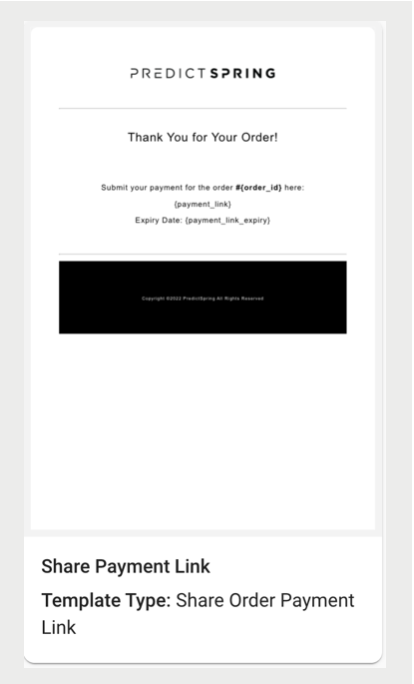
- The customer will receive an email notifying them of their purchase. To configure the
email template, refer to rt_cms_layouts_templates_email.xmlEmail & Print Templates.
Request Payload Mappings
| HiPay Field Name | HiPay Field Type | PS Order Field |
| orderid(R) | String | OrderId |
| description(R) | String | OrderId |
| currency(R) | String | Merchant’s Currency code |
| amount(R) | Number | GrandTotal |
| http_accept(R) | String | text/html |
| time_limit_to_pay(R) | String Default 7 days |
"Payment.timeout.interval.minutes" Property Value -1 min |
| notify_url(R) | String | CallBackUrl |
| operation/Transaction type | String(Sale/Authorization) | Sale |
| tax | Number | TotalTax |
| shipping | Number | ShippingTotal |
| cid/Merchant's customer id | String | CustomerId |
| String | CustomerEmail |
To learn more about HiPay's API and field mappings, refer to https://developer.hipay.com/api-explorer/hpayment-api.
Known Issues and Restrictions
- To support the HiPay PBL, the only change is in the flow of making payments. Instead of making the payment on the terminal, the customer is allowed to make the payment on their device. This flow will be handled by the Point of Sale internally.
- Point of Sale has added handling to toggle between the two without any code change so the merchant can revert to hardware mode if needed for backward compatibility. A new store-level property was added:
- A payment link will be shared with the customer by the Point of Sale and the customer has to submit the payment before submitting the order. After successful payment, the store associate will submit the order.
- No tenderType needs to be specified in the request. The POS will send the same SubmitCart request it sends today. There will be no change on the cart page.
- The design is proposed by keeping in mind the current merchant who is using HiPay to complete the transaction and does not allow guest checkout. E.g., SMCP FR.
- The design needs to be reviewed for any merchant who is not using HiPay today and has guest checkout support.
- To avoid payments after the Phase 2 request, the validity of the payment link needs to be less than the payment timeout interval. For example, if the timeout interval is set to 10 mins for a merchant, the HiPay payment link must have a validity of 9 mins (<10 mins).
- The store associate should not cancel the transaction before the timeout.