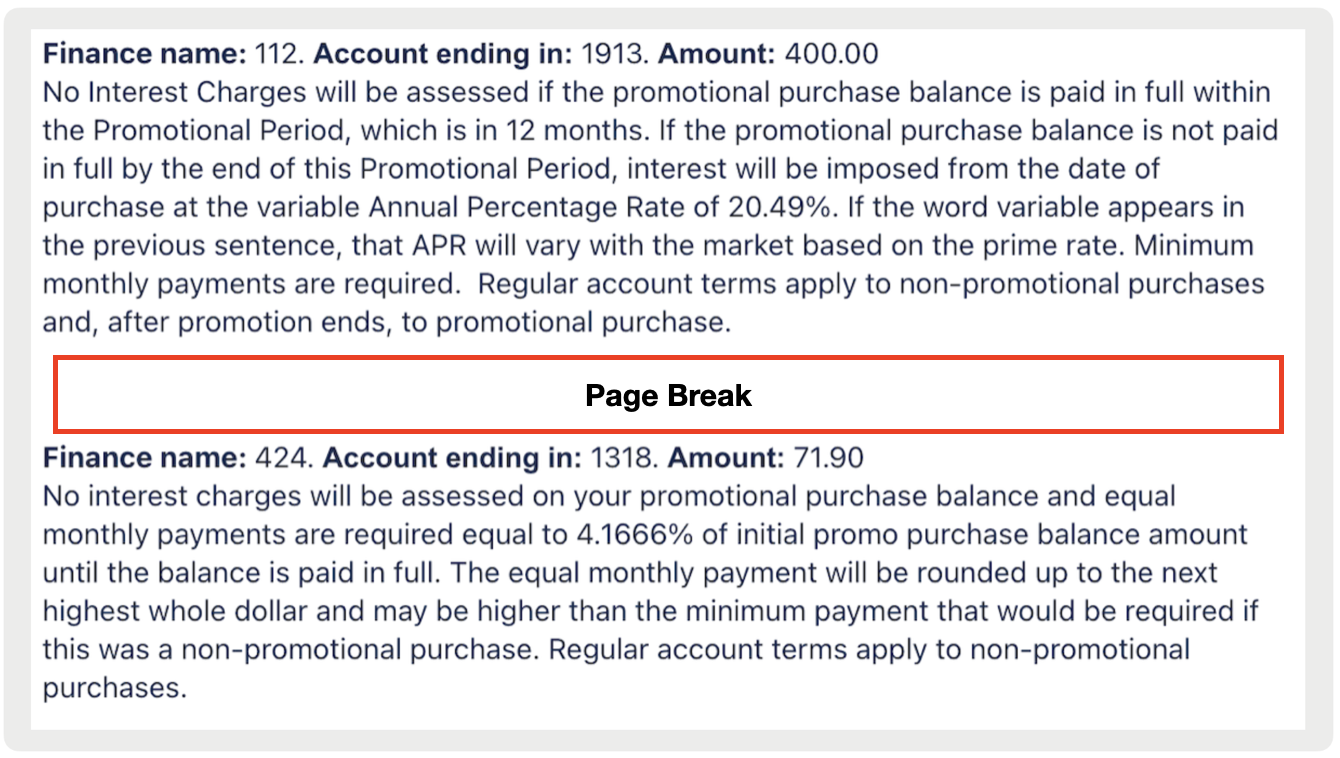
Integrate Point of Sale CMS with your finance systems using the new payment gateway integration. You can now configure systems such as Synchrony and Nebraska Furniture Mart. Streamline your financial processes and gain better control over payment transactions. Accept payments seamlessly through your Point of Sale CMS.
- Modern POS App Build: 8.4.1 or greater
- Platform Support: iPhone & iPad
- Offline Support: No
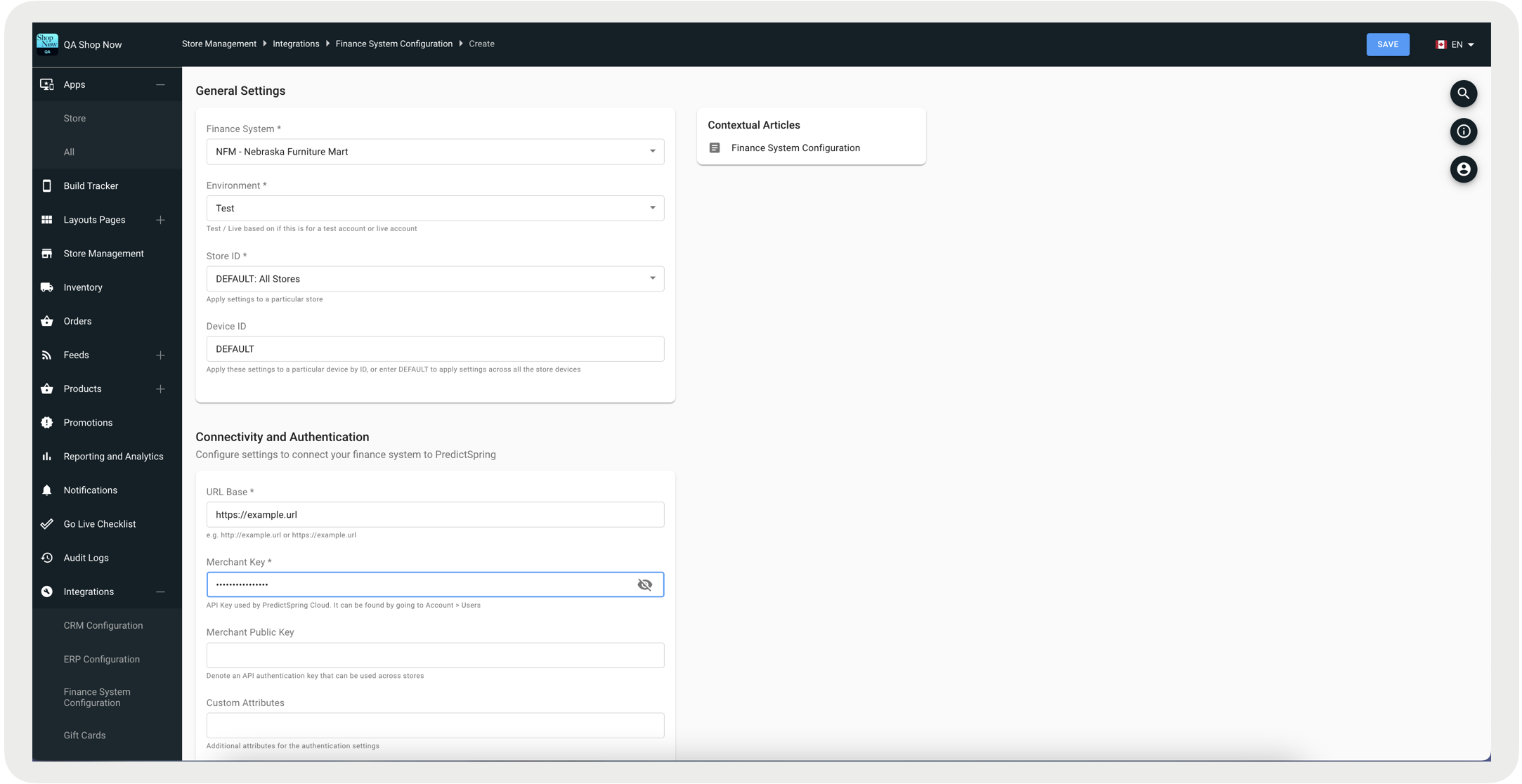
Set Up your Finance System Configuration
- In CMS, go to .
- Edit a configuration or create one by clicking Create.
-
Complete the fields.
Field Required Description General Settings Finance System Yes The type of finance system to be integrated.
Example: NFM - Nebraska Furniture Mart OR Synchrony
Environment Yes Determine if this configuration will be either Test or Live based on if this is for a test account or live account. Store ID Yes Select a store to apply the settings to. Optionally, select DEFAULT to apply settings across all the stores. Device ID No Enter the device ID to apply the settings to a particular device. Optionally, enter DEFAULT to apply settings across all the store devices. Connectivity and Authentication URL Base Yes The URL base of your selected finance system. Merchant Key Yes Enter the API Key used by the Point of Sale cloud. This can be found by going to Account > Users. Merchant Public Key No Enter the API authentication key that can be used across stores. Custom Attributes No Enter additional attributes, if applicable, for the authentication settings. - Save your changes.
Configure Receipts
Finance information, obtained from the financing partner, can be included in e-receipts using Email TagsEmail Tags. These tags are only applicable to the Transaction Print Receipt and Order Print Receipt.
| Email Tag | Description |
| {finance_account} | Displays the last four digits of the finance account for each specific financing in the order. Enclose this tag within {finance_placeholder_start} / {finance_placeholder_end} tags. |
| {finance_amount} | Displays the finance amount for each specific financing in the order. Enclose this tag within {finance_placeholder_start} / {finance_placeholder_end} tags. |
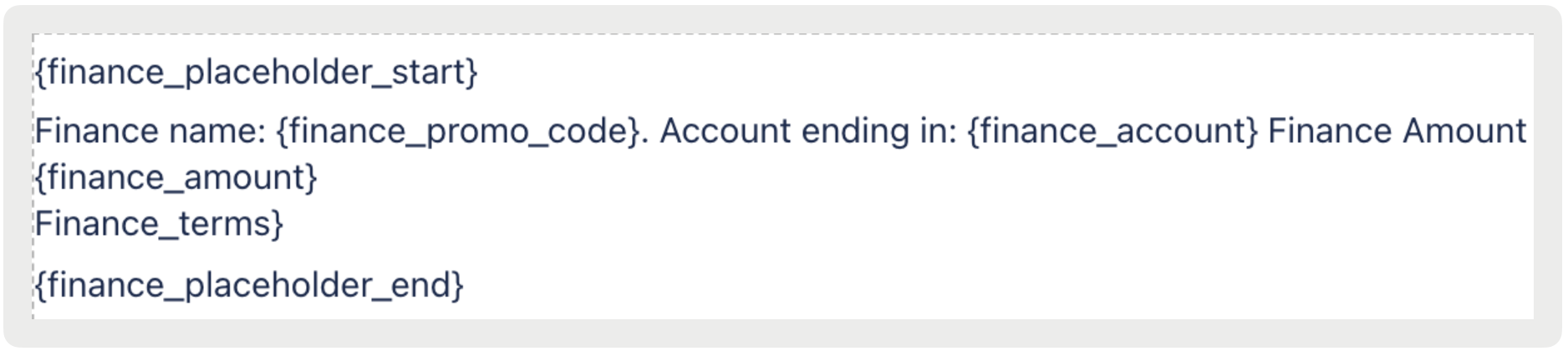
| {finance_placeholder_start} | Marks the beginning of the finance terms and conditions. It includes a hardcoded page break between multiple financing tenders, if relevant for the order. Refer to Tag Structure in Email Tags for more information. |
| {finance_placeholder_end} | Marks the end of the finance terms and conditions. It includes a hardcoded page break between multiple financing tenders, if relevant for the order. Refer to Tag Structure in Email Tags for more information. |
| {finance_promo_code} | Displays the finance promotion code. Enclose this tag within {finance_placeholder_start} / {finance_placeholder_end} tags. |
| {finance_terms} | Displays the finance terms of the transaction for each specific financing in the order. You can enclose this tag within {finance_placeholder_start} / {finance_placeholder_end} tags or use it as a standalone tag. |
Example configuration
Example receipt