---
schema_version: "1"
id: b34b90b6ff845a6c6ff28d02c9800ba97ffe41f15a3e16bd07bf99cb3f244dea
title: Capture and Refund Payments from the Payments Workspace
collection: admin
version: current
locale: en-us
portal_url: https://docs.salesforce.com/admin/current/en-us/commerce/264-0-0/payments_workspace_actions.md
canonical_url: https://help.salesforce.com/s/articleView?id=commerce.payments_workspace_actions.htm&release=264.0.0&type=5
source_site: help.salesforce.com
content_type: documentation
content_hash: 82e0e213829a5af8d402e1c7aa00fac8f5784faf7456396e78359e9ad05e1637
description: Capture and refund credit card purchases from the Payments workspace, instead of going to the payment gateway's dashboard. For example, you can manually capture payments, or process courtesy refunds outside of the return time frame. The available action is determined by the payment status. You can only take actions on payments processed by Stripe or Adyen.
products:
- Salesforce Payments
- Commerce
release: "264"
---
# Capture and Refund Payments from the Payments Workspace
Capture and refund credit card purchases from the Payments workspace, instead of going to the payment gateway's dashboard. For example, you can manually capture payments, or process courtesy refunds outside of the return time frame. The available action is determined by the payment status. You can only take actions on payments processed by Stripe or Adyen.
### Required Editions
1. In the Payments app, select **Payments Workspace**.
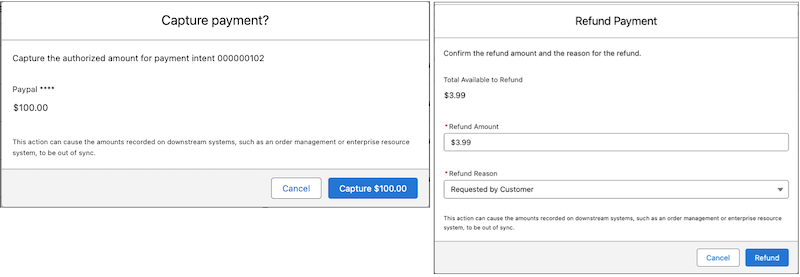
2. Select an action from the dropdown menu at the end of the entry, or click the payment intent number and select Capture or Refund on the record page.
Capture is available only if you enabled manual capture for your store, and the payment status is Authorized.

Refund is available only if the payment status is Succeeded.

3. Complete the action from the confirmation page that opens.

Note Captures and refunds from the Payments workspace are not automatically synced to downstream systems, like order management systems, including Salesforce Order Management, or enterprise resource systems. To keep these systems synchronized, subscribe to [Salesforce Payments Event Notifications,](https://help.salesforce.com/s/articleView?id=commerce.payments_event_notifications.htm&language=en_US) and use them to build custom business logic.
#### See Also
- [Payments Timeline to Track Processing](https://help.salesforce.com/s/articleView?id=commerce.payments_timeline.htm&language=en_US)