Give registered customers the option to save their payment information for future
transactions. Saving payment methods reduces a customer's checkout time because previously
entered information is filled in. For B2B and D2C stores that use custom checkout, you must
enable this feature manually. For D2C stores that use managed checkout and Pay Now stores, this
feature is enabled by default. The option to save payment methods isnʼt supported for guest
customers.
Required Editions
-
From the store home
page, select the B2B or D2C store from the dropdown
menu.
-
Click Experience Builder.
-
From
the Pages dropdown list, select Checkout, and then select the
Salesforce Payments component on the page to reveal the
properties.
-
Select
Enable saved payments.
-
For stores created
before Summer ‘24, update the Saved Payment Methods component.
-
From the Pages dropdown menu, select Saved Payment
Methods.
-
Remove the Saved Payment Method header, component, and Add button from the page
layout.
-
From the components list, select the Saved Payment Method component and place it on
the page layout.
-
Click the component to open the properties.
-
Expand the header and select Display header.
-
If it's not selected, select Enabled saved payments.
-
Publish the site.
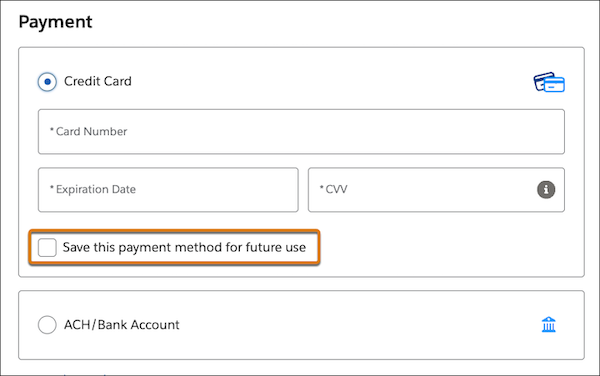
When a registered customer checks out, the checkbox to save the payment method is now
available.
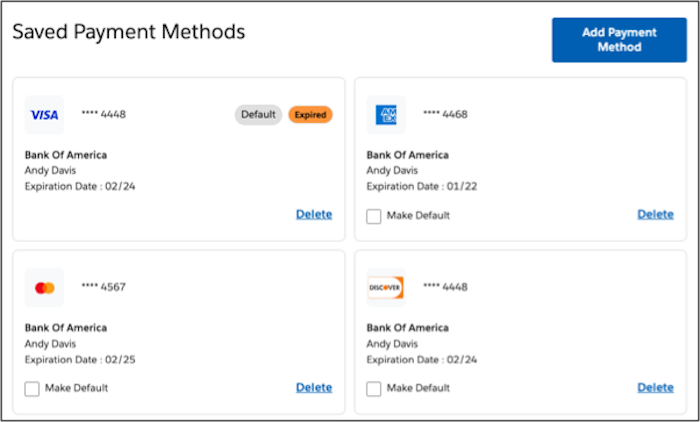
From My Account, a
registered
customer can
view,
add, and delete their saved payment methods.