
If you created a B2B store with an LWR template, we recommend using Salesforce Payments, our native payment service. Salesforce Payments includes safeguards for transactions, express payment options, and a saved payment option. It provides two components—Salesforce Payments and Express Checkout, which you can add to your checkout page to collect payment information. These components automatically pull in the accepted payment methods that you configured for your store, and they provide fraud protection by using 3D Secure authentication.
Required Editions
| View supported editions. |
For details about payment methods that Salesforce Payments supports for B2B Commerce, see Payment Methods for B2B Commerce.
Which Salesforce Commerce Product Do I Have?

- In the navigation sidebar, select a store from the Store dropdown.
- Click Settings | Checkout, and then click the Payments tab.
- On the Salesforce Payments tile, click Configure. If you don’t see a Salesforce Payments tile, contact your Salesforce account executive.
-
Set up a merchant account by following the guided account setup.
You connect the merchant account to a payment gateway that handles payment processing. If you connect your merchant account to Stripe, the Stripe account that you link to must be an account established for Salesforce Payments and not a standard account that you purchased through Stripe.
 Important After you create a merchant account, you can’t delete it.
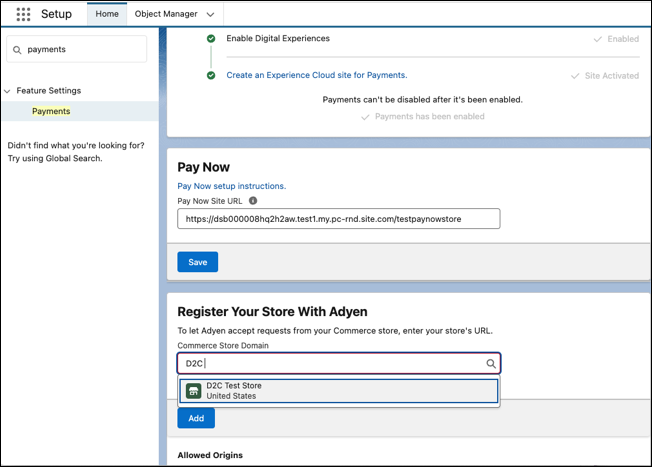
 - To integrate Adyen with your store, add your store's URL to Adyen's allowlist.
-
To offer PayPal and Venmo, complete the additional setup.
Connect your merchant account to a separate PayPal business account with a unique email address. You can’t have two merchant accounts that use the same PayPal account within an org.
-
If you've linked the merchant account to a PayPal account, modify your PayPal account
so that customers have to provide a contact phone number during checkout.
- Log in to your PayPal account, and go to account settings.
- Select Website payments | Website preferences, and set Contact Telephone Number to On (required field).
-
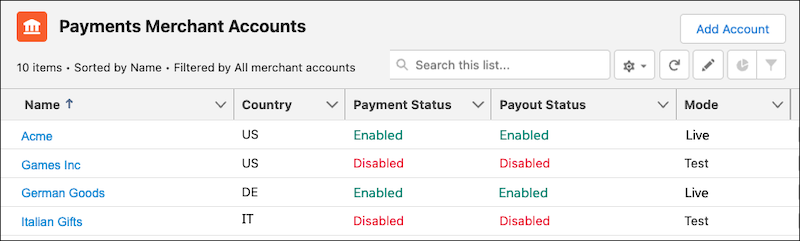
(Optional) If your business operates in multiple geographies, add a merchant account
for each geography. From the Payments app, click Settings | Add Account, and follow the guided setup.
-
Create a payment method set, which groups payment methods that customers can use at
your store.
You can customize payment method sets for stores in specific geographies or to target specific customers. You can also assign multiple payment method sets to a merchant account to customize the payment experience for multiple stores with different payment requirements.Important If you assign a payment method set to a store don’t delete it. Deleting a payment method set in use can cause unexpected behavior.
-
(Optional) To add more payment method sets, select the Related
tab of the merchant account record, and click New.

If you migrated from the Salesforce Payments managed package, and you don't see a payment method sets related list, add it. Go to Object Manager in Setup, and add it to the merchant account page layout.

After you configure Payments, customize how you collect payment and billing details from your customers during checkout. See Collect Payment Information During Checkout.