
The default Generate Payment Link flow for Pay Now is set up for multi-currency orgs. To generate payment links for a single-currency org, you have to edit the flow and remove all references to the Get Default Currency from Store flow element.
Required Editions
-
Click
 at the top of the page, then select Setup.
- In the Quick Find box, find, and select Company Information.
-
In the Organizational Details section, confirm that the Activate
Multiple Currencies checkbox isn’t selected. That unchecked
setting indicates you have a single-currency org.
You can’t switch this setting from multi-currency to single-currency.
- Return to the Quick Find box, and find and select Flows.
-
Open the Generate Payment Link flow and take one of these actions:
- If you added the payment link flow to an action in a Salesforce record, update the existing flow associated with the action.
- Create a flow from the Generate Payment Link flow by saving it with a new name.
- In the Predefined Amount path of the flow, edit the Predefined Amount Payment Link element and delete the entry for the CurrencyIsoCode field for the Payment Link object.
-
In the With Products path of the flow, complete these modifications:
- Edit the Get Price Book Entries element and delete the CurrencyIsoCode field for the Price Book Entry object.
- Edit the Prepare Cart Input element and delete the CartInput > currencyIsoCode variable.
- Edit the Create Payment Link Record element and delete the CurrencyIsoCode field for the Payment Link object.
- After you remove all references to the Get Default Currency from Store element, delete it.
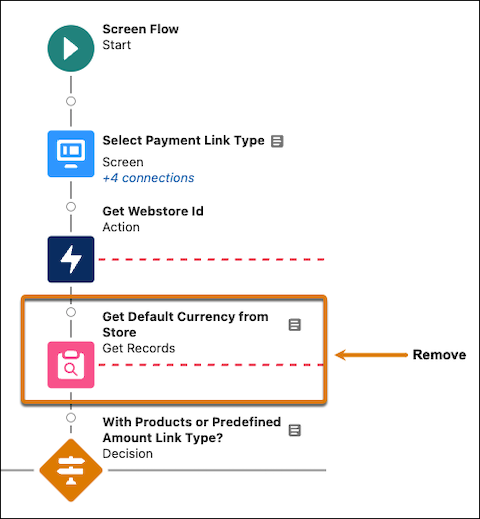
If you edited a flow associated with an action, any subsequent links you generate are suitable for a single-currency org. If you created a new flow, add the flow to an action in a Salesforce record.