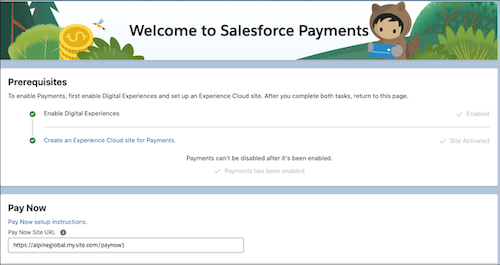
The Pay Now store's URL is one of the Payments settings. After you set up Pay Now, this URL is linked to the active store. If you have trouble generating payment links, verify that the correct URL is specified in the settings.
Required Editions

Important If you have more than one Pay Now store, the Pay Now Site URL on the
Payments page must be for the store in use. Otherwise, you can't generate payment links.
-
At the top of the page, click
 and select Setup.
- In the Quick Find box, search and select Payments.
-
In the Pay Now section, make sure that the Pay Now site URL is for the active store. If
you are unsure, check the site settings.
- From Setup, in the Quick Find box, enter and select Digital Experience.
- Select All Sites, and copy the URL for the active Pay Now site.
- If you change the domain of the Pay Now site, update the URL.
- Click Save.
-
Return to the Quick Find box and enter
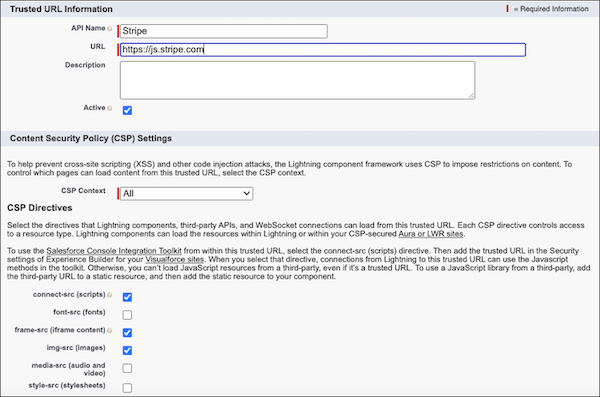
Trusted URLs. -
Verify that
https://js.stripe.comis in the Trusted URL list. If it’s not in the list, add it using Stripe as the API name. -
Under CSP Directives, select frame-src (iframe content).