When customers click a payment link, they are sent to a Pay Now payment page. This
branded and customized page is where enter they enter payment information to complete a
transaction. It's like an invoice or a statement of what's owed. The payment link type
determines which page the customer sees. You can add the text on the page during payment link
creation. You can also access these pages from the Pay Now store's Experience Builder Pages
menu.
Required Editions
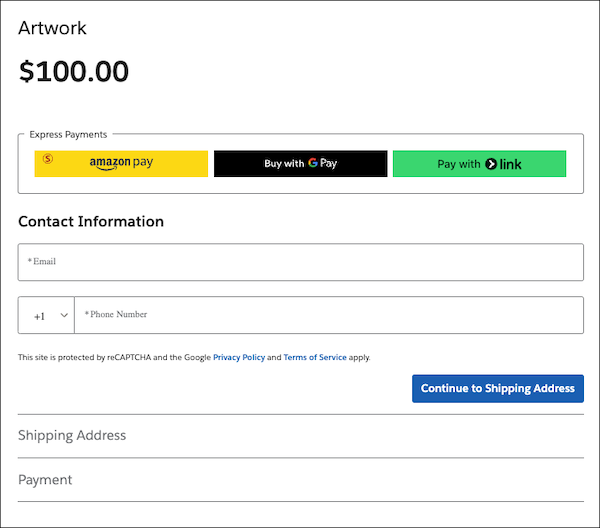
- The Pay page, available if your org has only Payments or Payments and Commerce, shows the
amount owed for the purchased items.
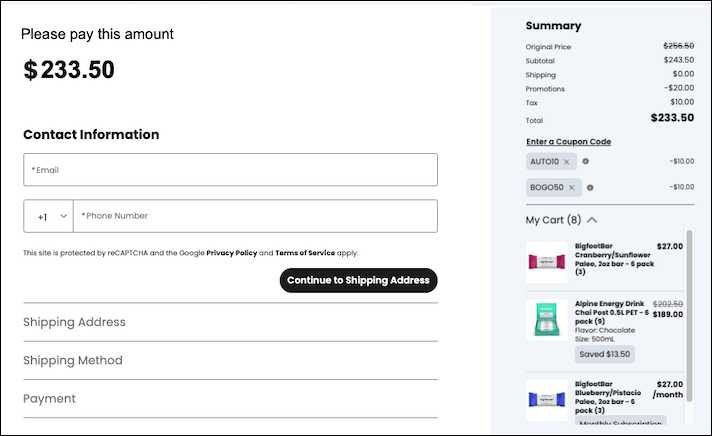
- The Checkout page, available only if your org has Payments and Commerce, lists the
purchased products and creates an order for a completed transaction. Taxes are calculated
based on the billing address. Shipping options are based on the shipping address. If you use
the default Generate Payment Link flow to create a With Products link, it uses this page.
The Checkout page also provides one-click checkout with passwordless login by default.
If your Pay Now site uses Omnichannel Inventory or a third-party inventory service, then
orders placed using express payment options fail. Express payment options don’t support
inventory checks.
An example of the Pay page.
An example of the Checkout page.
After completing a payment, a confirmation page is shown. You can customize the Payment
Confirmation page in Experience Builder by editing its properties.