The manual Salesforce tax solution is a built-in service that calculates taxes for B2B
stores that use gross taxation—taxes are included in the product price. The manual Salesforce
tax solution supports tax percentage calculations at the country, state, and province level. The
manual solution is appropriate if you have a simple gross tax situation. In any case, consult
with a tax expert when setting up taxes for your store.
Required Editions
Which
Salesforce Commerce Product Do I Have?
A tax rate specifies the percentage at which a product is taxed and the country, state, and
province where that rate applies. A tax treatment maps the tax rate to products. A tax policy
collects all the tax treatments for a specific store.
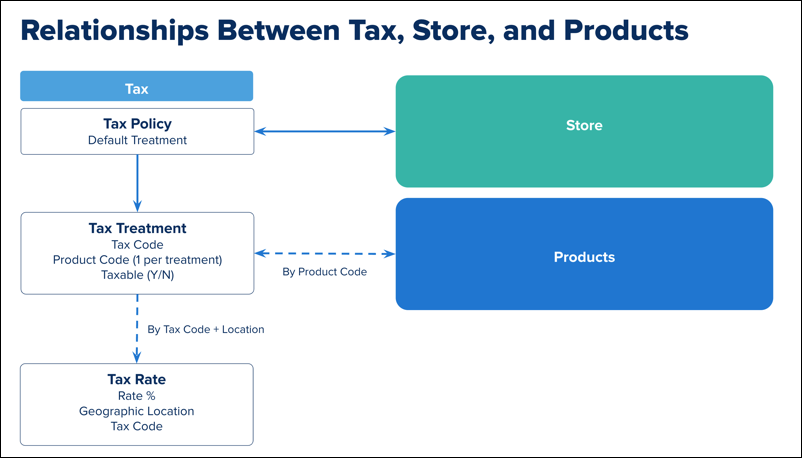
For example, you want all adult clothing sold in the United Kingdom (UK) taxed at the full
20% VAT rate. Because children’s clothing is exempt from VAT in the UK, you want to tax
children’s clothing at 0%.
- Assign all adult clothing to the product code Adult-Clothing.
- Assign all children’s clothing to the product code
Child-Clothing.
- Configure a tax rate with UK, a 20% rate, and a tax code such as
VAT.
- Configure a tax rate with UK, a 0% rate, and a tax code such as
No_Tax.
- Create a tax treatment that maps the product code Adult-Clothing to
the 20% tax rate using the tax code VAT.
- Create another tax treatment that maps the product code
Child-Clothing to the 0% tax rate using the tax code
No_Tax.
- Assign both tax treatments to the tax policy for the store.
When an adult clothing product is shipped to the UK, the 20% tax rate is applied. When a
child clothing product is shipped to the UK, the 0% tax rate is applied.
You can configure a default tax treatment for a store. Use the default tax treatment to
simplify the configuration. For example, you want all products in a country to be taxed at the
same rate.
- Assign the same product code to all products, for example,
All.
- Create a tax rate for each country. Assign all tax rates to the same tax code, for example
All_Tax, and whatever rate you want to use for the country.
- Create a tax treatment that uses the same tax code that all the tax rates are
assigned.
- Assign the tax treatment as the default tax policy for the store.
The default tax treatment is applied to all products, with the tax rate determined by the
ship-to-country.

