
To make it easier for buyers to find product variations, include a link under the parent product on the Product List page. The link takes buyers directly to the variations associated with the parent product.
Required Editions
- In the navigation sidebar, select a store from the Store dropdown.
- Select Website Design, and then click Experience Builder.
-
In Experience Builder, open Search or the Category Details page, and click the
Results component.
Each storefront instance of the Results component is independent from other component instances. So you must set up properties on each storefront instance.
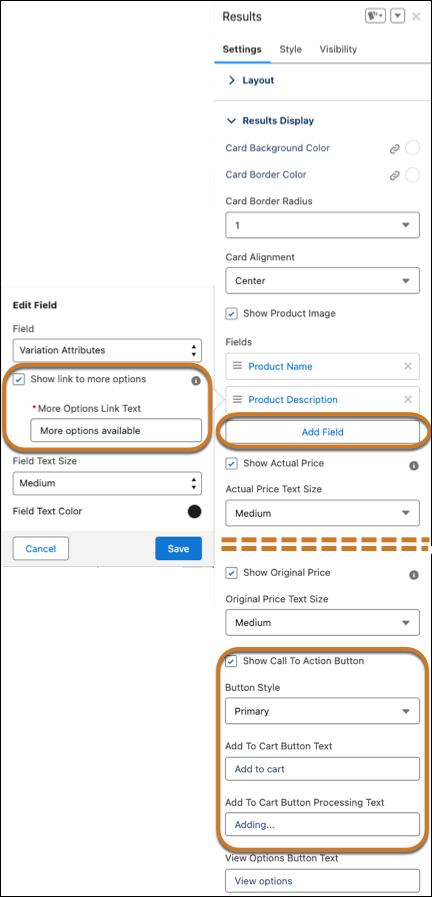
- In the component property editor, under Results Display, click Add Field, and click the new field.
- In the Edit Field panel, for Field, select Variation Attributes.
- Select Show link to more options so buyers can click the link to navigate from a parent product to its child variations.
-
Enter the other Edit Field properties, and save your changes.
-
Select Show Call To Action Button, and enter the button
text.
Buyers can click the button, but clicking anywhere in the card takes them to a view of the parent product’s variations.
- In Experience Builder, click Publish to add the changes to your store.