
In B2B stores, products often come in various colors, sizes, or styles. With variation products, shoppers can easily explore options without having to go to multiple pages. Show swatches on the Product Listing page for quick previews, and use dropdowns or pills on the Product Detail page for easy selection.
Required Editions
| View supported editions. |
Which Salesforce Commerce Product Do I Have?
For instance, a T-shirt available in Red and White colors and in sizes S, M, and L generates six variations. When you add color swatches and size pills, shoppers can use them to preview and choose their options from a single page.
To see product variations in action, check out this video.
If you can’t watch the video in full screen, open the video on a new tab: Showcase Product Variations.
Step 1: Add Variations to a Product
Make it easier for customers to choose which T-shirt they want by adding color and size variations.
- In the navigation sidebar, select a store from the Store dropdown.
- Select Merchandising | Products.
- Create a T-shirt product and enter the product details.
- Under Variations, check This product has variations.
- Create a Color attribute and set its display type to Swatch. Add color variations for White, Red, and Green.
- Create a Size attribute and set the display type to Pill. Add size variations for S, M, and L.
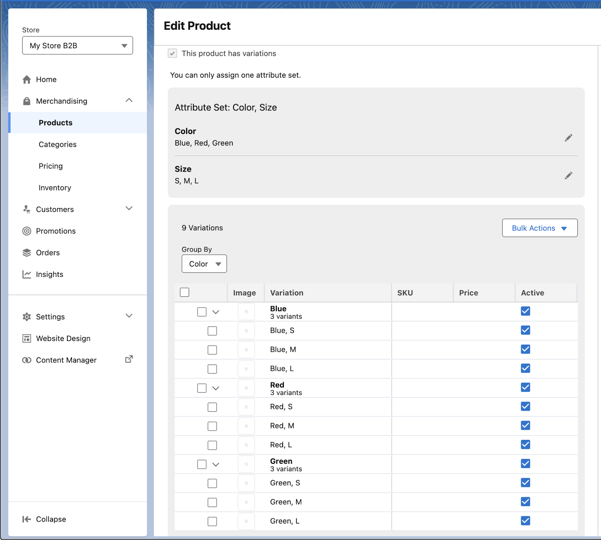
This generates nine variations.
Step 2. Optimize Search Settings for Variations
To provide a better shopping experience, control how the T-shirt’s product variations appear in search results.
- Go to Settings | Search.
- Click Additional Settings.
- Under Display, edit Product Variation and choose an option. You can show only the best-matched variation, parent products, or all the variations in search results.
- Save the changes.
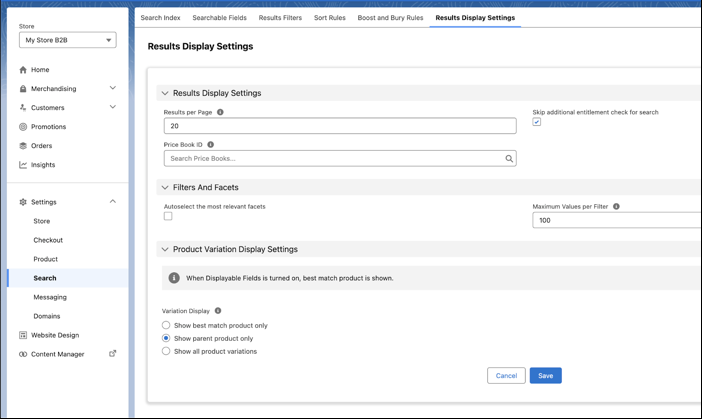
Search results show product variations based on the selected option. In this case, search results will return only the T-shirt parent product and not each one of its variations.
Step 3. Customize the Storefront and Search Results Display
Customize product variations to match your store's theme across product and search pages.
- Go to Website Design | Experience Builder.
- Select the Product page.
- Find the Product Variations component and adjust the Color Swatches and Pills settings to align with your store's theme.
- From the Page dropdown, select the Search page.
- Find the Product Card component and adjust the Swatches settings to align with your store's theme.
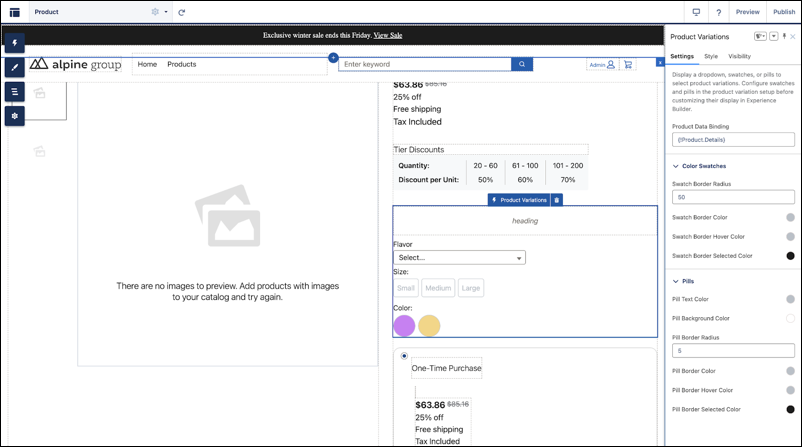
Product and search pages now show swatches and pills styled to match your store's theme.
