
Configure your store so that buyers can request quotes from the cart and track quote statuses.
Required Editions
| View supported editions. |
Which Salesforce Commerce Product Do I Have?


- From Setup, in the Quick Find box, enter Quotes Settings, and then select Quotes Settings.
- Deselect Disable Quotes.
- To enable notes on quotes, from Setup, in the Quick Find box, find and select Notes Settings, and enable the setting.
- From Setup, go to Object Manager and select the Quote object.
- Select Page Layouts, then select the layout you use for quotes.
-
In the Related Lists section, drag
Notes to the layout and save your changes.
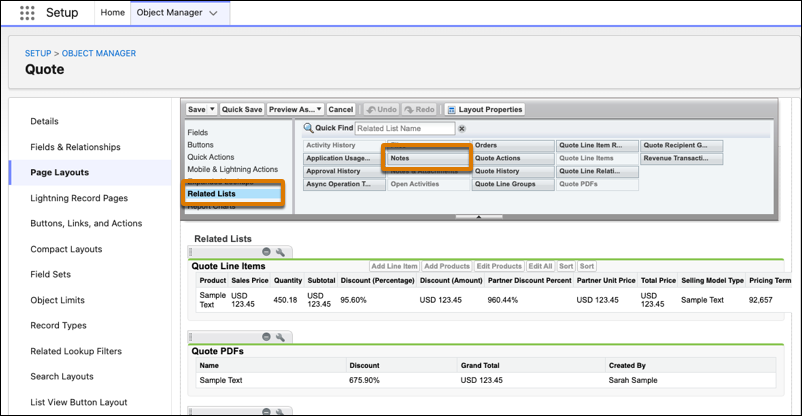
The Notes section appears by default on the Quote Details page of the store. Buyers can use this section to add comments when requesting, renegotiating, or declining a quote.
- From the App Launcher, find and select Commerce.
- Select your store, and then open Experience Builder.
-
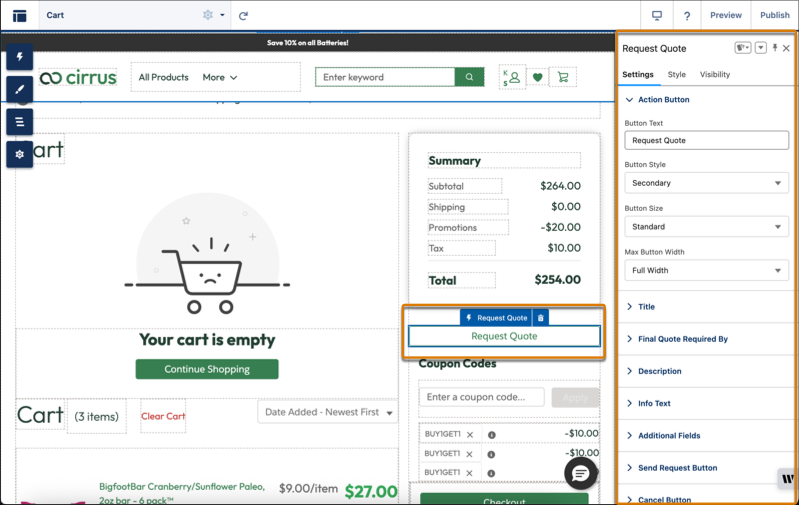
On the Cart page, drag the Request
Quote component from the Components panel to the page area.
For new stores, the Cart page includes the Request Quote button by default. Admins setting up new stores can skip this step.
-
Select the Request Quote component. In the property editor,
configure the quote submission form fields, such as Title and Description. Add custom
fields to capture the specific information your sales team requires.
- Customize the components on the Quote List, Quote Confirmation, and Quote Details pages.
-
Select the Quote Summary Details page. Drag these components to
the page: Accept Quote & Buy, Copy Quote to
Cart, Renegotiate or Decline Quote.
Alternatively, delete and reinsert the Quote Summary Layout component. This component includes all required elements in the correct layout.
For new stores, the Quote Summary Details page includes these components by default. Admins setting up new stores can skip this step.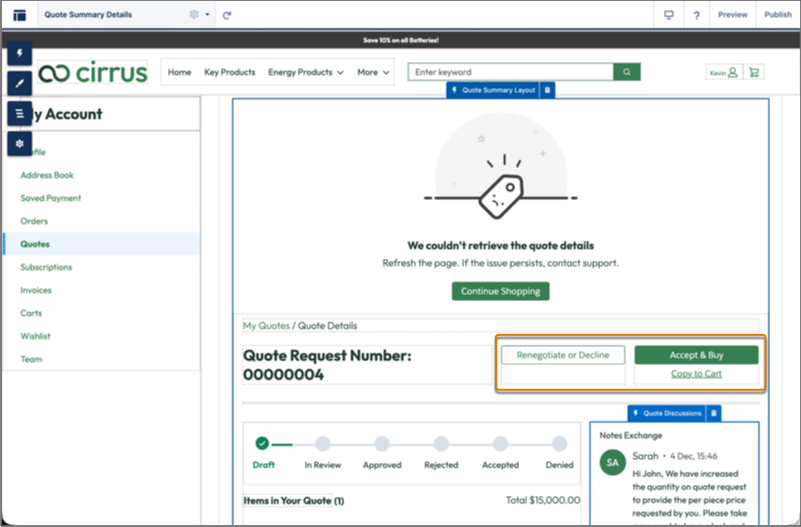
-
Select the Product page. Drag the Request Quote for
Product component so that buyers can request quotes from the Product Details
page.
For new stores, the Product page includes the Request Quote for Product component by default. Admins setting up new stores can skip this step.
- Publish the store.
To choose which stages are visible to buyers, modify the Status picklist values on the Quote object. The Request for Quote feature requires the Draft, Approved, Rejected, and Accepted values. Don't deactivate these values, though you can modify their labels.