
Set up the category, custom, and standard product fields that you want to enable as displayable on your search, product, cart, and checkout pages for B2B Commerce stores.
Required Editions

Note Displayable Fields is a pilot or beta service that is subject to the Beta Services Terms
at Agreements - Salesforce.com or a written Unified Pilot Agreement if executed by
Customer, and applicable terms in the Product Terms Directory. Use of this pilot or beta
service is at the Customer's sole discretion.
- In the navigation sidebar, select a store from the Store dropdown.
-
Select Settings | Store, and then click Displayable Fields.
To ensure a consistent experience across all store pages when enabling displayable fields, select the Show best match product only option in the Product Variation Display Settings. If you don’t select this option, some pages display the best match while other show the selected option instead. See Configure How to Display Product Variation Search Results.
-
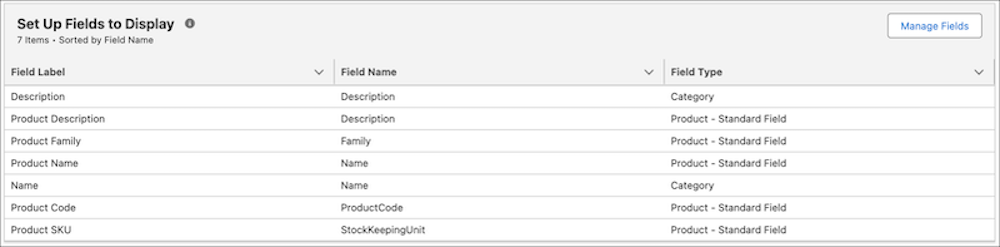
Click Manage Fields.
-
To add a displayable field, click the
 . To remove a displayable field, click
  .
.
-
Add the Category Description, Category Name, Product Code, Product Description,
Product Family, Product Name, and Product SKU fields.
If you’re creating a new store, these fields are set up as displayable by default.
-
Select any other fields that you want to use in your store as displayable
fields.
You can have up to 100 displayable fields. You can’t use the Auto Number, Roll-Up Summary, Geolocation, Text Area (Rich), and Text (Encrypted) custom fields as displayable fields.
-
Add the Category Description, Category Name, Product Code, Product Description,
Product Family, Product Name, and Product SKU fields.
- Save your changes.