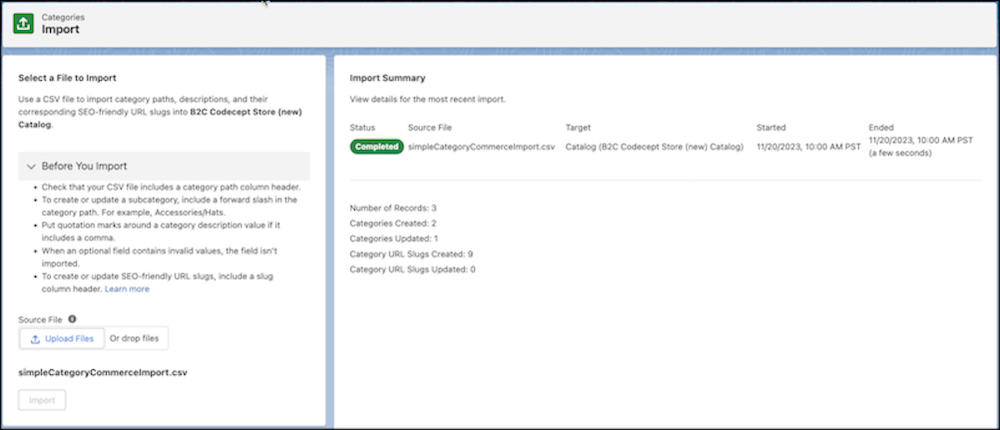
Use a category import to add or update category paths, descriptions, and their
corresponding SEO-friendly URL slugs. Product import files can also include columns for
categories, but a product import can’t include URL slugs or descriptions for
categories.
Required Editions
-
In the App Launcher, find and select Catalogs.
-
Select a catalog.
-
On the Categories tab, click Import.
-
Click Upload Files. You can optionally download a sample data
import file to use as a starting point for creating your file.
-
Click Import. Because the import is asynchronous, you can
perform other tasks while the import processes. To get the status of the import, refresh
the page or click the refresh button. The Import Summary report shows the import results,
including any errors caused by rows or column headings. If you have errors, fix the file,
and import it again.
-
(Optional) Cancel the import.
-
In the Import Summary, click Cancel.
-
Confirm the cancellation, click Cancel Import.
-
Refresh the page for the Import Summary report to show an accurate count of
categories updated prior to the cancellation.