You can add a URL slug directly on a Product or Category record, or bulk update
Products and Categories with a CSV file import. To use URL slugs, first configure languages and
localizations for your store. You can only add one URL slug for each language. When you enable
URL slugs, default URLs for product and category pages are updated. For example, product pages
use the base URL /product/:urlName.
Required Editions
-
Click
 at the top of the page, and then select Setup.
-
In the Quick Find box, enter Digital Experiences, and then
select All Sites.
-
For an active LWR site, click Workspaces. URL slugs aren't
available for stores created with the Aura template.
-
From the Experience Workspace, go to and select Use SEO-friendly URLs on this site.
Publish your site to apply changes. You can't disable this setting after enabling
it.
-
To bulk import slugs for Products, upload a CSV file including the column name
Slug [language code]. Use a language code that’s active in your
org, site, and store. For example Slug en_US. For more information,
see CSV File Format for Importing Commerce
Data.
-
To bulk import slugs for Categories, perform a category import with a CSV file
including the column name Slug [language code]. For more
information, see CSV File Format for Importing Category Data for a B2B Commerce Store.
-
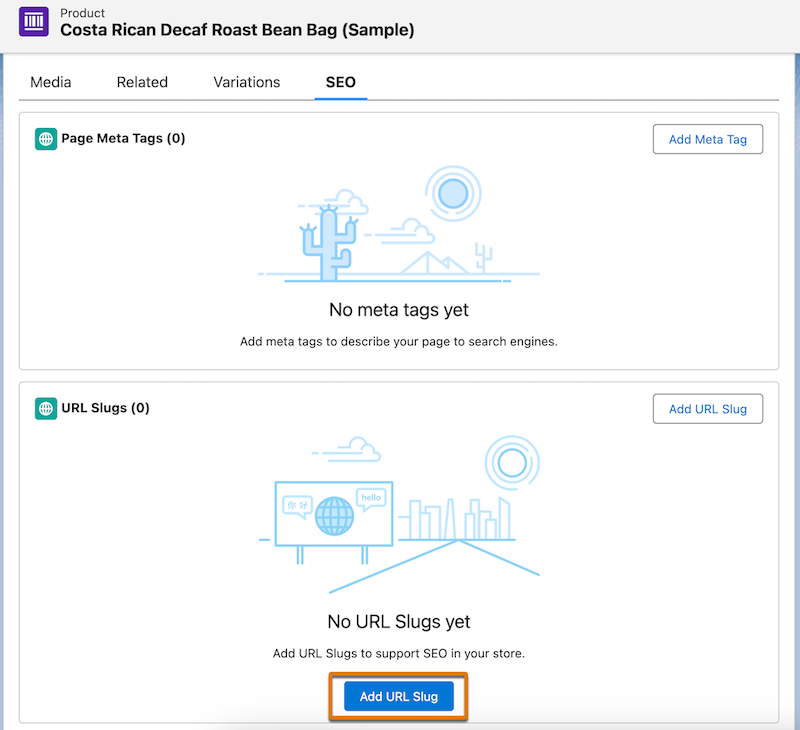
You can also add a URL slug directly on a Product or Category record. In the navigation
sidebar, select Products or Categories.
Select a product or category. On the SEO tab, click Add URL
Slug.