
To enhance the search experience in your B2B store, configure the Search Suggestions section in the Search Box component. You can use the Search Box component to provide search term and product suggestions to your buyers, including recent suggestions and bestselling products.
Required Editions
| View supported editions. |
Which Salesforce Commerce Product Do I Have?
Prerequisites
- Turn on Commerce Einstein. See Enable Commerce Einstein.
- Turn on Storefront Activity Tracking. See Enable Storefront Activity Tracking.
- In the navigation sidebar, select a store from the Store dropdown.
- Click Experience Builder.
- In Experience Builder, add the Header - Split Spacing component to the Header section of the page.
- In the Header - Split Spacing component, select the Search Box component.
-
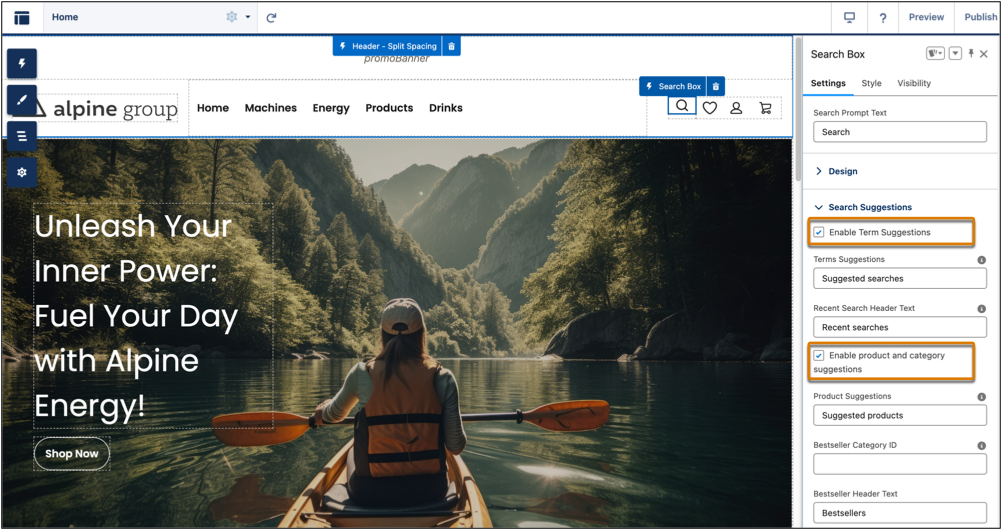
In the Search Box component, on the Settings tab, in the Search Suggestions section,
configure these options.
- Select Enable Term Suggestions.
- Select Enable product and category suggestions.
- (Optional) Enter custom header text for term suggestions, recent search, product suggestions, and bestsellers.
- To configure bestselling products, create a category called "Bestseller," assign bestseller products to it, and then enter the category ID in the Bestseller Category ID field. See Create Product Categories and Subcategories in a Commerce Store.
- Publish your store.
-
Rebuild the index.
Rebuilding the index makes sure that the suggested products and product images that appear below the search bar match the products on the Product List Page. Regularly rebuilding the index is also important after product updates. See Enable Displayable Fields in Commerce (Beta).