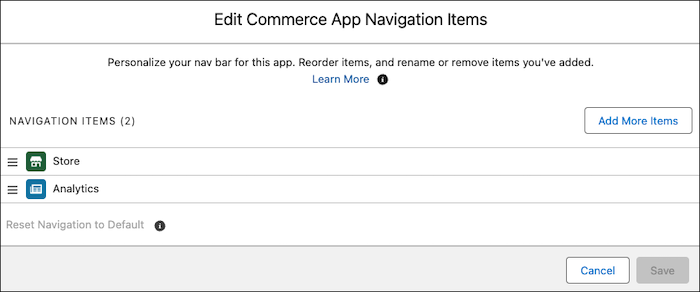
In Summer ’24, Salesforce introduced a refreshed Commerce app with enhanced navigation and features designed to simplify online store management. If you've been using the Commerce Storefront Console app and have customized pages, you can add those custom pages to the refreshed app. You can also modify the navigation for the refreshed app.
Required Editions
-
If you've been using the Commerce Storefront Console app and have customized the
Commerce home, store home, or a record page, you can add those pages to the refreshed
app.
- From Setup, in the Quick Find box, enter Lightning App Builder, and then select Lightning App Builder.
- Next to the customized page, click Edit.
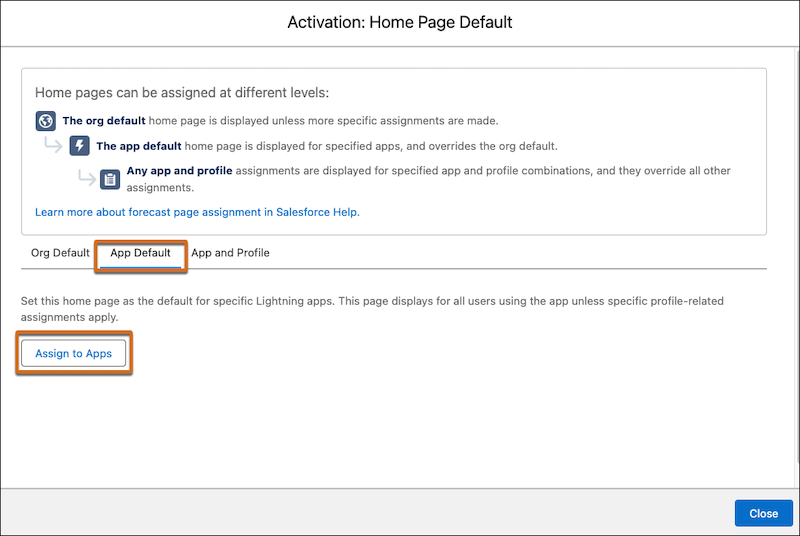
- Click Activation.
-
Choose App Default and click Assign to
Apps.
-
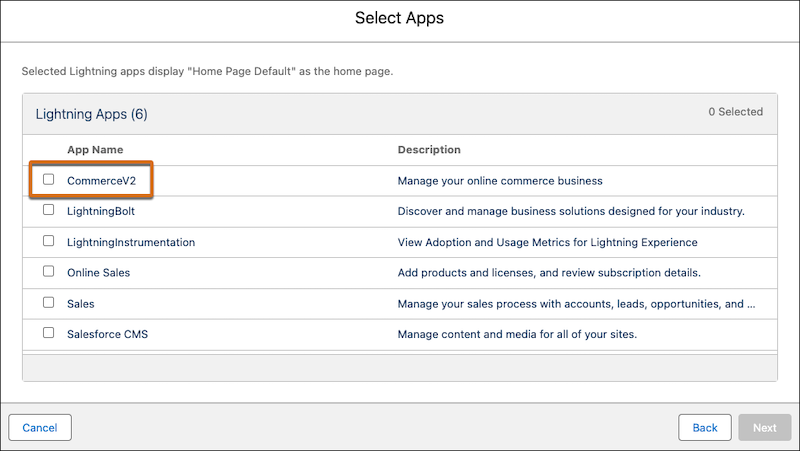
Select CommerceV2 and click
Next.
- Click Next.
- Repeat these steps for each record, store home, or commerce home page that you want to use in the refreshed app.
- Exit the Lightning App Builder.
-
Make your customized store home or commerce home page visible in the refreshed
app.
This step isn’t required for customized record pages after completing the previous step.
-
Click
 at the top of the page, and then select Setup.
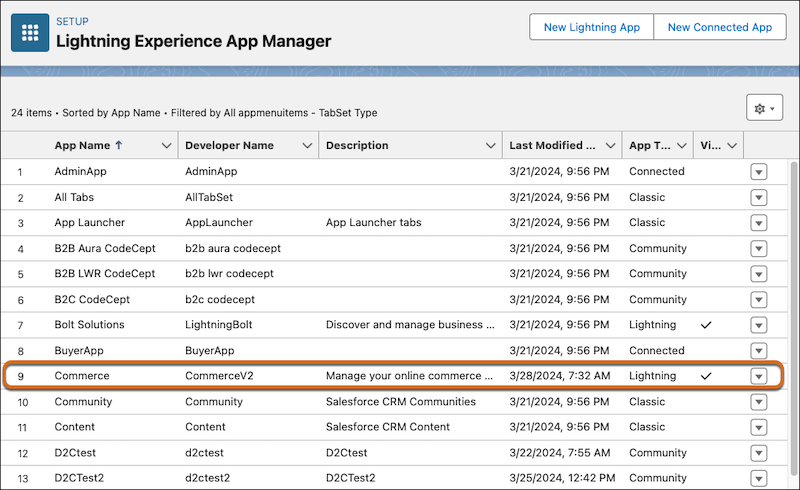
- In the Quick Find box, enter App Manager, and select App Manager.
-
Locate the row that has Commerce as the App Name and CommerceV2 as the Developer
Name, and click Edit from the dropdown.
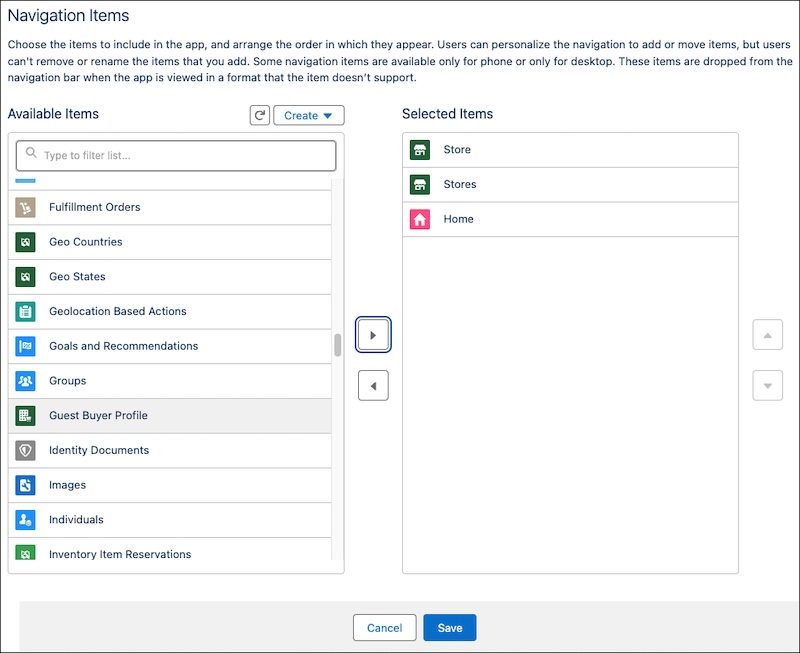
- Select Navigation Items.
-
Move the pages that you want to make visible from Available Items to Selected
Items.
The Stores (plural) item represents your customized store page. Store (singular) is the page that’s already in the refreshed app.
-
Save your changes and exit the Lightning App Builder.
The pages that you selected now appear as tabs in the refreshed app. If you don’t see the tabs, log out and log in again.
-
Click
-
(Optional) Modify the navigation for your refreshed app.
These changes apply only to your own usage, and not to other users.
- In the top right of the store home or any record page, click the pencil icon.
-
Reorder or add navigation items.
When you customize the navigation, the store context that you’re working in doesn’t persist between navigation tabs. For example, if you change stores in the Store tab and then go to the Products workspace, you must change the store there too.