A purchase quantity rule defines the minimum and maximum amounts of a product that a
customer can buy and the number of products that are added with each increase. You can assign
one purchase quantity rule to each simple product and product variation. In the rule, the
minimum and maximum quantities must be multiples of the increment. For example, minimum 3,
maximum 300, increment 3. You can define quantity amounts as whole numbers or as fractions up to
four decimal places.
Required Editions
Which
Salesforce Commerce Product Do I Have?
Assign a purchase quantity rule only to the product that it applies to. For example, let’s
say you sell two kinds of espresso machines. One is for businesses to put in visitor areas
and staff kitchens. Customers can buy as many as they like in any increment, so a quantity
rule isn’t needed.
The other machine is industrial and sold to commercial customers, like coffee shop chains.
For this machine, you receive a volume discount from your distributor. To pass that savings
to buyers, you can establish a minimum purchase rule and an increment rule to keep the
volume within your distributor’s parameters. For example, you can have a five-machine
minimum, with a required increment of five with each addition. So your customer can buy 5,
10, 15 machines, and so on.
You can also control the maximum number for purchase. For instance, you want to ensure that
you have enough stock to satisfy all your customers. Or, you want to keep a ceiling on
shipping costs. So you limit the number of machines per customer to prevent anyone from
cornering the market or to stay under your shipping ceiling.
You can set purchase quantity rules in a few places.
- Enable quantity rules through the Object Manager.
- Define values for your rules and assign rules to simple products and product variations
in the Product Workspace.
- Add display text for quantity rules using the Quantity Selector properties in Experience
Builder components.
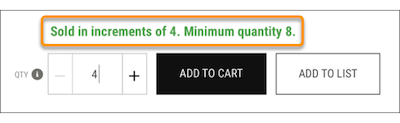
The rule text that you specify appears when buyers click the information icon on the
quantity selector.
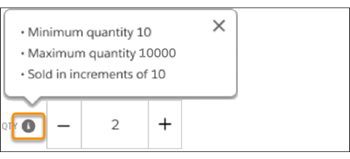
Cart Items, Product Detail Purchase Options, Quantity Selector, and Results Layout are
components that have properties related to quantity rules. Use the properties to enter
display text for the quantity rule and to show or hide quantity rules in the store. The
components also show the minimum, increment, and maximum in whole numbers and fractional
quantities. You can view or edit the quantity field with up to two decimal places only on
the Order pages. Any other pages that reference these quantity fields also reflect only two
decimal places.
If your store uses custom code for checkout operations like creating and editing cart
items, make sure that your code performs validation on purchase quantity rules.
