
The My Account theme layout provides persistent navigation on the left side of the page with page content appearing on the right. You can link to existing pages or create custom pages and add links to the layout’s navigation menu. When you add navigation links to the menu, they appear on all pages that use the My Account layout.
Required Editions
B2B stores created with the LWR template, and D2C stores created as of the Winter ’23 release, already have the My Account theme layout applied to the My Profile page. For an existing store, you can keep the current layout, or you can apply the new layout to all pages that you plan to include in your customers’ My Account experience.

- In the navigation sidebar, select a store from the Store dropdown.
- Select Website Design, and then click Experience Builder.
- In Experience Builder, open the D2C Commerce store.
- Go to the My Profile page.
-
Open the page actions.
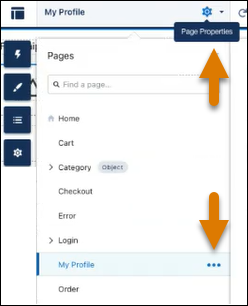
- Click the Page Properties icon (see image, top arrow), and select My Profile.
- Click the ellipses icon. (see image, bottom arrow).
- Select Override the default theme layout for this page.
- From the Theme Layout menu, select My Account Layout.
-
Save your changes.
The layout is applied, and you can add standard and custom pages to the navigation menu.
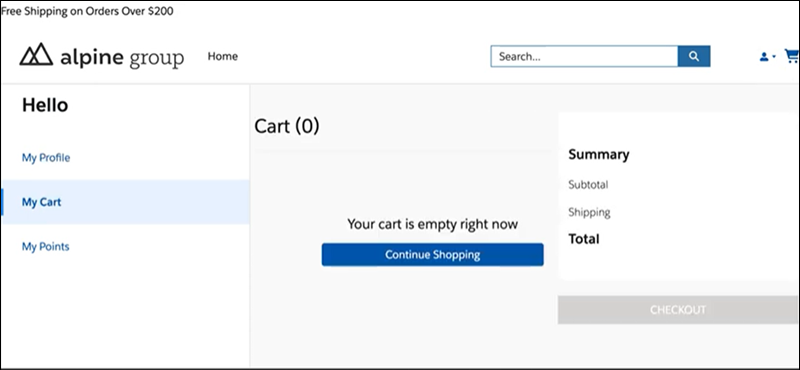
When your My Account experience is set up, your customers can link directly to the My Account Foundation page. For example, you can apply the My Account Layout to your cart. When customers click the cart icon, they navigate directly to My Account Foundation. The Cart navigation item is selected, and the Cart page appears on the right.