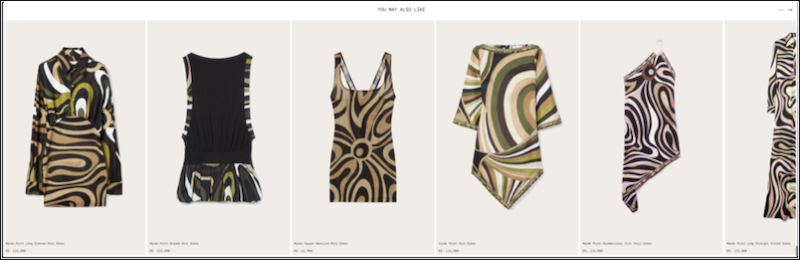
Upsell or cross-sell your products by associating a product with up to 10 featured products. Create multiple user-defined collections, such as Complementary Products, Best Sellers, New Arrivals, and more. Showcase these static product recommendations on your B2B store's home page, product listing pages, or product detail pages.
Required Editions
| View supported editions. |
Before you assign featured products to your product, see Guidelines to Assign Featured Products to a Product.
- Guidelines to Assign Featured Products to a Product in B2B Stores
Consider these validations when you’re assigning featured products to a product.
See Also
Define Featured Product Collections for B2B Stores
- From the Setup page, click Object Manager.
- From the object management settings for Product Featured Product, go to Fields & Relationships.
- Click Featured Product Relationship Type, and under Featured Product Relationship Type Picklist Values, click New and add picklist values that define your product collection.
- Save your changes.
Add Featured Products Related List for the Products Object
- From the Setup page, click Object Manager.
- From the object management settings for Product, go to Page Layouts.
- Click Commerce Product Layout.
- Click Related Lists.
- Drag Featured Products to the Related Lists section.
- Save your changes.
Assign Featured Products to a Product in B2B Store
- From your Commerce org, in the navigation sidebar, select a store from the Store dropdown.
- Click Merchandising | Products, and select a product.
- Click Go to global product record.
- Under the Related tab, for Featured Products, click New.
-
Enter and select a featured product, select the relationship types, and enter the sequence
for the featured product in the collection.
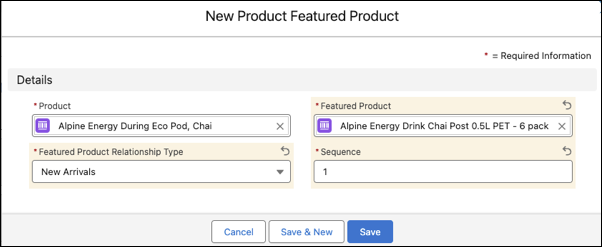
- Save your featured product.
-
Add up to 10 featured products.
You can assign a product to multiple featured product collections.
Show Featured Product Collection on Your B2B Store Home Page or Product Page
- Go to your store, and from the navigation sidebar, click Website Design, and then click Experience Builder.
-
Add the featured product collection on your B2B store home page or product
page.
-
For a B2B store, from the Home or Product page, click
 , enter and select Grid, and drag the Grid component to the
page.
, enter and select Grid, and drag the Grid component to the
page.
-
For a D2C store, from the Home or Product page, click , enter and select Grid or Carousel,
and drag the component to the page.
-
For a B2B store, from the Home or Product page, click
-
Click again, enter and select Product Card, and drag the
component within the Grid or Carousel component.
- Click the Grid or the Carousel component block to edit.
- Under the Settings tab, for the Data Source dropdown list, select Product Recommendations.
-
Select a source.
- To show products based on the shopper's current exploration, select Product Viewed.
- To show the featured products for a specific product, select Product
ID and enter the ID.
To find the Product ID, from your Store | Merchandising | Products, click a product, click Go to global product record, and from your browser URL, copy the Product ID at the end of the URL.

- Select the Recommender as Featured Products.
- From the Product Relationship dropdown list, select a featured product collection.
-
Highlight the Product Card component, and from the left menu, click
 , and change the Data Binding value from {!Item} to
{!Recommendation}.
, and change the Data Binding value from {!Item} to
{!Recommendation}.
- Preview and publish your store.
The store shows the featured product collection on your home page.